 0
0 0
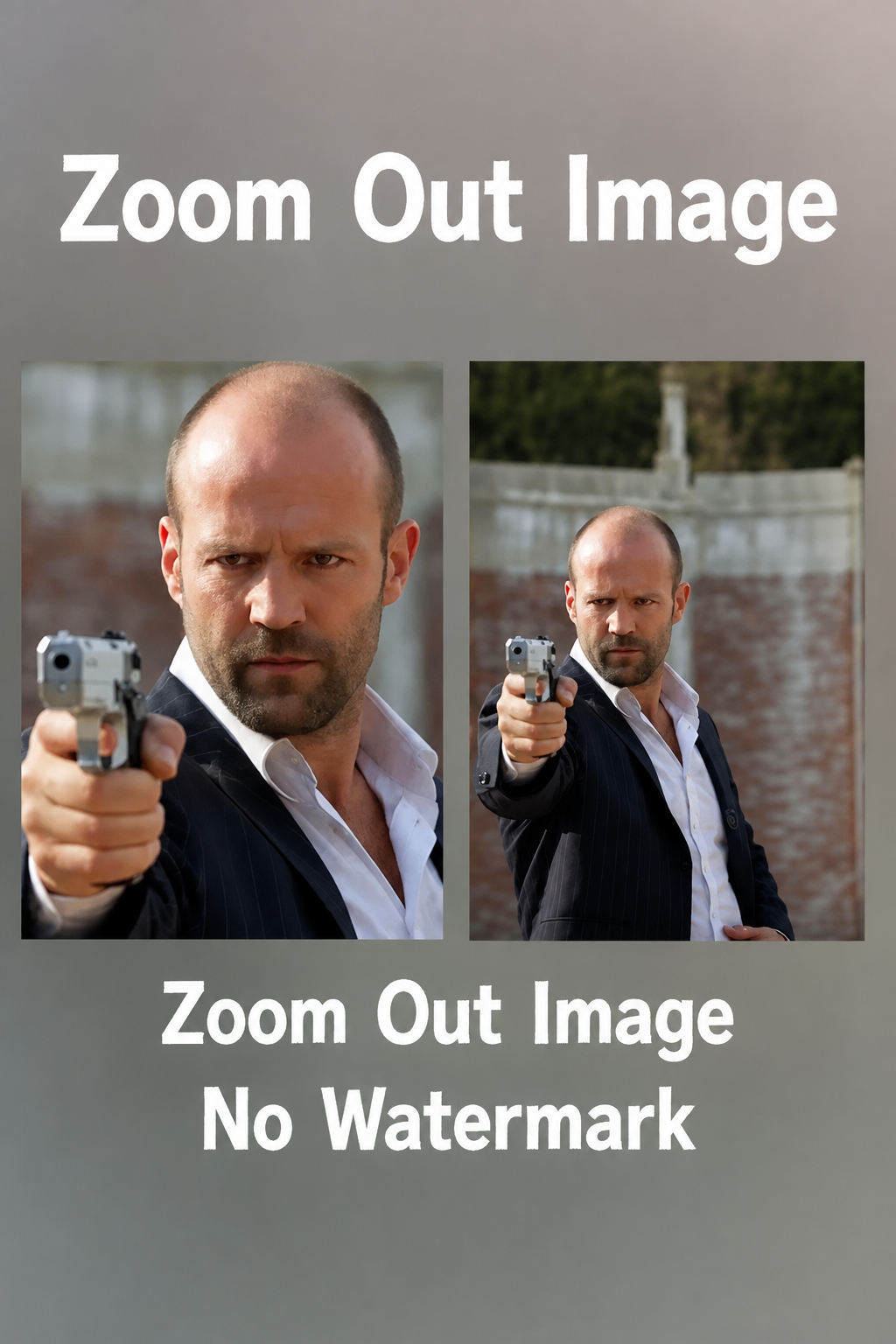
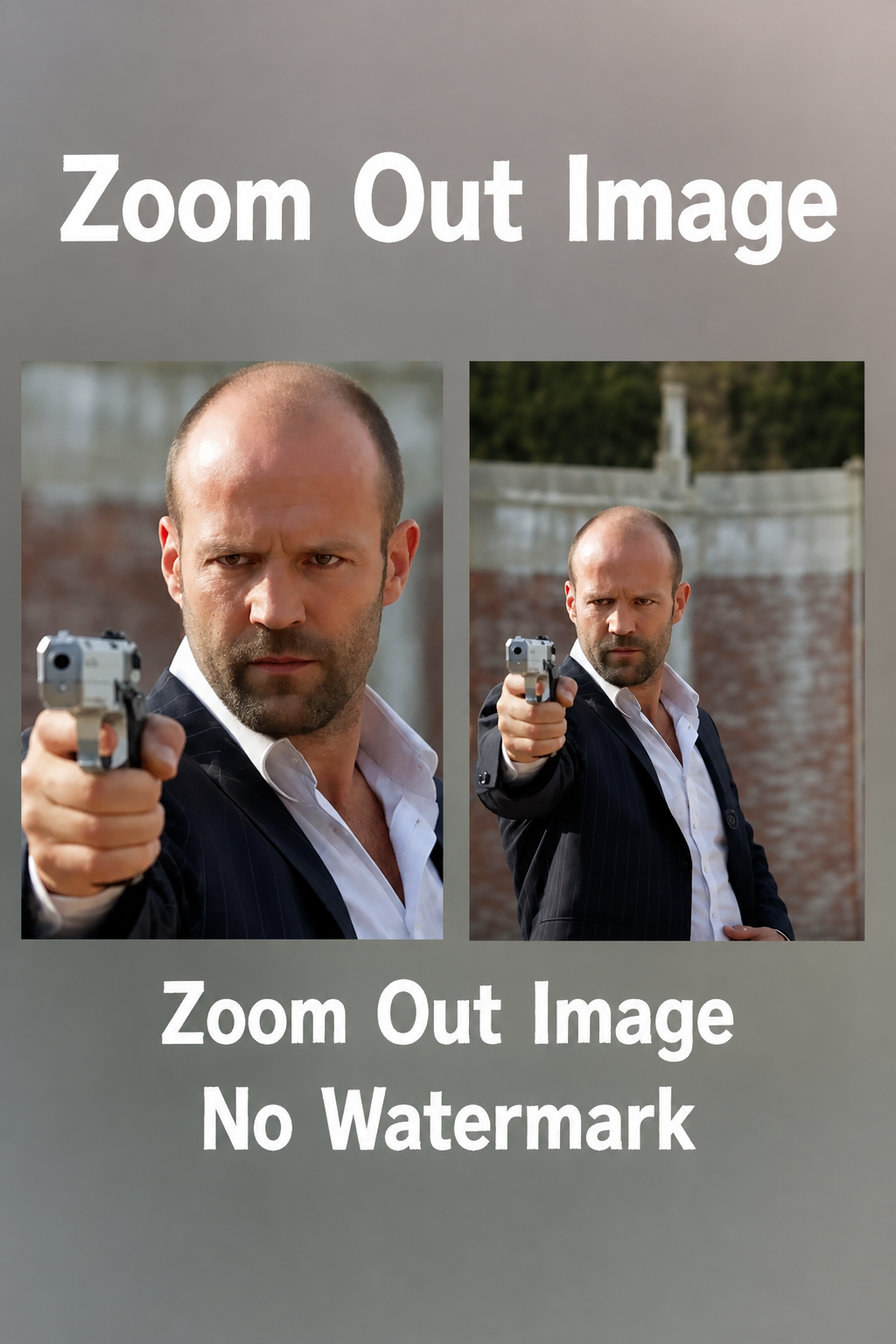
0Expand image | Currently the strongest seamless expansion
ComfyUI Seamless Image Expansion Workflow: Easily Extend Images with Seamless Integration
Workflow Introduction
In digital art creation and image processing, image expansion is a common requirement. Whether to fit a larger canvas size or to fill in the background, traditional methods of image expansion often leave noticeable seams at the junctions, affecting the overall aesthetics of the image. To address this issue, I developed a seamless image expansion workflow based on ComfyUI and Stable Diffusion AI.
The core advantage of this workflow lies in its powerful AI algorithms and optimized processing flow. Through deep learning technology, it can intelligently analyze image content and seamlessly integrate during the expansion process, ensuring that the expanded image has no visible seams. Whether it’s landscape images, portraits, or complex artworks, this workflow can handle them effortlessly, delivering natural and smooth expansion results, as if the image was originally complete.
How to Use
Using this seamless image expansion workflow is very simple, even beginners can easily get started. Below are the detailed steps:
1. Preparation
Prepare the image file that needs to be expanded. Common image formats (such as JPG, PNG, etc.) are supported.
2. Upload Image
Click the "Upload Image" button and select your prepared image file. Once uploaded, the image will be displayed in the workflow interface.
3. Select Expansion Size
In the workflow interface, find the "Expansion Size" option. You can choose different expansion sizes based on your needs, such as extending the canvas in all directions.
If you need to expand the image in a specific direction (e.g., only width or height), you can also set it in the options.
4. Start Expansion
After confirming the image and size settings, click the "Start Expansion" button.
The AI algorithm will automatically start analyzing and processing the image expansion. This process may take a few seconds to a few minutes, depending on the complexity and size of the image.
5. Download Expansion Results
Once the expansion is complete, the expanded image will be displayed in the workflow interface.
Click the "Download" button to save the expanded image to your device. You can use it for subsequent creations or use it directly.
Precautions
For the best results, try to choose clear, high-quality images for expansion.
If the image content is too complex or has noticeable stitching marks, it may affect the expansion results. In such cases, it is recommended to perform simple preprocessing on the image first.
If you are not satisfied with the expansion results, you can try adjusting the expansion size or re-uploading the image.
Conclusion
The ComfyUI seamless image expansion workflow is the perfect solution for image expansion. It is easy to use and delivers outstanding results, meeting the expansion needs of various scenarios. Whether for artistic creation, design work, or daily image processing, this workflow provides robust support. Come and experience it now, and let AI create seamless image expansion effects for you!
' fill-opacity='0.1'/%3e %3cg id='Group_3'%3e %3cpath id='Vector_2' d='M120.897 32.556V50.6531H11.7843V32.556C11.7843 26.7872 16.4615 22.1125 22.2278 22.1125H110.448C116.219 22.1125 120.897 26.7897 120.897 32.556Z' fill='%23343434' stroke='%23343434' stroke-width='1.0339' stroke-miterlimit='10'/%3e %3cpath id='Vector_3' d='M120.896 50.401V111.286C120.896 117.075 116.202 121.766 110.413 121.766H21.8771C16.0878 121.766 11.3965 117.073 11.3965 111.286V50.401H120.896Z' fill='url(%23paint1_linear_0_4)'/%3e %3cpath id='Vector_4' d='M128.49 32.5559V111.322C128.49 117.091 123.813 121.766 118.044 121.766H110.45C116.219 121.766 120.896 117.089 120.896 111.322V32.5559C120.896 26.7871 116.219 22.1124 110.45 22.1124H118.044C123.813 22.1124 128.49 26.7896 128.49 32.5559Z' fill='url(%23paint2_linear_0_4)'/%3e %3cpath id='Vector_5' d='M113.743 60.2187H20.0924V112.618H113.743V60.2187Z' fill='url(%23paint3_linear_0_4)'/%3e %3cpath id='Vector_6' d='M33.2089 40.6525C35.7137 40.6525 37.7443 38.6219 37.7443 36.1171C37.7443 33.6122 35.7137 31.5816 33.2089 31.5816C30.704 31.5816 28.6734 33.6122 28.6734 36.1171C28.6734 38.6219 30.704 40.6525 33.2089 40.6525Z' fill='url(%23paint4_linear_0_4)'/%3e %3cpath id='Vector_7' d='M99.3508 40.6525C101.856 40.6525 103.886 38.6219 103.886 36.1171C103.886 33.6122 101.856 31.5816 99.3508 31.5816C96.8459 31.5816 94.8153 33.6122 94.8153 36.1171C94.8153 38.6219 96.8459 40.6525 99.3508 40.6525Z' fill='url(%23paint5_linear_0_4)'/%3e %3cpath id='Vector_8' d='M80.8 40.6498H51.7546C49.2506 40.6498 47.2191 38.6183 47.2191 36.1144C47.2191 33.6104 49.2506 31.5789 51.7546 31.5789H80.8C83.3039 31.5789 85.3354 33.6104 85.3354 36.1144C85.3354 38.6208 83.3064 40.6498 80.8 40.6498Z' fill='url(%23paint6_linear_0_4)'/%3e %3cg id='Group_4'%3e %3cpath id='Vector_9' d='M43.7699 82.9259C43.2875 82.9259 42.8176 82.6747 42.559 82.2271C42.1736 81.5607 42.4023 80.7054 43.0687 80.32L47.8802 77.5425L43.0687 74.765C42.4023 74.3796 42.1736 73.5267 42.559 72.8578C42.9444 72.1914 43.7973 71.9627 44.4662 72.3481L51.3713 76.334C51.804 76.5827 52.07 77.0452 52.07 77.5425C52.07 78.0398 51.804 78.5023 51.3713 78.7509L44.4662 82.7369C44.2473 82.8662 44.0061 82.9259 43.7699 82.9259Z' fill='%23545454'/%3e %3c/g%3e %3cg id='Group_5'%3e %3cpath id='Vector_10' d='M87.164 82.9264C86.9278 82.9264 86.6866 82.8668 86.4678 82.74L79.5626 78.754C79.13 78.5054 78.8639 78.0429 78.8639 77.5456C78.8639 77.0482 79.13 76.5857 79.5626 76.3371L86.4678 72.3512C87.1342 71.9657 87.9895 72.1945 88.375 72.8609C88.7604 73.5273 88.5316 74.3827 87.8652 74.7681L83.0538 77.5456L87.8652 80.323C88.5316 80.7084 88.7604 81.5613 88.375 82.2302C88.1164 82.6753 87.6464 82.9264 87.164 82.9264Z' fill='%23545454'/%3e %3c/g%3e %3cpath id='Vector_11' d='M75.315 96.7118C75.315 100.755 70.68 100.678 64.966 100.678C59.2519 100.678 54.6169 100.755 54.6169 96.7118C54.6169 92.6687 59.2519 89.3914 64.966 89.3914C70.68 89.3914 75.315 92.6687 75.315 96.7118Z' fill='%23545454'/%3e %3cg id='Vector_12'%3e %3c/g%3e %3cpath id='Vector_13' d='M91.547 100.28C91.5668 100.262 91.5842 100.242 91.6041 100.223C91.624 100.203 91.6414 100.185 91.6613 100.165C93.8594 97.8926 92.9494 94.1006 89.9779 93.024C89.9779 93.024 86.6211 91.6265 83.8387 91.6439C83.3911 91.6464 83.0305 92.007 83.028 92.4545C83.0106 95.237 84.4081 98.5938 84.4081 98.5938C85.4823 101.568 89.2743 102.478 91.547 100.28Z' fill='%23545454'/%3e %3c/g%3e %3cg id='Group_6'%3e %3cpath id='Vector_14' d='M23.3562 131.481C34.6295 131.481 43.7683 122.343 43.7683 111.069C43.7683 99.796 34.6295 90.6572 23.3562 90.6572C12.083 90.6572 2.94415 99.796 2.94415 111.069C2.94415 122.343 12.083 131.481 23.3562 131.481Z' fill='url(%23paint7_linear_0_4)'/%3e %3cpath id='Union' d='M23.3205 119.465C24.8852 119.465 26.1535 120.734 26.1535 122.298C26.1535 123.863 24.8852 125.131 23.3205 125.131C21.7557 125.131 20.4875 123.863 20.4875 122.298C20.4875 120.734 21.7557 119.465 23.3205 119.465ZM23.298 98.5319C24.876 98.532 26.1554 99.8113 26.1554 101.389V113.47C26.1554 115.048 24.8759 116.328 23.298 116.328C21.72 116.328 20.4406 115.048 20.4406 113.47V101.389C20.4406 99.8112 21.7199 98.5319 23.298 98.5319Z' fill='url(%23paint8_linear_0_4)' fill-opacity='0.4'/%3e %3c/g%3e %3c/g%3e %3cpath id='Vector_15' d='M28.2613 12.0967C29.294 12.0967 30.1311 11.2596 30.1311 10.2269C30.1311 9.19415 29.294 8.35697 28.2613 8.35697C27.2285 8.35697 26.3914 9.19415 26.3914 10.2269C26.3914 11.2596 27.2285 12.0967 28.2613 12.0967Z' fill='%23424243' fill-opacity='0.5'/%3e %3cpath id='Vector_16' d='M34.3089 8.35978C36.6174 8.35978 38.4888 6.48838 38.4888 4.17989C38.4888 1.8714 36.6174 0 34.3089 0C32.0005 0 30.1291 1.8714 30.1291 4.17989C30.1291 6.48838 32.0005 8.35978 34.3089 8.35978Z' fill='%23424243' fill-opacity='0.5'/%3e %3cpath id='Vector_17' d='M139.205 106.829C140.341 106.829 141.261 105.909 141.261 104.773C141.261 103.637 140.341 102.717 139.205 102.717C138.069 102.717 137.148 103.637 137.148 104.773C137.148 105.909 138.069 106.829 139.205 106.829Z' fill='%23424243' fill-opacity='0.5'/%3e %3cpath id='Vector_18' d='M142.773 98.8149C144.742 98.8149 146.338 97.2184 146.338 95.2492C146.338 93.2799 144.742 91.6834 142.773 91.6834C140.803 91.6834 139.207 93.2799 139.207 95.2492C139.207 97.2184 140.803 98.8149 142.773 98.8149Z' fill='%23424243' fill-opacity='0.5'/%3e %3cpath id='Vector_19' d='M106.371 12.0994C107.879 12.0994 109.101 10.8771 109.101 9.36919C109.101 7.86132 107.879 6.63896 106.371 6.63896C104.863 6.63896 103.641 7.86132 103.641 9.36919C103.641 10.8771 104.863 12.0994 106.371 12.0994Z' fill='%23424243' fill-opacity='0.5'/%3e %3c/g%3e %3cdefs%3e %3clinearGradient id='paint0_linear_0_4' x1='66.9155' y1='6.63896' x2='66.9155' y2='140.47' gradientUnits='userSpaceOnUse'%3e %3cstop stop-color='%23BEC4CA'/%3e %3cstop offset='1' stop-color='%23BEC4CA' stop-opacity='0'/%3e %3c/linearGradient%3e %3clinearGradient id='paint1_linear_0_4' x1='66.1463' y1='50.401' x2='66.1463' y2='121.766' gradientUnits='userSpaceOnUse'%3e %3cstop stop-color='%23343434'/%3e %3cstop offset='1' stop-color='%235D5D5D'/%3e %3c/linearGradient%3e %3clinearGradient id='paint2_linear_0_4' x1='128.751' y1='71.9391' x2='117.99' y2='71.9391' gradientUnits='userSpaceOnUse'%3e %3cstop offset='3.40978e-07' stop-color='%23404041'/%3e %3cstop offset='1' stop-color='%23434343'/%3e %3c/linearGradient%3e %3clinearGradient id='paint3_linear_0_4' x1='20.0924' y1='86.4182' x2='113.743' y2='86.4182' gradientUnits='userSpaceOnUse'%3e %3cstop stop-color='%23323131'/%3e %3cstop offset='1' stop-color='%233B3B3B'/%3e %3c/linearGradient%3e %3clinearGradient id='paint4_linear_0_4' x1='28.6734' y1='36.1171' x2='37.7443' y2='36.1171' gradientUnits='userSpaceOnUse'%3e %3cstop stop-color='%23424242'/%3e %3cstop offset='1' stop-color='%236E6B6B'/%3e %3c/linearGradient%3e %3clinearGradient id='paint5_linear_0_4' x1='94.8153' y1='36.1171' x2='103.886' y2='36.1171' gradientUnits='userSpaceOnUse'%3e %3cstop stop-color='%23424242'/%3e %3cstop offset='1' stop-color='%236E6B6B'/%3e %3c/linearGradient%3e %3clinearGradient id='paint6_linear_0_4' x1='47.2191' y1='36.1144' x2='85.3354' y2='36.1144' gradientUnits='userSpaceOnUse'%3e %3cstop stop-color='%23424242'/%3e %3cstop offset='1' stop-color='%236E6B6B'/%3e %3c/linearGradient%3e %3clinearGradient id='paint7_linear_0_4' x1='23.3562' y1='90.6572' x2='23.3562' y2='131.481' gradientUnits='userSpaceOnUse'%3e %3cstop stop-color='%23414141'/%3e %3cstop offset='1' stop-color='%23595656'/%3e %3c/linearGradient%3e %3clinearGradient id='paint8_linear_0_4' x1='23.298' y1='98.5319' x2='23.298' y2='125.131' gradientUnits='userSpaceOnUse'%3e %3cstop stop-color='%236E6E6E'/%3e %3cstop offset='1' stop-color='%237F7F7F'/%3e %3c/linearGradient%3e %3c/defs%3e %3c/svg%3e)
No creations yet

No creations available.