
'%3e %3cg id='Vector'%3e %3c/g%3e %3cpath id='Vector_2' d='M14.504 8.522L12.746 4.49C12.6826 4.34486 12.5783 4.22136 12.4458 4.13463C12.3133 4.0479 12.1584 4.0017 12 4.0017C11.8416 4.0017 11.6867 4.0479 11.5542 4.13463C11.4217 4.22136 11.3174 4.34486 11.254 4.49L9.495 8.522C9.305 8.958 8.958 9.306 8.522 9.495L4.49 11.254C4.34486 11.3174 4.22136 11.4217 4.13463 11.5542C4.0479 11.6867 4.0017 11.8416 4.0017 12C4.0017 12.1584 4.0479 12.3133 4.13463 12.4458C4.22136 12.5783 4.34486 12.6826 4.49 12.746L8.523 14.504C8.959 14.694 9.307 15.042 9.496 15.478L11.255 19.511C11.3184 19.6561 11.4227 19.7796 11.5552 19.8664C11.6877 19.9531 11.8426 19.9993 12.001 19.9993C12.1594 19.9993 12.3143 19.9531 12.4468 19.8664C12.5793 19.7796 12.6836 19.6561 12.747 19.511L14.505 15.478C14.695 15.042 15.043 14.694 15.479 14.504L19.512 12.746C19.6571 12.6826 19.7806 12.5783 19.8674 12.4458C19.9541 12.3133 20.0003 12.1584 20.0003 12C20.0003 11.8416 19.9541 11.6867 19.8674 11.5542C19.7806 11.4217 19.6571 11.3174 19.512 11.254L15.479 9.495C15.043 9.30549 14.695 8.95782 14.505 8.522' stroke='var(--stroke-0%2c white)' stroke-width='1.25' stroke-linecap='round' stroke-linejoin='round'/%3e %3cpath id='Vector_3' d='M3 3L5 5' stroke='var(--stroke-0%2c white)' stroke-width='1.25' stroke-linecap='round' stroke-linejoin='round'/%3e %3cpath id='Vector_4' d='M21 3L19 5' stroke='var(--stroke-0%2c white)' stroke-width='1.25' stroke-linecap='round' stroke-linejoin='round'/%3e %3cpath id='Vector_5' d='M3 21L5 19' stroke='var(--stroke-0%2c white)' stroke-width='1.25' stroke-linecap='round' stroke-linejoin='round'/%3e %3cpath id='Vector_6' d='M21 21L19 19' stroke='var(--stroke-0%2c white)' stroke-width='1.25' stroke-linecap='round' stroke-linejoin='round'/%3e %3c/g%3e %3cdefs%3e %3cclipPath id='clip0_0_55'%3e %3crect width='24' height='24' fill='white'/%3e %3c/clipPath%3e %3c/defs%3e %3c/svg%3e)
'%3e %3cg id='Vector'%3e %3c/g%3e %3cpath id='Vector_2' d='M14.375 7.66667H14.385' stroke='var(--stroke-0%2c white)' stroke-width='1.25' stroke-linecap='round' stroke-linejoin='round'/%3e %3cpath id='Vector_3' d='M11.9792 20.125H5.75C4.9875 20.125 4.25624 19.8221 3.71707 19.2829C3.1779 18.7438 2.875 18.0125 2.875 17.25V5.75C2.875 4.9875 3.1779 4.25624 3.71707 3.71707C4.25624 3.1779 4.9875 2.875 5.75 2.875H17.25C18.0125 2.875 18.7438 3.1779 19.2829 3.71707C19.8221 4.25624 20.125 4.9875 20.125 5.75V11.9792' stroke='var(--stroke-0%2c white)' stroke-width='1.25' stroke-linecap='round' stroke-linejoin='round'/%3e %3cpath id='Vector_4' d='M2.875 15.3333L7.66667 10.5417C8.556 9.68587 9.65233 9.68587 10.5417 10.5417L14.375 14.375' stroke='var(--stroke-0%2c white)' stroke-width='1.25' stroke-linecap='round' stroke-linejoin='round'/%3e %3cpath id='Vector_5' d='M13.4167 13.4167L14.375 12.4583C15.0171 11.8412 15.7646 11.6687 16.4661 11.9408' stroke='var(--stroke-0%2c white)' stroke-width='1.25' stroke-linecap='round' stroke-linejoin='round'/%3e %3cpath id='Vector_6' d='M15.3333 18.2083H21.0833' stroke='var(--stroke-0%2c white)' stroke-width='1.25' stroke-linecap='round' stroke-linejoin='round'/%3e %3cpath id='Vector_7' d='M18.2083 15.3333V21.0833' stroke='var(--stroke-0%2c white)' stroke-width='1.25' stroke-linecap='round' stroke-linejoin='round'/%3e %3c/g%3e %3cdefs%3e %3cclipPath id='clip0_0_4'%3e %3crect width='23' height='23' fill='white'/%3e %3c/clipPath%3e %3c/defs%3e %3c/svg%3e)


'%3e %3cg id='Vector'%3e %3c/g%3e %3cpath id='Vector_2' d='M18.3333 10.5001V6.66667C18.3333 5.78261 17.9821 4.93477 17.357 4.30964C16.7319 3.68452 15.8841 3.33333 15 3.33333H5C4.11594 3.33333 3.2681 3.68452 2.64298 4.30964C2.01786 4.93477 1.66667 5.78261 1.66667 6.66667V13.3333C1.66667 14.2174 2.01786 15.0652 2.64298 15.6904C3.2681 16.3155 4.11594 16.6667 5 16.6667H11.6667M15.5 17.0001V12.0001M13 14.5001L15.5 12.0001L18 14.5001' stroke='var(--stroke-0%2c white)' stroke-linecap='round' stroke-linejoin='round'/%3e %3cpath id='Vector_3' d='M8.33333 7.5L12.5 10L8.33333 12.5V7.5Z' stroke='var(--stroke-0%2c white)' stroke-linecap='round' stroke-linejoin='round'/%3e %3c/g%3e %3cdefs%3e %3cclipPath id='clip0_0_4'%3e %3crect width='20' height='20' fill='white'/%3e %3c/clipPath%3e %3c/defs%3e %3c/svg%3e)
'%3e %3cg id='Vector'%3e %3c/g%3e %3cpath id='Vector_2' d='M16.25 10.8333L21.1824 8.36767C21.3475 8.28515 21.531 8.2462 21.7154 8.25451C21.8998 8.26281 22.079 8.3181 22.2361 8.41512C22.3931 8.51214 22.5228 8.64768 22.6127 8.80888C22.7026 8.97007 22.7499 9.15158 22.75 9.33617V16.6638C22.7499 16.8484 22.7026 17.0299 22.6127 17.1911C22.5228 17.3523 22.3931 17.4879 22.2361 17.5849C22.079 17.6819 21.8998 17.7372 21.7154 17.7455C21.531 17.7538 21.3475 17.7148 21.1824 17.6323L16.25 15.1667V10.8333Z' stroke='var(--stroke-0%2c white)' stroke-width='1.25' stroke-linecap='round' stroke-linejoin='round'/%3e %3cpath id='Vector_3' d='M3.25 8.66667C3.25 8.09203 3.47827 7.54093 3.8846 7.1346C4.29093 6.72827 4.84203 6.5 5.41667 6.5H14.0833C14.658 6.5 15.2091 6.72827 15.6154 7.1346C16.0217 7.54093 16.25 8.09203 16.25 8.66667V17.3333C16.25 17.908 16.0217 18.4591 15.6154 18.8654C15.2091 19.2717 14.658 19.5 14.0833 19.5H5.41667C4.84203 19.5 4.29093 19.2717 3.8846 18.8654C3.47827 18.4591 3.25 17.908 3.25 17.3333V8.66667Z' stroke='var(--stroke-0%2c white)' stroke-width='1.25' stroke-linecap='round' stroke-linejoin='round'/%3e %3cpath id='Vector_4' d='M7.58333 13H11.9167' stroke='var(--stroke-0%2c white)' stroke-width='1.25' stroke-linecap='round' stroke-linejoin='round'/%3e %3cpath id='Vector_5' d='M9.75 10.8333V15.1667' stroke='var(--stroke-0%2c white)' stroke-width='1.25' stroke-linecap='round' stroke-linejoin='round'/%3e %3c/g%3e %3cdefs%3e %3cclipPath id='clip0_0_47'%3e %3crect width='26' height='26' fill='white'/%3e %3c/clipPath%3e %3c/defs%3e %3c/svg%3e)
'%3e %3cg id='Vector'%3e %3c/g%3e %3cpath id='Vector_2' d='M4 7H7M11 7H20' stroke='var(--stroke-0%2c white)' stroke-width='1.25' stroke-linecap='round' stroke-linejoin='round'/%3e %3cpath id='Vector_3' d='M4 17H20' stroke='var(--stroke-0%2c white)' stroke-width='1.25' stroke-linecap='round' stroke-linejoin='round'/%3e %3cpath id='Vector_4' d='M7 4L7 20' stroke='var(--stroke-0%2c white)' stroke-width='1.25' stroke-linecap='round' stroke-linejoin='round'/%3e %3cpath id='Vector_5' d='M17 4V13M17 17V20' stroke='var(--stroke-0%2c white)' stroke-width='1.25' stroke-linecap='round' stroke-linejoin='round'/%3e %3c/g%3e %3cdefs%3e %3cclipPath id='clip0_0_60'%3e %3crect width='24' height='24' fill='white'/%3e %3c/clipPath%3e %3c/defs%3e %3c/svg%3e)
'%3e %3cg id='Vector'%3e %3c/g%3e %3cpath id='Vector_2' d='M6 10L4 11L12 15L20 11L18 10' stroke='var(--stroke-0%2c white)' stroke-width='1.25' stroke-linecap='round' stroke-linejoin='round'/%3e %3cpath id='Vector_3' d='M4 15L12 19L20 15' stroke='var(--stroke-0%2c white)' stroke-width='1.25' stroke-linecap='round' stroke-linejoin='round'/%3e %3cpath id='Vector_4' d='M12 4V11' stroke='var(--stroke-0%2c white)' stroke-width='1.25' stroke-linecap='round' stroke-linejoin='round'/%3e %3cpath id='Vector_5' d='M15 8L12 11L9 8' stroke='var(--stroke-0%2c white)' stroke-width='1.25' stroke-linecap='round' stroke-linejoin='round'/%3e %3c/g%3e %3cdefs%3e %3cclipPath id='clip0_0_9'%3e %3crect width='24' height='24' fill='white'/%3e %3c/clipPath%3e %3c/defs%3e %3c/svg%3e)


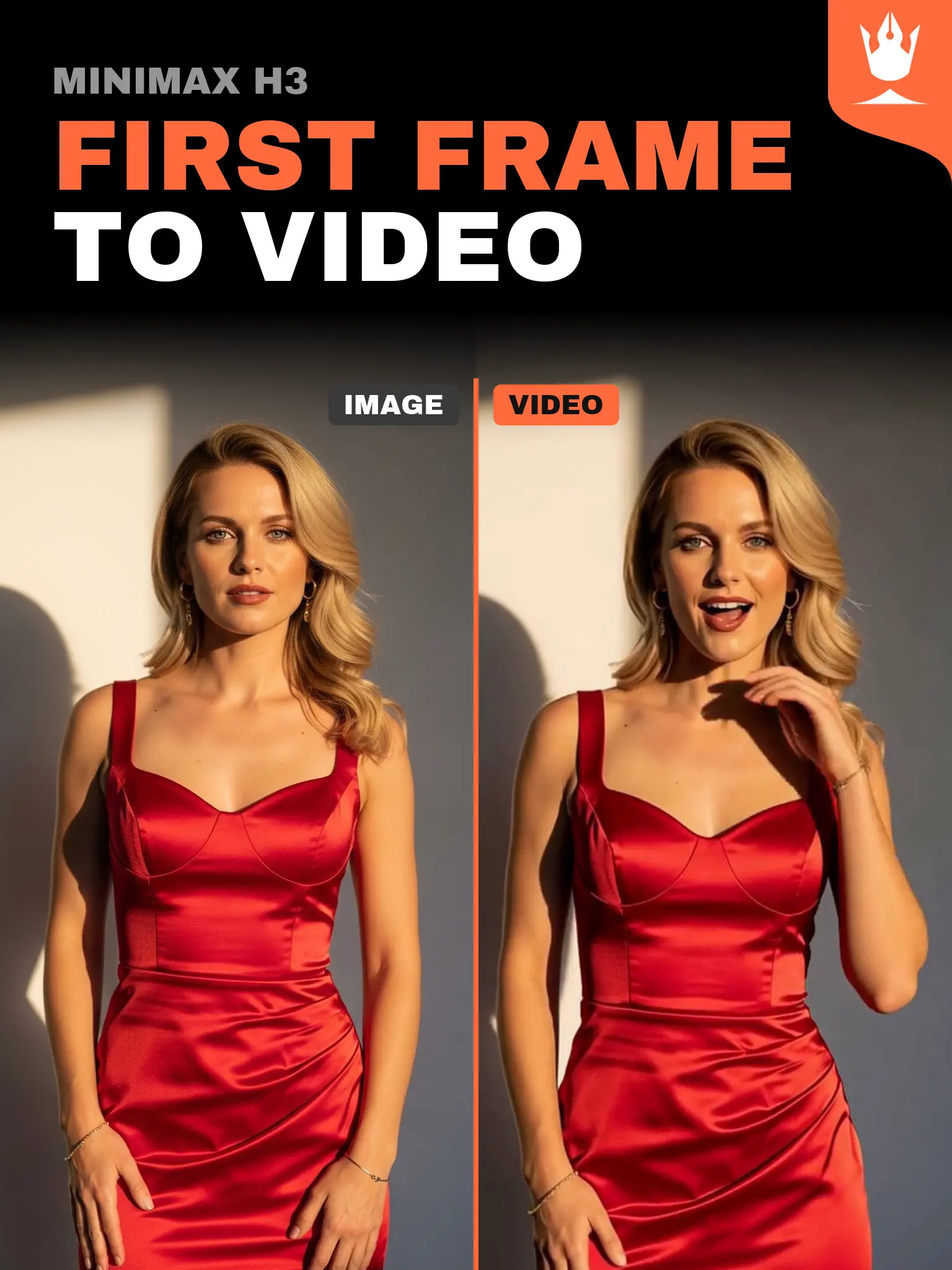

Create MiniMax H3 image-to-video clips using a single image as the first frame.
Upload your starting image, choose a duration from 5 to 15 seconds, select the maximum output size, and add a prompt describing how you want the subject, camera, and scene to move.
For Longest Side, choose how large you want the longest edge to be, then select Keep to preserve the original shape or choose a ratio such as 1:1, 16:9, 9:16, or 2:3 to crop it.
The workflow keeps your uploaded image as the visual starting point and animates it into a video, making it great for portraits, character animation, cinematic shots, fashion clips, social media content, and talking scenes.
Learn more from Pixaroma on YouTube:
https://www.youtube.com/@pixaroma
Minimax H3 - Image to video FF (First Frame)
 Share
'%3e%3cpath d='M22.941142499999998%2c18.4907265625C20.7973025%2c21.2337465625%2c18.653602499999998%2c23.9764965625%2c16.5096155%2c26.719196562500002C15.7464715%2c27.6958965625%2c16.4596735%2c29.1035265625%2c17.7179125%2c29.1035265625L30.5804125%2c29.1035265625C31.8385125%2c29.1035265625%2c32.5519125%2c27.6958965625%2c31.7883125%2c26.719196562500002C29.6448125%2c23.9764965625%2c27.500812500000002%2c21.2337965625%2c25.3570725%2c18.4907265625C24.7489725%2c17.7127265625%2c23.5494225%2c17.7127265625%2c22.941142499999998%2c18.4907265625ZM24.0441925%2c19.3528665625L24.0440425%2c19.3530465625L19.6246325%2c25.0074065625L17.6126225%2c27.5813865625Q17.5882425%2c27.6125865625%2c17.6045625%2c27.6447765625Q17.6343025%2c27.7034865625%2c17.7179125%2c27.7034865625L30.5804125%2c27.7034865625Q30.663912500000002%2c27.7034865625%2c30.6937125%2c27.6448265625Q30.7099125%2c27.6128265625%2c30.685412499999998%2c27.5814965625L24.254022499999998%2c19.3528565625Q24.2183525%2c19.3072265625%2c24.149182500000002%2c19.3072265625Q24.0800125%2c19.3072265625%2c24.0441925%2c19.3528665625Z' fill-rule='evenodd' fill='%23BEC4CA' fill-opacity='1'/%3e%3c/g%3e%3c/g%3e%3c/svg%3e) 837
'%3e%3cg%3e%3cpath d='M16.45%2c9L16.45%2c15.75Q16.45%2c15.81894%2c16.436500000000002%2c15.88656Q16.423099999999998%2c15.954180000000001%2c16.3967%2c16.017879999999998Q16.3703%2c16.08157%2c16.332%2c16.1389Q16.2937%2c16.19622%2c16.244999999999997%2c16.244979999999998Q16.196199999999997%2c16.29373%2c16.1389%2c16.33203Q16.0816%2c16.37033%2c16.017899999999997%2c16.396720000000002Q15.9542%2c16.423099999999998%2c15.8866%2c16.43655Q15.8189%2c16.45%2c15.75%2c16.45L2.25%2c16.45Q2.181056%2c16.45%2c2.1134370000000002%2c16.43655Q2.045818%2c16.423099999999998%2c1.982122%2c16.39671Q1.918426%2c16.37033%2c1.8611010000000001%2c16.33203Q1.803776%2c16.29373%2c1.755025%2c16.244970000000002Q1.706275%2c16.19622%2c1.667971%2c16.1389Q1.6296680000000001%2c16.08157%2c1.603284%2c16.017879999999998Q1.5769009999999999%2c15.954180000000001%2c1.56345%2c15.88656Q1.55%2c15.81894%2c1.55%2c15.75L1.55%2c9.00311222Q1.55%2c8.9341683%2c1.56345%2c8.866549Q1.5769009999999999%2c8.79893%2c1.603284%2c8.735234Q1.6296680000000001%2c8.671538%2c1.667971%2c8.614213Q1.706275%2c8.556888%2c1.755025%2c8.508138Q1.803776%2c8.459387%2c1.8611010000000001%2c8.421084Q1.918426%2c8.38278%2c1.982122%2c8.356397Q2.045818%2c8.330013%2c2.1134370000000002%2c8.316563Q2.181056%2c8.303112%2c2.25%2c8.303112Q2.318944%2c8.303112%2c2.3865629999999998%2c8.316563Q2.454182%2c8.330013%2c2.517878%2c8.356397Q2.581574%2c8.38278%2c2.638899%2c8.421084Q2.696224%2c8.459387%2c2.744975%2c8.508137Q2.7937250000000002%2c8.556888%2c2.832029%2c8.614213Q2.870332%2c8.671538%2c2.896716%2c8.735234Q2.923099%2c8.79893%2c2.93655%2c8.866549Q2.95%2c8.9341682%2c2.95%2c9.0031122L2.95%2c15.05L15.05%2c15.05L15.05%2c9Q15.05%2c8.931056%2c15.0634%2c8.863437Q15.0769%2c8.795818%2c15.1033%2c8.732122Q15.1297%2c8.668426%2c15.168%2c8.611101Q15.2063%2c8.553776%2c15.255%2c8.505025Q15.3038%2c8.456275%2c15.3611%2c8.417971Q15.4184%2c8.379668%2c15.4821%2c8.353284Q15.5458%2c8.326901%2c15.6134%2c8.31345Q15.6811%2c8.3%2c15.75%2c8.3Q15.8189%2c8.3%2c15.8866%2c8.31345Q15.9542%2c8.326901%2c16.017899999999997%2c8.353284Q16.0816%2c8.379668%2c16.1389%2c8.417971Q16.196199999999997%2c8.456275%2c16.244999999999997%2c8.505025Q16.2937%2c8.553776%2c16.332%2c8.611101Q16.3703%2c8.668426%2c16.3967%2c8.732122Q16.423099999999998%2c8.795818%2c16.436500000000002%2c8.863437Q16.45%2c8.931056%2c16.45%2c9Z' fill-rule='evenodd' fill='%23BEC4CA' fill-opacity='1'/%3e%3c/g%3e%3cg%3e%3cpath d='M6.120042%2c8.13058028125L9%2c11.01053828125L11.87999%2c8.13054428125L11.88003%2c8.13051328125Q11.978480000000001%2c8.03205728125%2c12.10712%2c7.97877228125Q12.235759999999999%2c7.92548828125%2c12.375%2c7.92548828125Q12.44394%2c7.92548828125%2c12.51156%2c7.93893828125Q12.579180000000001%2c7.95238928125%2c12.64288%2c7.97877228125Q12.70657%2c8.00515628125%2c12.7639%2c8.04345928125Q12.82122%2c8.08176328125%2c12.86997%2c8.13051328125Q12.91872%2c8.17926428125%2c12.95703%2c8.23658928125Q12.99533%2c8.29391428125%2c13.021709999999999%2c8.35761028125Q13.0481%2c8.42130628125%2c13.06155%2c8.48892528125Q13.075%2c8.55654428125%2c13.075%2c8.62548828125Q13.075%2c8.76472728125%2c13.02172%2c8.89336628125Q12.96843%2c9.02200628125%2c12.86997%2c9.12046328125L12.86994%2c9.12049328125L9.49497%2c12.49545828125Q9.39652%2c12.59391828125%2c9.26788%2c12.64720828125Q9.139240000000001%2c12.70048828125%2c9%2c12.70048828125Q8.860759999999999%2c12.70048828125%2c8.73212%2c12.64720828125Q8.60348%2c12.59391828125%2c8.50503%2c12.49545828125L5.130025%2c9.12046328125Q5.031569%2c9.02200628125%2c4.978284%2c8.89336628125Q4.925%2c8.76472728125%2c4.925%2c8.62548828125Q4.925%2c8.55654428125%2c4.93845%2c8.48892528125Q4.951901%2c8.42130628125%2c4.978284%2c8.35761028125Q5.004668%2c8.29391428125%2c5.042971%2c8.23658928125Q5.081275%2c8.17926428125%2c5.130025%2c8.13051328125Q5.178776%2c8.08176328125%2c5.236101%2c8.04345928125Q5.293426%2c8.00515628125%2c5.357122%2c7.97877228125Q5.420818%2c7.95238928125%2c5.488437%2c7.93893828125Q5.556056%2c7.92548828125%2c5.625%2c7.92548828125Q5.764239%2c7.92548828125%2c5.892878%2c7.97877228125Q6.021518%2c8.03205728125%2c6.119975%2c8.13051328125L6.120042%2c8.13058028125Z' fill-rule='evenodd' fill='%23BEC4CA' fill-opacity='1'/%3e%3c/g%3e%3cg%3e%3cpath d='M8.29560546875%2c2.25Q8.29560546875%2c2.181056%2c8.30905546875%2c2.1134370000000002Q8.32250646875%2c2.045818%2c8.34888946875%2c1.982122Q8.37527346875%2c1.918426%2c8.41357646875%2c1.8611010000000001Q8.45188046875%2c1.803776%2c8.50063046875%2c1.755025Q8.54938146875%2c1.706275%2c8.60670646875%2c1.667971Q8.66403146875%2c1.6296680000000001%2c8.72772746875%2c1.603284Q8.79142346875%2c1.5769009999999999%2c8.85904246875%2c1.56345Q8.92666146875%2c1.55%2c8.99560546875%2c1.55Q9.06454946875%2c1.55%2c9.13216846875%2c1.56345Q9.19978746875%2c1.5769009999999999%2c9.26348346875%2c1.603284Q9.32717946875%2c1.6296680000000001%2c9.38450446875%2c1.667971Q9.44182946875%2c1.706275%2c9.49058046875%2c1.755025Q9.53933046875%2c1.803776%2c9.57763446875%2c1.8611010000000001Q9.61593746875%2c1.918426%2c9.64232146875%2c1.982122Q9.66870446875%2c2.045818%2c9.68215546875%2c2.1134370000000002Q9.69560546875%2c2.181056%2c9.69560546875%2c2.25L9.69560546875%2c12Q9.69560546875%2c12.06894%2c9.68215546875%2c12.13656Q9.66870446875%2c12.20418%2c9.64232146875%2c12.2679Q9.61593746875%2c12.3316%2c9.57763446875%2c12.3889Q9.53933046875%2c12.4462%2c9.49058046875%2c12.495Q9.44182946875%2c12.5437%2c9.38450446875%2c12.582Q9.32717946875%2c12.6203%2c9.26348346875%2c12.6467Q9.19978746875%2c12.6731%2c9.13216846875%2c12.6865Q9.06454946875%2c12.7%2c8.99560546875%2c12.7Q8.92666146875%2c12.7%2c8.85904246875%2c12.6866Q8.79142346875%2c12.6731%2c8.72772746875%2c12.6467Q8.66403146875%2c12.6203%2c8.60670646875%2c12.582Q8.54938146875%2c12.5437%2c8.50063046875%2c12.495Q8.45188046875%2c12.4462%2c8.41357646875%2c12.3889Q8.37527346875%2c12.3316%2c8.34888946875%2c12.2679Q8.32250646875%2c12.20418%2c8.30905546875%2c12.13656Q8.29560546875%2c12.06894%2c8.29560546875%2c12L8.29560546875%2c2.25Z' fill-rule='evenodd' fill='%23BEC4CA' fill-opacity='1'/%3e%3c/g%3e%3c/g%3e%3c/svg%3e) Download
 10
 23

'%3e%3cg%3e%3cpath d='M2.00048828125%2c13.15673828125C2.00048828125%2c13.43287828125%2c2.22434628125%2c13.65673828125%2c2.50048828125%2c13.65673828125L3.00048828125%2c13.65673828125L3.00048828125%2c6.15673828125C3.00048828125%2c5.88059628125%2c2.77663028125%2c5.65673828125%2c2.50048828125%2c5.65673828125C2.22434628125%2c5.65673828125%2c2.00048828125%2c5.88059628125%2c2.00048828125%2c6.15673828125L2.00048828125%2c13.15673828125Z' fill='%23D8D8D8' fill-opacity='1'/%3e%3c/g%3e%3cg transform='matrix(0%2c1%2c-1%2c0%2c22.656814575195312%2c2.6558380126953125)'%3e%3cpath d='M10.00048828125%2c13.156326293945312L10.00048828125%2c20.656326293945312L10.50048828125%2c20.656326293945312C10.77663028125%2c20.656326293945312%2c11.00048828125%2c20.43246629394531%2c11.00048828125%2c20.156326293945312L11.00048828125%2c13.156326293945312C11.00048828125%2c12.880184293945312%2c10.77663028125%2c12.656326293945312%2c10.50048828125%2c12.656326293945312C10.22434628125%2c12.656326293945312%2c10.00048828125%2c12.880184293945312%2c10.00048828125%2c13.156326293945312Z' fill='%23D8D8D8' fill-opacity='1'/%3e%3c/g%3e%3c/g%3e%3c/g%3e%3c/svg%3e)
Create MiniMax H3 image-to-video clips using a single image as the first frame.
Upload your starting image, choose a duration from 5 to 15 seconds, select the maximum output size, and add a prompt describing how you want the subject, camera, and scene to move.
For Longest Side, choose how large you want the longest edge to be, then select Keep to preserve the original shape or choose a ratio such as 1:1, 16:9, 9:16, or 2:3 to crop it.
The workflow keeps your uploaded image as the visual starting point and animates it into a video, making it great for portraits, character animation, cinematic shots, fashion clips, social media content, and talking scenes.
Learn more from Pixaroma on YouTube:
https://www.youtube.com/@pixaroma
'%3e%3cg%3e%3cpath d='M9.0100553%2c1.0100494Q8.6%2c1.420102%2c8.6%2c2Q8.6%2c2.57989%2c9.0100543%2c2.9899500000000003Q9.420109%2c3.4%2c10%2c3.4Q10.57989%2c3.4%2c10.98995%2c2.9899500000000003Q11.4%2c2.57989%2c11.4%2c2Q11.4%2c1.420102%2c10.98994%2c1.0100495Q10.57989%2c0.6%2c10%2c0.6Q9.420108%2c0.6%2c9.0100553%2c1.0100494ZM9.57574%2c2.4242600000000003Q9.4%2c2.24852%2c9.4%2c2Q9.4%2c1.751474%2c9.575739%2c1.5757370000000002Q9.751477%2c1.4%2c10%2c1.4Q10.24852%2c1.4%2c10.42426%2c1.5757370000000002Q10.6%2c1.751474%2c10.6%2c2Q10.6%2c2.24852%2c10.42426%2c2.4242600000000003Q10.24852%2c2.6%2c10%2c2.6Q9.751479%2c2.6%2c9.57574%2c2.4242600000000003Z' fill-rule='evenodd' fill='white' fill-opacity='1'/%3e%3c/g%3e%3cg%3e%3cpath d='M5.0100541%2c5.0100541Q4.6%2c5.420108%2c4.6%2c6Q4.6%2c6.57989%2c5.0100541%2c6.98995Q5.420108%2c7.4%2c6%2c7.4Q6.57989%2c7.4%2c6.98995%2c6.98995Q7.4%2c6.57989%2c7.4%2c6Q7.4%2c5.420108%2c6.98995%2c5.0100541Q6.57989%2c4.6%2c6%2c4.6Q5.420108%2c4.6%2c5.0100541%2c5.0100541ZM5.57574%2c6.42426Q5.4%2c6.24852%2c5.4%2c6Q5.4%2c5.751479%2c5.57574%2c5.57574Q5.751479%2c5.4%2c6%2c5.4Q6.24852%2c5.4%2c6.42426%2c5.57574Q6.6%2c5.751479%2c6.6%2c6Q6.6%2c6.24852%2c6.42426%2c6.42426Q6.24852%2c6.6%2c6%2c6.6Q5.751479%2c6.6%2c5.57574%2c6.42426Z' fill-rule='evenodd' fill='white' fill-opacity='1'/%3e%3c/g%3e%3cg%3e%3cpath d='M9.0100541%2c9.0100541Q8.6%2c9.420108%2c8.6%2c10Q8.6%2c10.57989%2c9.0100541%2c10.98995Q9.420108%2c11.4%2c10%2c11.4Q10.57989%2c11.4%2c10.98995%2c10.98995Q11.4%2c10.57989%2c11.4%2c10Q11.4%2c9.420108%2c10.98995%2c9.0100541Q10.57989%2c8.6%2c10%2c8.6Q9.420108%2c8.6%2c9.0100541%2c9.0100541ZM9.57574%2c10.42426Q9.4%2c10.24852%2c9.4%2c10Q9.4%2c9.751479%2c9.57574%2c9.57574Q9.751479%2c9.4%2c10%2c9.4Q10.24852%2c9.4%2c10.42426%2c9.57574Q10.6%2c9.751479%2c10.6%2c10Q10.6%2c10.24852%2c10.42426%2c10.42426Q10.24852%2c10.6%2c10%2c10.6Q9.751479%2c10.6%2c9.57574%2c10.42426Z' fill-rule='evenodd' fill='white' fill-opacity='1'/%3e%3c/g%3e%3cg%3e%3cpath d='M1.0100504%2c1.0100504Q0.6%2c1.420101%2c0.6%2c2Q0.6%2c2.57989%2c1.0100494%2c2.98994Q1.420102%2c3.4%2c2%2c3.4Q2.57989%2c3.4%2c2.9899500000000003%2c2.9899500000000003Q3.4%2c2.57989%2c3.4%2c2Q3.4%2c1.420102%2c2.98994%2c1.0100495Q2.57989%2c0.6%2c2%2c0.6Q1.420101%2c0.6%2c1.0100504%2c1.0100504ZM1.5757370000000002%2c2.4242600000000003Q1.4%2c2.24852%2c1.4%2c2Q1.4%2c1.7514720000000001%2c1.575736%2c1.575736Q1.7514720000000001%2c1.4%2c2%2c1.4Q2.24852%2c1.4%2c2.4242600000000003%2c1.5757370000000002Q2.6%2c1.751474%2c2.6%2c2Q2.6%2c2.24852%2c2.4242600000000003%2c2.4242600000000003Q2.24852%2c2.6%2c2%2c2.6Q1.751474%2c2.6%2c1.5757370000000002%2c2.4242600000000003Z' fill-rule='evenodd' fill='white' fill-opacity='1'/%3e%3c/g%3e%3cg%3e%3cpath d='M1.0100495%2c9.0100553Q0.6%2c9.420108%2c0.6%2c10Q0.6%2c10.57989%2c1.0100494%2c10.98994Q1.420102%2c11.4%2c2%2c11.4Q2.57989%2c11.4%2c2.9899500000000003%2c10.98995Q3.4%2c10.57989%2c3.4%2c10Q3.4%2c9.420109%2c2.9899500000000003%2c9.0100543Q2.57989%2c8.6%2c2%2c8.6Q1.420102%2c8.6%2c1.0100495%2c9.0100553ZM1.5757370000000002%2c10.42426Q1.4%2c10.24852%2c1.4%2c10Q1.4%2c9.751477%2c1.5757370000000002%2c9.575739Q1.751474%2c9.4%2c2%2c9.4Q2.24852%2c9.4%2c2.4242600000000003%2c9.57574Q2.6%2c9.751479%2c2.6%2c10Q2.6%2c10.24852%2c2.4242600000000003%2c10.42426Q2.24852%2c10.6%2c2%2c10.6Q1.751474%2c10.6%2c1.5757370000000002%2c10.42426Z' fill-rule='evenodd' fill='white' fill-opacity='1'/%3e%3c/g%3e%3cg%3e%3cpath d='M5%2c10.4L7%2c10.4Q7.0394000000000005%2c10.4%2c7.07804%2c10.392314Q7.116680000000001%2c10.384628%2c7.15307%2c10.369552Q7.18947%2c10.354475%2c7.22223%2c10.332588Q7.254989999999999%2c10.3107%2c7.28284%2c10.282843Q7.310700000000001%2c10.254985%2c7.33259%2c10.222228Q7.354480000000001%2c10.189471%2c7.36955%2c10.153073Q7.38463%2c10.116676%2c7.39231%2c10.0780361Q7.4%2c10.0393966%2c7.4%2c10Q7.4%2c9.9606034%2c7.39231%2c9.9219639Q7.38463%2c9.883324%2c7.36955%2c9.846927Q7.354480000000001%2c9.810529%2c7.33259%2c9.777772Q7.310700000000001%2c9.745015%2c7.28284%2c9.717157Q7.254989999999999%2c9.6893%2c7.22223%2c9.667412Q7.18947%2c9.645525%2c7.15307%2c9.630448Q7.116680000000001%2c9.615372%2c7.07804%2c9.607686Q7.0394000000000005%2c9.6%2c7%2c9.6L5%2c9.6Q4.9606034%2c9.6%2c4.9219639%2c9.607686Q4.883324%2c9.615372%2c4.846927%2c9.630448Q4.810529%2c9.645525%2c4.777772%2c9.667412Q4.745015%2c9.6893%2c4.717157%2c9.717157Q4.6893%2c9.745015%2c4.667412%2c9.777772Q4.645525%2c9.810529%2c4.630448%2c9.846927Q4.615372%2c9.883324%2c4.607686%2c9.9219639Q4.6%2c9.9606034%2c4.6%2c10Q4.6%2c10.0393966%2c4.607686%2c10.0780361Q4.615372%2c10.116676%2c4.630448%2c10.153073Q4.645525%2c10.189471%2c4.667412%2c10.222228Q4.6893%2c10.254985%2c4.717157%2c10.282843Q4.745015%2c10.3107%2c4.777772%2c10.332588Q4.810529%2c10.354475%2c4.846927%2c10.369552Q4.883324%2c10.384628%2c4.9219639%2c10.392314Q4.9606034%2c10.4%2c5%2c10.4Z' fill-rule='evenodd' fill='white' fill-opacity='1'/%3e%3c/g%3e%3cg%3e%3cpath d='M5%2c2.4L7%2c2.4Q7.0394000000000005%2c2.4%2c7.07804%2c2.392314Q7.116680000000001%2c2.384628%2c7.15307%2c2.369552Q7.18947%2c2.354475%2c7.22223%2c2.332588Q7.254989999999999%2c2.3106999999999998%2c7.28284%2c2.282843Q7.310700000000001%2c2.254985%2c7.33259%2c2.222228Q7.354480000000001%2c2.189471%2c7.36955%2c2.153073Q7.38463%2c2.116676%2c7.39231%2c2.0780361Q7.4%2c2.0393966%2c7.4%2c2Q7.4%2c1.9606034%2c7.39231%2c1.9219639Q7.38463%2c1.883324%2c7.36955%2c1.846927Q7.354480000000001%2c1.810529%2c7.33259%2c1.777772Q7.310700000000001%2c1.745015%2c7.28284%2c1.717157Q7.254989999999999%2c1.6893%2c7.22223%2c1.6674120000000001Q7.18947%2c1.6455250000000001%2c7.15307%2c1.630448Q7.116680000000001%2c1.615372%2c7.07804%2c1.607686Q7.0394000000000005%2c1.6%2c7%2c1.6L5%2c1.6Q4.9606034%2c1.6%2c4.9219639%2c1.607686Q4.883324%2c1.615372%2c4.846927%2c1.630448Q4.810529%2c1.6455250000000001%2c4.777772%2c1.6674120000000001Q4.745015%2c1.6893%2c4.717157%2c1.717157Q4.6893%2c1.745015%2c4.667412%2c1.777772Q4.645525%2c1.810529%2c4.630448%2c1.846927Q4.615372%2c1.883324%2c4.607686%2c1.9219639Q4.6%2c1.9606034%2c4.6%2c2Q4.6%2c2.0393966%2c4.607686%2c2.0780361Q4.615372%2c2.116676%2c4.630448%2c2.153073Q4.645525%2c2.189471%2c4.667412%2c2.222228Q4.6893%2c2.254985%2c4.717157%2c2.282843Q4.745015%2c2.3106999999999998%2c4.777772%2c2.332588Q4.810529%2c2.354475%2c4.846927%2c2.369552Q4.883324%2c2.384628%2c4.9219639%2c2.392314Q4.9606034%2c2.4%2c5%2c2.4Z' fill-rule='evenodd' fill='white' fill-opacity='1'/%3e%3c/g%3e%3cg%3e%3cpath d='M1.6%2c5L1.6%2c7Q1.6%2c7.0394000000000005%2c1.607686%2c7.07804Q1.615372%2c7.116680000000001%2c1.630448%2c7.15307Q1.6455250000000001%2c7.18947%2c1.6674120000000001%2c7.22223Q1.6893%2c7.254989999999999%2c1.717157%2c7.28284Q1.745015%2c7.310700000000001%2c1.777772%2c7.33259Q1.810529%2c7.354480000000001%2c1.846927%2c7.36955Q1.883324%2c7.38463%2c1.9219639%2c7.39231Q1.9606034%2c7.4%2c2%2c7.4Q2.0393966%2c7.4%2c2.0780361%2c7.39231Q2.116676%2c7.38463%2c2.153073%2c7.36955Q2.189471%2c7.354480000000001%2c2.222228%2c7.33259Q2.254985%2c7.310700000000001%2c2.282843%2c7.28284Q2.3106999999999998%2c7.254989999999999%2c2.332588%2c7.22223Q2.354475%2c7.18947%2c2.369552%2c7.15307Q2.384628%2c7.116680000000001%2c2.392314%2c7.07804Q2.4%2c7.0394000000000005%2c2.4%2c7L2.4%2c5Q2.4%2c4.9606034%2c2.392314%2c4.9219639Q2.384628%2c4.883324%2c2.369552%2c4.846927Q2.354475%2c4.810529%2c2.332588%2c4.777772Q2.3106999999999998%2c4.745015%2c2.282843%2c4.717157Q2.254985%2c4.6893%2c2.222228%2c4.667412Q2.189471%2c4.645525%2c2.153073%2c4.630448Q2.116676%2c4.615372%2c2.0780361%2c4.607686Q2.0393966%2c4.6%2c2%2c4.6Q1.9606034%2c4.6%2c1.9219639%2c4.607686Q1.883324%2c4.615372%2c1.846927%2c4.630448Q1.810529%2c4.645525%2c1.777772%2c4.667412Q1.745015%2c4.6893%2c1.717157%2c4.717157Q1.6893%2c4.745015%2c1.6674120000000001%2c4.777772Q1.6455250000000001%2c4.810529%2c1.630448%2c4.846927Q1.615372%2c4.883324%2c1.607686%2c4.9219639Q1.6%2c4.9606034%2c1.6%2c5Z' fill-rule='evenodd' fill='white' fill-opacity='1'/%3e%3c/g%3e%3cg%3e%3cpath d='M9.6%2c5L9.6%2c7Q9.6%2c7.0394000000000005%2c9.607686%2c7.07804Q9.615372%2c7.116680000000001%2c9.630448%2c7.15307Q9.645525%2c7.18947%2c9.667412%2c7.22223Q9.6893%2c7.254989999999999%2c9.717157%2c7.28284Q9.745015%2c7.310700000000001%2c9.777772%2c7.33259Q9.810529%2c7.354480000000001%2c9.846927%2c7.36955Q9.883324%2c7.38463%2c9.9219639%2c7.39231Q9.9606034%2c7.4%2c10%2c7.4Q10.0393966%2c7.4%2c10.0780361%2c7.39231Q10.116676%2c7.38463%2c10.153073%2c7.36955Q10.189471%2c7.354480000000001%2c10.222228%2c7.33259Q10.254985%2c7.310700000000001%2c10.282843%2c7.28284Q10.3107%2c7.254989999999999%2c10.332588%2c7.22223Q10.354475%2c7.18947%2c10.369552%2c7.15307Q10.384628%2c7.116680000000001%2c10.392314%2c7.07804Q10.4%2c7.0394000000000005%2c10.4%2c7L10.4%2c5Q10.4%2c4.9606034%2c10.392314%2c4.9219639Q10.384628%2c4.883324%2c10.369552%2c4.846927Q10.354475%2c4.810529%2c10.332588%2c4.777772Q10.3107%2c4.745015%2c10.282843%2c4.717157Q10.254985%2c4.6893%2c10.222228%2c4.667412Q10.189471%2c4.645525%2c10.153073%2c4.630448Q10.116676%2c4.615372%2c10.0780361%2c4.607686Q10.0393966%2c4.6%2c10%2c4.6Q9.9606034%2c4.6%2c9.9219639%2c4.607686Q9.883324%2c4.615372%2c9.846927%2c4.630448Q9.810529%2c4.645525%2c9.777772%2c4.667412Q9.745015%2c4.6893%2c9.717157%2c4.717157Q9.6893%2c4.745015%2c9.667412%2c4.777772Q9.645525%2c4.810529%2c9.630448%2c4.846927Q9.615372%2c4.883324%2c9.607686%2c4.9219639Q9.6%2c4.9606034%2c9.6%2c5Z' fill-rule='evenodd' fill='white' fill-opacity='1'/%3e%3c/g%3e%3c/g%3e%3c/svg%3e) Primitive Nodes (6) Custom Nodes (10)
Create MiniMax H3 image-to-video clips using a single image as the first frame.
Upload your starting image, choose a duration from 5 to 15 seconds, select the maximum output size, and add a prompt describing how you want the subject, camera, and scene to move.
For Longest Side, choose how large you want the longest edge to be, then select Keep to preserve the original shape or choose a ratio such as 1:1, 16:9, 9:16, or 2:3 to crop it.
The workflow keeps your uploaded image as the visual starting point and animates it into a video, making it great for portraits, character animation, cinematic shots, fashion clips, social media content, and talking scenes.
Learn more from Pixaroma on YouTube:
https://www.youtube.com/@pixaroma
Primitive Nodes (6) Custom Nodes (10)