
'%3e %3cg id='Vector'%3e %3c/g%3e %3cpath id='Vector_2' d='M14.504 8.522L12.746 4.49C12.6826 4.34486 12.5783 4.22136 12.4458 4.13463C12.3133 4.0479 12.1584 4.0017 12 4.0017C11.8416 4.0017 11.6867 4.0479 11.5542 4.13463C11.4217 4.22136 11.3174 4.34486 11.254 4.49L9.495 8.522C9.305 8.958 8.958 9.306 8.522 9.495L4.49 11.254C4.34486 11.3174 4.22136 11.4217 4.13463 11.5542C4.0479 11.6867 4.0017 11.8416 4.0017 12C4.0017 12.1584 4.0479 12.3133 4.13463 12.4458C4.22136 12.5783 4.34486 12.6826 4.49 12.746L8.523 14.504C8.959 14.694 9.307 15.042 9.496 15.478L11.255 19.511C11.3184 19.6561 11.4227 19.7796 11.5552 19.8664C11.6877 19.9531 11.8426 19.9993 12.001 19.9993C12.1594 19.9993 12.3143 19.9531 12.4468 19.8664C12.5793 19.7796 12.6836 19.6561 12.747 19.511L14.505 15.478C14.695 15.042 15.043 14.694 15.479 14.504L19.512 12.746C19.6571 12.6826 19.7806 12.5783 19.8674 12.4458C19.9541 12.3133 20.0003 12.1584 20.0003 12C20.0003 11.8416 19.9541 11.6867 19.8674 11.5542C19.7806 11.4217 19.6571 11.3174 19.512 11.254L15.479 9.495C15.043 9.30549 14.695 8.95782 14.505 8.522' stroke='var(--stroke-0%2c white)' stroke-width='1.25' stroke-linecap='round' stroke-linejoin='round'/%3e %3cpath id='Vector_3' d='M3 3L5 5' stroke='var(--stroke-0%2c white)' stroke-width='1.25' stroke-linecap='round' stroke-linejoin='round'/%3e %3cpath id='Vector_4' d='M21 3L19 5' stroke='var(--stroke-0%2c white)' stroke-width='1.25' stroke-linecap='round' stroke-linejoin='round'/%3e %3cpath id='Vector_5' d='M3 21L5 19' stroke='var(--stroke-0%2c white)' stroke-width='1.25' stroke-linecap='round' stroke-linejoin='round'/%3e %3cpath id='Vector_6' d='M21 21L19 19' stroke='var(--stroke-0%2c white)' stroke-width='1.25' stroke-linecap='round' stroke-linejoin='round'/%3e %3c/g%3e %3cdefs%3e %3cclipPath id='clip0_0_55'%3e %3crect width='24' height='24' fill='white'/%3e %3c/clipPath%3e %3c/defs%3e %3c/svg%3e)
'%3e %3cg id='Vector'%3e %3c/g%3e %3cpath id='Vector_2' d='M14.375 7.66667H14.385' stroke='var(--stroke-0%2c white)' stroke-width='1.25' stroke-linecap='round' stroke-linejoin='round'/%3e %3cpath id='Vector_3' d='M11.9792 20.125H5.75C4.9875 20.125 4.25624 19.8221 3.71707 19.2829C3.1779 18.7438 2.875 18.0125 2.875 17.25V5.75C2.875 4.9875 3.1779 4.25624 3.71707 3.71707C4.25624 3.1779 4.9875 2.875 5.75 2.875H17.25C18.0125 2.875 18.7438 3.1779 19.2829 3.71707C19.8221 4.25624 20.125 4.9875 20.125 5.75V11.9792' stroke='var(--stroke-0%2c white)' stroke-width='1.25' stroke-linecap='round' stroke-linejoin='round'/%3e %3cpath id='Vector_4' d='M2.875 15.3333L7.66667 10.5417C8.556 9.68587 9.65233 9.68587 10.5417 10.5417L14.375 14.375' stroke='var(--stroke-0%2c white)' stroke-width='1.25' stroke-linecap='round' stroke-linejoin='round'/%3e %3cpath id='Vector_5' d='M13.4167 13.4167L14.375 12.4583C15.0171 11.8412 15.7646 11.6687 16.4661 11.9408' stroke='var(--stroke-0%2c white)' stroke-width='1.25' stroke-linecap='round' stroke-linejoin='round'/%3e %3cpath id='Vector_6' d='M15.3333 18.2083H21.0833' stroke='var(--stroke-0%2c white)' stroke-width='1.25' stroke-linecap='round' stroke-linejoin='round'/%3e %3cpath id='Vector_7' d='M18.2083 15.3333V21.0833' stroke='var(--stroke-0%2c white)' stroke-width='1.25' stroke-linecap='round' stroke-linejoin='round'/%3e %3c/g%3e %3cdefs%3e %3cclipPath id='clip0_0_4'%3e %3crect width='23' height='23' fill='white'/%3e %3c/clipPath%3e %3c/defs%3e %3c/svg%3e)


'%3e %3cg id='Vector'%3e %3c/g%3e %3cpath id='Vector_2' d='M18.3333 10.5001V6.66667C18.3333 5.78261 17.9821 4.93477 17.357 4.30964C16.7319 3.68452 15.8841 3.33333 15 3.33333H5C4.11594 3.33333 3.2681 3.68452 2.64298 4.30964C2.01786 4.93477 1.66667 5.78261 1.66667 6.66667V13.3333C1.66667 14.2174 2.01786 15.0652 2.64298 15.6904C3.2681 16.3155 4.11594 16.6667 5 16.6667H11.6667M15.5 17.0001V12.0001M13 14.5001L15.5 12.0001L18 14.5001' stroke='var(--stroke-0%2c white)' stroke-linecap='round' stroke-linejoin='round'/%3e %3cpath id='Vector_3' d='M8.33333 7.5L12.5 10L8.33333 12.5V7.5Z' stroke='var(--stroke-0%2c white)' stroke-linecap='round' stroke-linejoin='round'/%3e %3c/g%3e %3cdefs%3e %3cclipPath id='clip0_0_4'%3e %3crect width='20' height='20' fill='white'/%3e %3c/clipPath%3e %3c/defs%3e %3c/svg%3e)
'%3e %3cg id='Vector'%3e %3c/g%3e %3cpath id='Vector_2' d='M16.25 10.8333L21.1824 8.36767C21.3475 8.28515 21.531 8.2462 21.7154 8.25451C21.8998 8.26281 22.079 8.3181 22.2361 8.41512C22.3931 8.51214 22.5228 8.64768 22.6127 8.80888C22.7026 8.97007 22.7499 9.15158 22.75 9.33617V16.6638C22.7499 16.8484 22.7026 17.0299 22.6127 17.1911C22.5228 17.3523 22.3931 17.4879 22.2361 17.5849C22.079 17.6819 21.8998 17.7372 21.7154 17.7455C21.531 17.7538 21.3475 17.7148 21.1824 17.6323L16.25 15.1667V10.8333Z' stroke='var(--stroke-0%2c white)' stroke-width='1.25' stroke-linecap='round' stroke-linejoin='round'/%3e %3cpath id='Vector_3' d='M3.25 8.66667C3.25 8.09203 3.47827 7.54093 3.8846 7.1346C4.29093 6.72827 4.84203 6.5 5.41667 6.5H14.0833C14.658 6.5 15.2091 6.72827 15.6154 7.1346C16.0217 7.54093 16.25 8.09203 16.25 8.66667V17.3333C16.25 17.908 16.0217 18.4591 15.6154 18.8654C15.2091 19.2717 14.658 19.5 14.0833 19.5H5.41667C4.84203 19.5 4.29093 19.2717 3.8846 18.8654C3.47827 18.4591 3.25 17.908 3.25 17.3333V8.66667Z' stroke='var(--stroke-0%2c white)' stroke-width='1.25' stroke-linecap='round' stroke-linejoin='round'/%3e %3cpath id='Vector_4' d='M7.58333 13H11.9167' stroke='var(--stroke-0%2c white)' stroke-width='1.25' stroke-linecap='round' stroke-linejoin='round'/%3e %3cpath id='Vector_5' d='M9.75 10.8333V15.1667' stroke='var(--stroke-0%2c white)' stroke-width='1.25' stroke-linecap='round' stroke-linejoin='round'/%3e %3c/g%3e %3cdefs%3e %3cclipPath id='clip0_0_47'%3e %3crect width='26' height='26' fill='white'/%3e %3c/clipPath%3e %3c/defs%3e %3c/svg%3e)
'%3e %3cg id='Vector'%3e %3c/g%3e %3cpath id='Vector_2' d='M4 7H7M11 7H20' stroke='var(--stroke-0%2c white)' stroke-width='1.25' stroke-linecap='round' stroke-linejoin='round'/%3e %3cpath id='Vector_3' d='M4 17H20' stroke='var(--stroke-0%2c white)' stroke-width='1.25' stroke-linecap='round' stroke-linejoin='round'/%3e %3cpath id='Vector_4' d='M7 4L7 20' stroke='var(--stroke-0%2c white)' stroke-width='1.25' stroke-linecap='round' stroke-linejoin='round'/%3e %3cpath id='Vector_5' d='M17 4V13M17 17V20' stroke='var(--stroke-0%2c white)' stroke-width='1.25' stroke-linecap='round' stroke-linejoin='round'/%3e %3c/g%3e %3cdefs%3e %3cclipPath id='clip0_0_60'%3e %3crect width='24' height='24' fill='white'/%3e %3c/clipPath%3e %3c/defs%3e %3c/svg%3e)
'%3e %3cg id='Vector'%3e %3c/g%3e %3cpath id='Vector_2' d='M6 10L4 11L12 15L20 11L18 10' stroke='var(--stroke-0%2c white)' stroke-width='1.25' stroke-linecap='round' stroke-linejoin='round'/%3e %3cpath id='Vector_3' d='M4 15L12 19L20 15' stroke='var(--stroke-0%2c white)' stroke-width='1.25' stroke-linecap='round' stroke-linejoin='round'/%3e %3cpath id='Vector_4' d='M12 4V11' stroke='var(--stroke-0%2c white)' stroke-width='1.25' stroke-linecap='round' stroke-linejoin='round'/%3e %3cpath id='Vector_5' d='M15 8L12 11L9 8' stroke='var(--stroke-0%2c white)' stroke-width='1.25' stroke-linecap='round' stroke-linejoin='round'/%3e %3c/g%3e %3cdefs%3e %3cclipPath id='clip0_0_9'%3e %3crect width='24' height='24' fill='white'/%3e %3c/clipPath%3e %3c/defs%3e %3c/svg%3e)


Best AI Video Prompts for Outfit Changes, Product Ads, and Dance Videos
Explore the best AI video prompts for outfit changes, product ads, and dance videos. Copy practical examples and create your own videos with RunningHub AI.
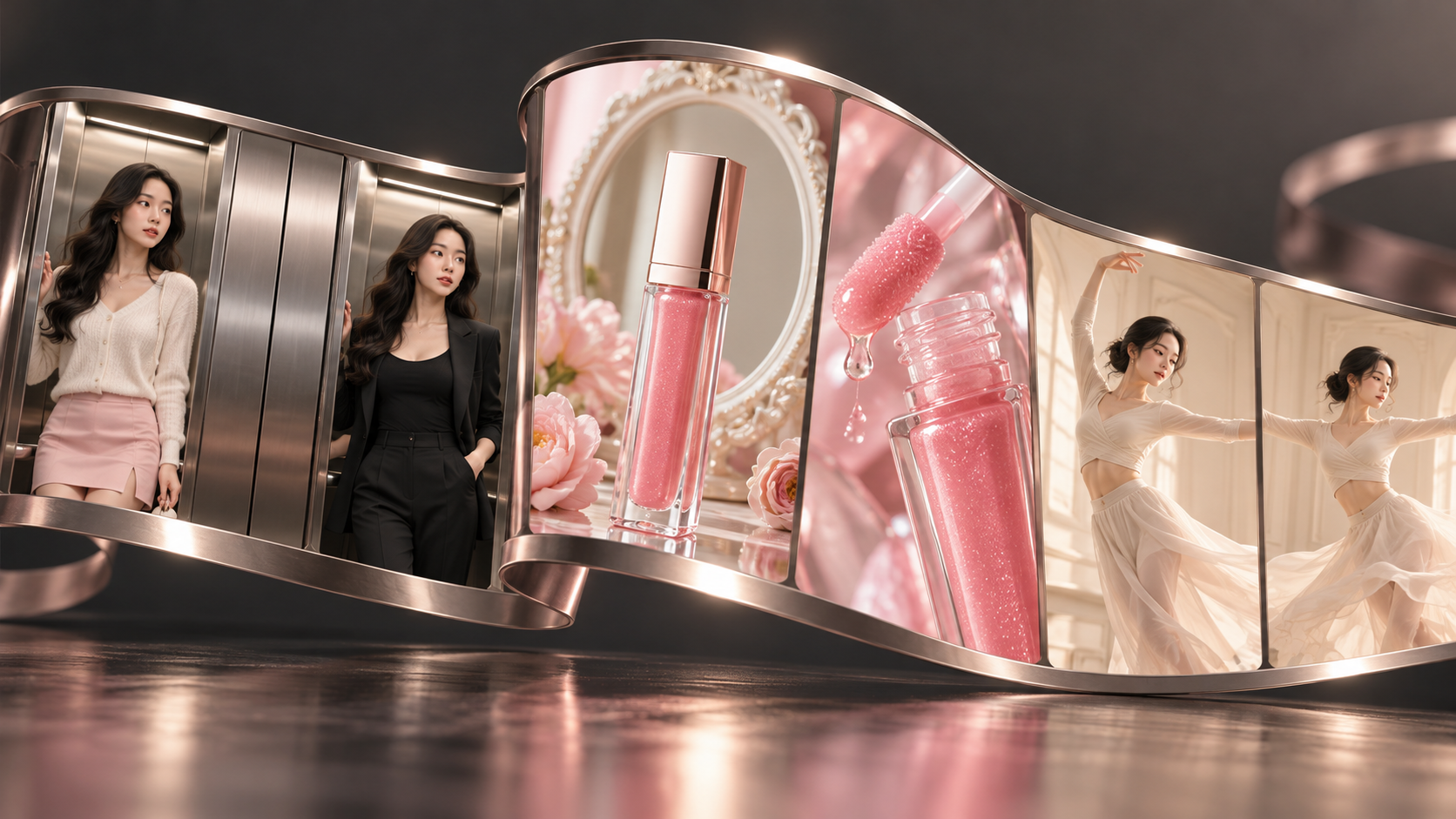
The best AI video prompts give a model clear directions about what moves, what stays consistent, and how the scene develops. That matters whether you are revealing four outfits, turning a product photo into a beauty ad, or transferring a dance to a new character.
This guide brings together three practical examples built around RunningHub: an elevator outfit change, a pink lip-product commercial, and a reference-based dance video. Each includes the required assets, a copy-ready prompt, and a generation process you can adapt.
Two examples use Quick Creation; the ecommerce example uses Canvas Creation. The difference is how you organize the work: a focused generation request versus a visual project containing references, scene development, and video generation. Choose the example that matches your next video rather than trying to master everything at once.
Choose Your AI Video Prompt by Scenario
The settings below reflect the example projects. They are starting configurations, not settings that every model or account will always offer. Confirm available modes, durations, resolutions, and input limits in the interface before generating.
| Scenario | Creation method | Required references | Example settings |
| Elevator outfit change | Quick Creation | Four outfit images and one motion-reference video | Seedance 2.0, 12 seconds, 9:16, 480p |
| Beauty product commercial | Canvas Creation | One uploaded product photo; supporting visuals created inside the canvas | MiniMax H3, 11 seconds, 9:16, 768p |
| Solo dance | Quick Creation | One character image and one dance-reference video | WAN 3.0, 15 seconds, 9:16, 480p |
The model links provide technical reference information; the creation links in the following sections open the relevant example entries.
These are reference-based examples. Copying the text alone will not reproduce them: upload the corresponding assets and connect each reference mention to the correct file.
What Makes Prompts for AI Videos Effective?
A useful prompt establishes the subject, action, environment, camera, sequence, and constraints. It also assigns a specific job to each reference.
For an outfit video, images define appearance while the video guides movement. For a product ad, the product photograph defines the item being sold. For dancing, the motion reference supplies choreography while the character image supplies appearance and background.
Keep these roles separate. Otherwise, a model may borrow clothing from the motion reference or reinterpret packaging that should remain unchanged.
Describe visible behavior instead of relying on mood words. “A premium cinematic transformation” leaves many choices open. “The doors close completely before the next outfit appears” establishes an observable transition rule.
Timing matters too. Four outfit reveals and a walkout require room for each action. A multi-scene beauty ad needs a sequence rather than an unstructured list of desirable shots.
Finally, distinguish prompt instructions from interface settings. Select duration and aspect ratio in the actual controls where available; writing them in the prompt does not override unsupported settings.
Before generating, read the prompt alongside the reference thumbnails. Every named image or video should have a clear purpose. Remove references you no longer need, and check the attachment labels again if you replace or reorder files.
Quick Creation: Outfit Changes and Dance Videos
RunningHub Runow is RunningHub’s Quick Creation workspace for AI images and videos. It brings prompts, reference uploads, model selection, and creative templates into one interface, so you can start with an idea or adapt an existing example. Its template library includes categories such as commercial ads, dance moves, and fun creative formats. This dance example also uses Runow: a character image defines the appearance, while a reference video guides the movement.
Quick Creation suits these examples because each uses one main generation request with attached references. You can work from the linked entry, identify the uploaded assets, and submit a focused prompt without organizing a larger canvas project.
Reference support varies by model and mode, so keep the selected multi-reference configuration when following the examples.
Outfit Change Video Prompt: Four Looks, One Elevator
This concept uses elevator doors as a physical transition. Each opening reveals another outfit, and the final opening ends with the woman walking toward the camera.
Prepare four full-body images of the same adult person. Keep the elevator background, camera angle, and subject scale as consistent as possible. The clothing can change; the person should remain recognizable.
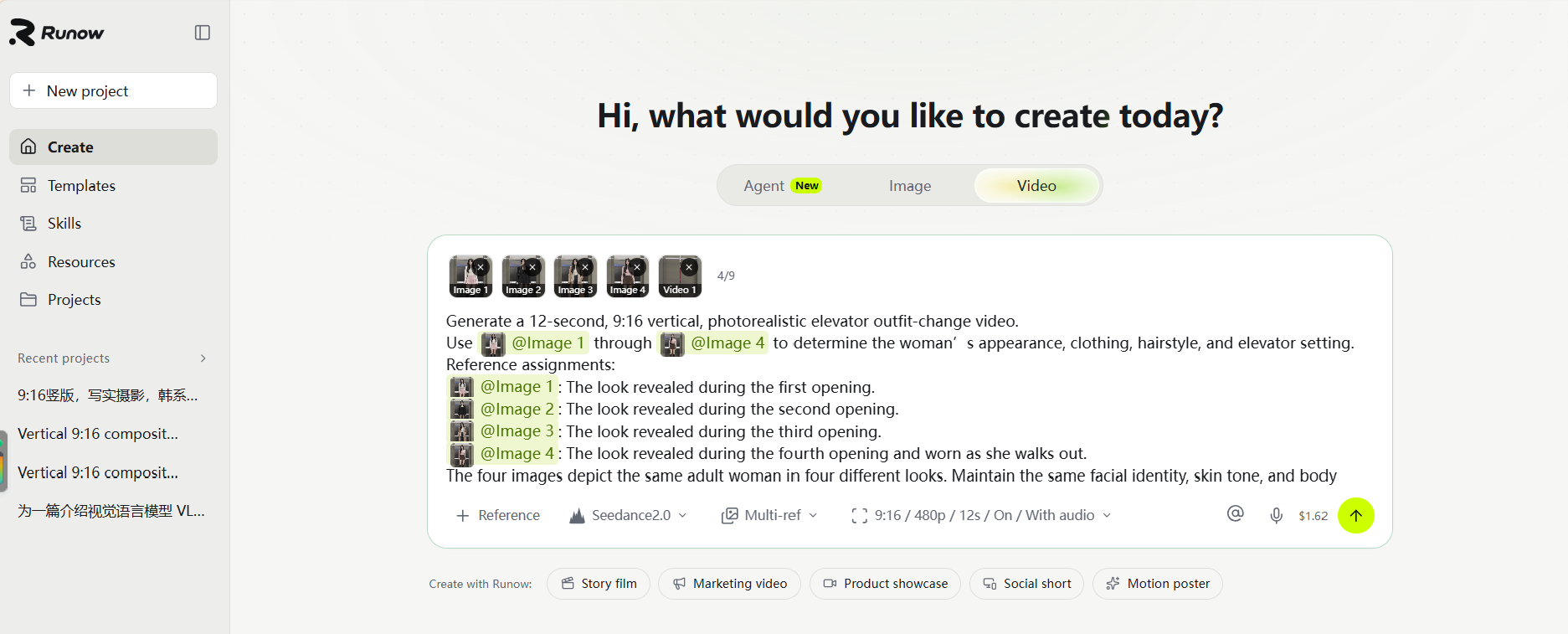
Upload the images in reveal order. Add a reference video for pacing and the final walkout. In the prompt, @Image 1 through @Image 4 correspond to the outfits, while @Video 1 supplies movement guidance.
The example uses 12 seconds, a 9:16 frame, and 480p. Treat that resolution as a draft setting; inspect any higher-resolution version independently before publishing.
Copy-ready outfit prompt
Generate a 12-second, 9:16 vertical, photorealistic elevator outfit-change video.Use @Image 1 through @Image 4 to determine the woman’s appearance, clothing, hairstyle, and elevator setting.
Reference assignments: @Image 1: The look revealed during the first opening. @Image 2: The look revealed during the second opening. @Image 3: The look revealed during the third opening. @Image 4: The look revealed during the fourth opening and worn as she walks out. @Video 1: Reference for pacing, walking direction, and ending timing only.
The four images depict the same adult woman in four different looks. Maintain the same facial identity, skin tone, and body proportions throughout. For each look, preserve the clothing, footwear, bag, accessories, and hairstyle shown in its corresponding image.
Camera and framing: Maintain a single fixed camera viewpoint, filming the elevator straight on from outside. Keep the doorframes, metal walls, handrail, lighting, and floor stable.
During the first three reveals, keep the woman in the same central position inside the elevator, with consistent subject scale and framing. Show her entire body from head to shoes, leaving space above her head to show the upper elevator interior.
During the final exit, she naturally becomes larger in the frame as she physically approaches the camera. The camera remains stationary.
Action and reveal sequence:
First opening — @Image 1, white cardigan and pink pleated skirt: The doors slide apart, gradually revealing the woman. She takes a small step to one side while lightly adjusting the cardigan hem with one hand, then naturally shifts her weight back toward the center. The skirt pleats sway gently. The doors then close until she is completely concealed.
Second opening — @Image 2, black camisole and padded-shoulder blazer: After closing completely, the doors open again. She lightly adjusts the blazer lapels with both hands, turns her shoulders slightly to show its silhouette, then faces forward and lowers her hands. The sleeves and hem respond realistically. The doors close completely.
Third opening — @Image 3, camel overcoat and jeans: The doors open again. She lightly holds one edge of the coat, takes a small half-step forward within the elevator, and gently turns her torso. The coat hem and scarf sway naturally. She faces the camera again. The doors close completely.
Fourth opening and exit — @Image 4: The doors open for the final time. She briefly presents the final outfit facing the camera, then steps forward, crosses the elevator threshold, and walks out toward the camera. Follow the walking direction, pace, and ending timing of @Video 1.
Her feet alternate naturally, with stable foot contact and realistic weight transfer. Her arms swing subtly, while her hair, clothing, and bag respond naturally to her steps. Keep the elevator doors open while she exits. End with the woman visibly outside the elevator.
Transition rules: All outfit and hairstyle changes occur only while the doors are fully closed and the woman is completely hidden. Each opening directly reveals the next complete look.
Clothing, hairstyle, and facial identity remain stable whenever the doors are open and throughout the final walk.
The doors behave as solid metal panels positioned in front of the woman. They slide horizontally along their tracks, progressively revealing or concealing her.
Keep the first three displays concise, leaving enough time for the final walkout.
Avoid melting or morphing clothing, gradual outfit transformations, mixed outfits, facial changes, multiple people, warped doors, sliding feet, body parts passing through doors, camera zooms, camera shake, and shot changes. No added subtitles or watermarks.
How to generate and refine it
Open the outfit-change video creator, attach your four images and motion reference, and select the matching multi-reference mode. Insert the actual attachment mentions rather than assuming typed labels automatically connect to files.
Paste the prompt, confirm the output settings, and generate a first version. Watch the entire sequence before adjusting individual frames.
Check the three door closures first. If clothing changes while the woman is visible, strengthen the full-occlusion instruction. If she remains motionless during each reveal, retain the small garment-adjustment actions instead of adding unrelated movement.
Check the ending separately. The person should cross the threshold while the doors remain open. If the walkout is rushed, shorten the earlier displays or simplify the actions.
Dance Video Prompt: Keep the Character, Borrow the Movement
This example separates character design from choreography. A still image provides the person and background; a solo dance video provides movement, rhythm, and composition.
Choose a clear character image with a suitable body view. Use a motion reference where the dancer remains visible and the camera stays relatively stable. Heavy occlusion or frequent cuts make the intended movement harder to communicate.
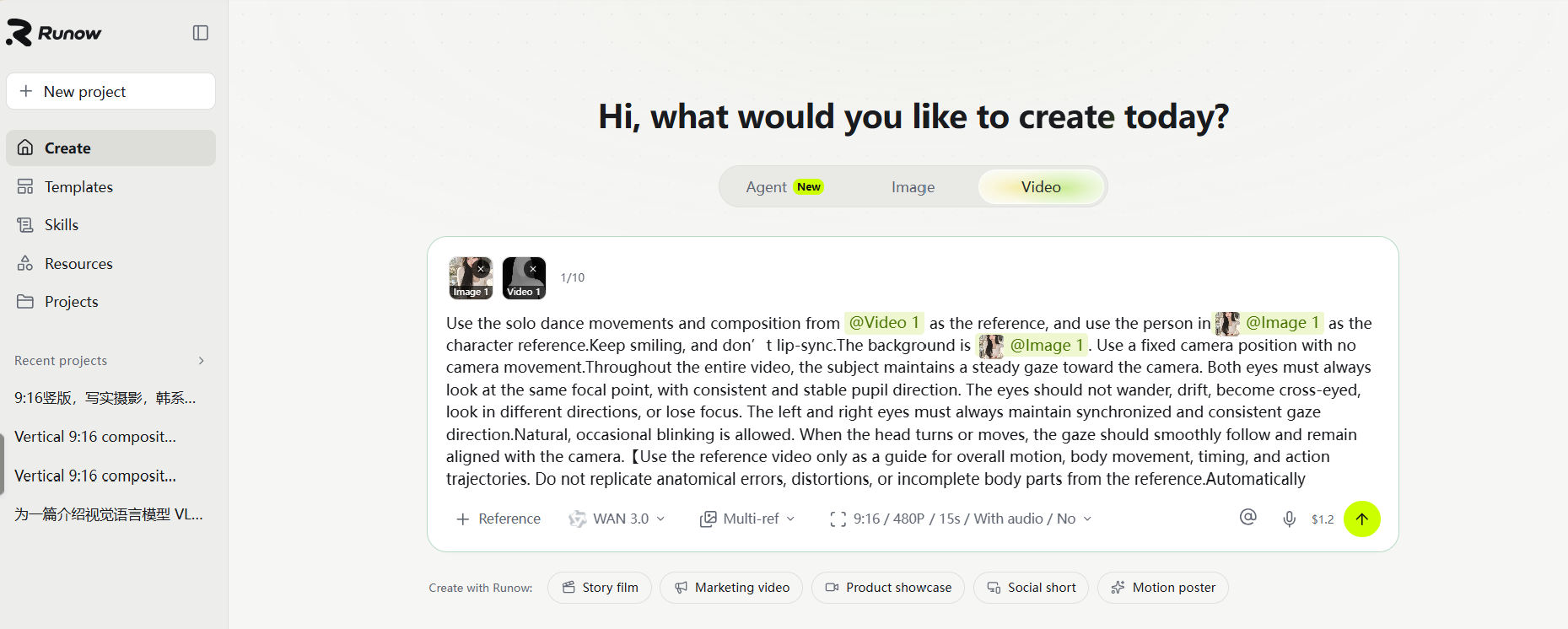
The example uses 15 seconds, a 9:16 frame, and 480p. The intended result keeps a fixed camera, a friendly expression, and no lip-sync performance.
Copy-ready dance prompt:
Use the solo dance movements and composition from @Video 1 as the motion reference. Use the person in @Image 1 as the character reference, and preserve the background from @Image 1.
Maintain the character’s facial identity, clothing, and body proportions. Keep a natural smile and do not lip-sync.
Use a fixed camera position with no camera movement.
Keep the subject visually engaged with the camera whenever the choreography allows. Both eyes should share a consistent focal point, with synchronized gaze direction. Avoid wandering eyes, crossed eyes, divergent pupils, or unfocused gaze. Natural occasional blinking is allowed.
When the head moves, keep the gaze naturally coordinated with the movement. Do not force an unnatural head or eye position to maintain eye contact.
Use @Video 1 only as a guide for overall motion, body movement, timing, rhythm, and action trajectories. Do not copy the reference performer’s appearance, background, anatomical errors, distortions, or incomplete body parts.
Prioritize realistic anatomy when the reference contains unclear hand details. Maintain five properly formed fingers on each hand, natural finger proportions, realistic joint articulation, and smooth wrist movement.
Keep hand geometry consistent across frames. Avoid missing fingers, extra fingers, fused fingers, distorted joints, broken wrists, and sudden changes in hand shape.
Preserve the original choreography and overall body movement while maintaining natural local anatomy. Keep foot contact stable and body proportions consistent. No added captions or watermarks.
How to generate and refine it
Open the dance video creator, upload the character image and dance reference, and map them to @Image 1 and @Video 1. Select the reference-capable mode shown in the example and confirm the settings before generation.
Review the full clip for identity drift, changed background details, unstable feet, and hand deformation. Check moments where the hands cross the face or torso, because local errors can be easy to miss during continuous playback.
Requests for correct fingers or steady eye contact are guidance, not automatic repair tools. If a particular gesture repeatedly fails, choose a clearer reference or simplify that passage rather than adding an increasingly long list of prohibitions.
Keep the requested gaze compatible with the choreography. A sideways head movement can preserve camera engagement; a full turn cannot maintain uninterrupted eye contact naturally.
Funny AI Video Prompts: Add One Clear Comic Idea
For funny AI video prompts, start with the same dance workflow and change one readable detail. A person in an oversized office blazer performing a lively routine can create contrast without requiring another scene or a complicated narrative.
The variation below is an untested adaptation, not a description of the example dance result. Prepare a matching character image first, then use the same motion reference.
Optional funny variation
Use @Image 1 for the adult character’s appearance, oversized office blazer, and office background. Use @Video 1 for the solo dance choreography and rhythm.
The character performs the lively routine with an unexpectedly serious, professional expression, as if presenting an important quarterly report. Keep the humor in the contrast between the formal setting and energetic dancing.
Preserve natural anatomy, stable foot contact, and realistic clothing movement. Fixed camera, no lip-sync, no added text.
Keep the joke visual and easy to recognize. Props that cover the hands, costumes that hide the legs, or multiple simultaneous gags can make movement less clear. Establish the dance first, then test a small comic variation.
Canvas Creation: A Beauty Product Commercial from One Product Photo
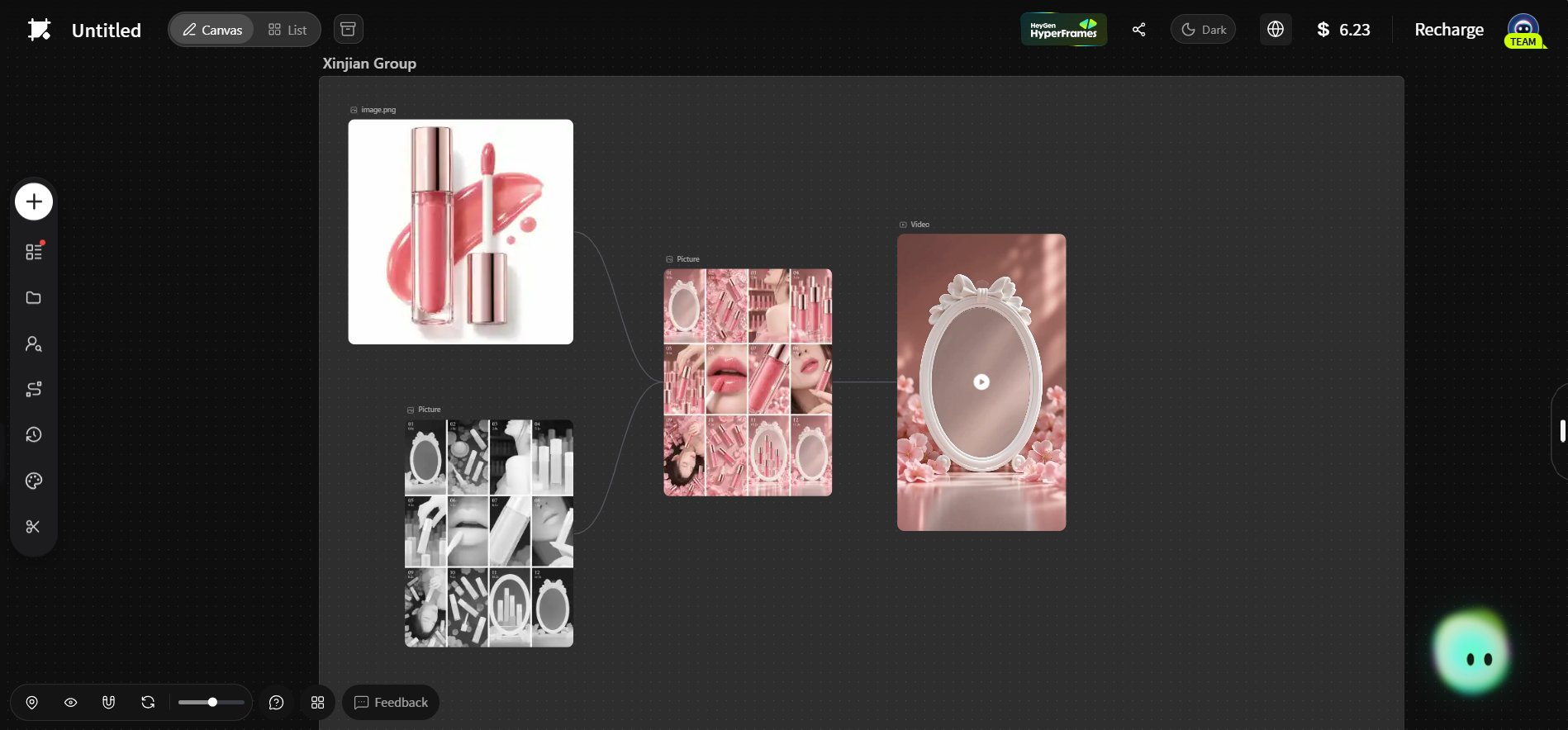
The ecommerce example uses a soft-pink beauty world, an oval decorative mirror, a model, product arrangements, application close-ups, and a closing composition intended to loop.
Its supporting beauty visuals were created inside the canvas. You do not need to bring a finished storyboard: the external starting asset can be one photograph of your own lip product.
That photograph supplies the replacement product identity. The scene still needs to be developed and checked for the new packaging, applicator, and shade.
Prepare the Product and Build the Visual Reference
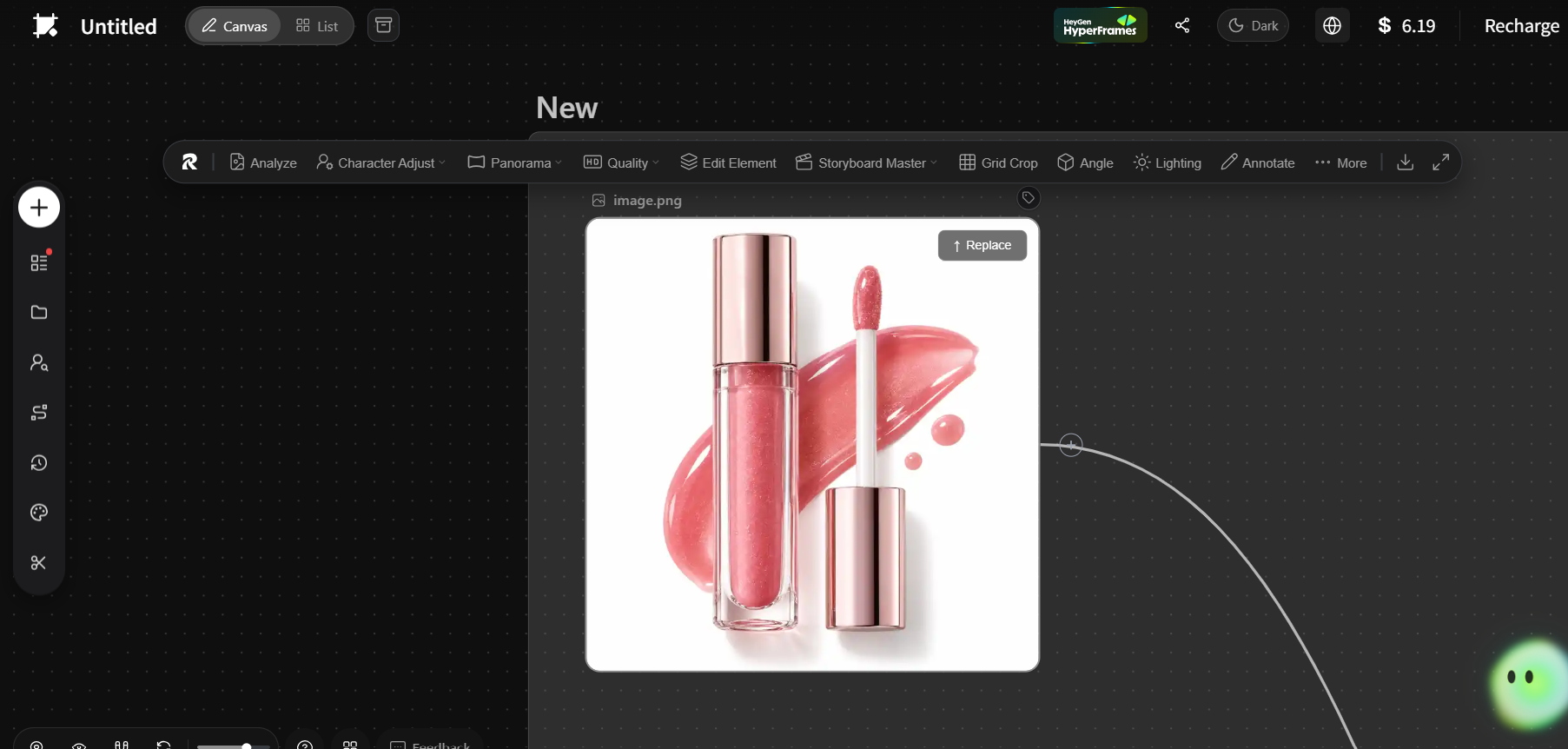 Open the beauty product video canvas and upload a clear product photograph. Choose an image where packaging shape, color, and visible branding are easy to inspect.
Generate or adapt the pink scene and storyboard imagery inside the canvas, using the uploaded product as the appearance reference. Review these stills before using them to guide video generation.
The following scene-building prompt is an optional preparation aid. It organizes the visual direction; it is not the original project’s recovered image prompt.
Optional preparation prompt
Use the uploaded lip-product photograph as the product reference. Preserve its packaging shape, proportions, materials, color, and visible branding.
Create a cohesive vertical storyboard contact sheet for a dreamy soft-pink beauty commercial. Include an empty white ornate oval mirror frame, a pink vanity with crystals, an adult female model beside rows of the referenced product, a product pickup, a lip-application close-up, a macro packaging detail, a model-and-product portrait, and a final product arrangement inside the oval frame.
Maintain the same model, product identity, soft-pink palette, and premium beauty styling across panels. Leave the first and final empty-frame compositions visually compatible. No added captions or invented brand text.
Select the approved visual reference and add it to the video generation input. Ensure the prompt references the intended asset. A file merely sitting elsewhere on the canvas should not be assumed to influence a generation automatically.
For a broader introduction to organizing references and generations, see the AI canvas workflow guide. RunningHub Blog
Use the Timed Ecommerce Video Prompt
The sequence has four sections: environment and model introduction, product display and application, macro detail and model presentation, then the closing product arrangement.
Copy-ready ecommerce prompt
Create an 11-second, 9:16 vertical beauty commercial.
Use the approved canvas reference image for the model, product appearance, pink beauty environment, and decorative mirror frame. Preserve the referenced product’s packaging and visible branding throughout.
[0–2.5s | World Building + Model Reveal]
The scene opens in a dreamy, soft-pink beauty environment, with a white European-style oval decorative mirror appearing at the center.
The camera moves forward, transitioning through the mirror into a top-down view of a pink vanity table scattered with transparent crystals, jewel-like decorations, and beauty products.
The adult female model then appears in front of neatly arranged rows of pink products, slowly turning her head to look toward the camera.
[2.5–5.5s | Product Display to Application]
The camera quickly moves through multiple rows of neatly arranged products, creating a rich, rhythmic, repetitive product display.
The model reaches into the product arrangement and gently picks up the referenced lip gloss.
The scene transitions into an extreme close-up of her lips as the applicator glides smoothly across them, revealing a hydrated-looking, translucent, high-shine, glass-like glossy finish.
[5.5–8.8s | Hero Product Shot + Model]
An extreme macro hero shot showcases the product bottle, transparent packaging, pink liquid, and delicate shimmering details, matching the actual referenced product.
The model holds the product beside her face, highlighting both her glossy lips and the product.
The scene transitions into a top-down shot of the model elegantly lying among scattered pink beauty products, holding the product while looking toward the camera.
[8.8–11s | Product Finale]
Multiple lip products in different pink shades are naturally scattered across a soft-pink surface. Bright sunlight creates refined, crisp shadows.
The camera pulls back and exits through the original white European-style oval frame, revealing several products arranged inside it as the final hero composition.
The products gradually disappear, returning the scene to the original empty frame. Aim to match the opening composition for a smooth visual loop.
Maintain consistent product geometry, model identity, lighting logic, and color treatment. Do not invent packaging text, extra fingers, or additional people. No added subtitles or watermarks.
Replace the Product Without Breaking the Story
To adapt this example, upload your lip product and update the supporting visuals using it as the reference. Then inspect every scene where packaging appears before generating or approving the video.
If you replace lip gloss with a solid lipstick, change the application instructions too. A wand gliding across lips and a translucent glossy finish do not describe every lipstick. Match the applicator and finish to the actual item.
Adjust the palette if necessary. Keeping a pink environment is a creative choice, not a requirement for products in other colors. Preserve a consistent lighting direction and material treatment across replacement shots.
Review the final video at normal speed and pause on product close-ups. Check label spelling, bottle geometry, shade, applicator shape, and whether the model appears to hold the product plausibly.
The final pullback aims to return to an empty frame. If the ending does not match the opening closely enough, trim or refine the cut in an editor. Do not label the result seamless until you have checked repeated playback.
How to Improve AI Video Prompts Without Starting Over
When a generation misses the brief, identify the failure before rewriting the prompt. A useful revision targets one visible problem while preserving what already works.
If reference roles are mixed, clarify which asset controls appearance and which controls motion. If the shot feels static, add a concrete action. If the sequence is overloaded, remove a beat or generate separate sections for editing.
Keep a small record of each version: references, model, mode, duration, resolution, prompt, and the specific change you made. This helps distinguish a useful wording change from a different input or setting.
Evaluate outcomes against the intended use. Fashion clips need stable identity and clear outfits; dance clips need readable movement; product ads need accurate product details. The most elaborate video is not necessarily the most usable one.
If you are still preparing reference images, the AI image prompt collection offers examples for developing visual starting points. RunningHub Blog
For these examples, start with the provided structure and replace only the relevant subject or product details. Review the draft, make one targeted adjustment, and expand the concept after the core motion works.
Frequently Asked Questions
What are the best AI video prompts for beginners?
Start with one clear subject, one main action, and a simple camera instruction. Reference-based examples are useful when you can supply clear assets and explain exactly what each reference controls.
Do I need reference images or videos?
These three examples require references. The outfit case uses four images and a video; dance uses an image and video; ecommerce starts with a product photo and develops supporting visuals in the canvas.
Why does my AI video ignore part of the prompt?
The sequence may contain too many actions, contradictory instructions, unclear reference roles, or unsupported settings. Simplify the task and address the most important visible error first. Additional text alone does not guarantee better control.
Can I use these videos commercially?
Check current platform terms, the selected model license, and rights to product photography, people, reference footage, and music. A generated clip is not automatically cleared for advertising just because the tool accepts the inputs.
Do I need local installation or an API?
The demonstrated workflows use RunningHub in a browser. An API is optional for developers building integrations; it is not required to follow these examples. Consult the official API documentation if you later automate production.
Conclusion
The best AI video prompts make creative decisions clear: who or what appears, how the subject moves, what the camera does, and which details must stay consistent. The examples in this guide apply that principle in different ways—using door closures to control outfit changes, timed sequences to structure a product ad, and separate references to guide a dance.
You can keep learning by exploring the creative templates available in RunningHub Runow. Look beyond the finished effect: study how each example assigns reference roles, describes actions, and organizes the sequence. Then adapt those choices to your own character, product, or visual style. AI Video & Image Generator
Start with one template, understand its structure, and change one element at a time. That turns a useful prompt into a repeatable approach you can carry into your next video.