
'%3e %3cg id='Vector'%3e %3c/g%3e %3cpath id='Vector_2' d='M14.504 8.522L12.746 4.49C12.6826 4.34486 12.5783 4.22136 12.4458 4.13463C12.3133 4.0479 12.1584 4.0017 12 4.0017C11.8416 4.0017 11.6867 4.0479 11.5542 4.13463C11.4217 4.22136 11.3174 4.34486 11.254 4.49L9.495 8.522C9.305 8.958 8.958 9.306 8.522 9.495L4.49 11.254C4.34486 11.3174 4.22136 11.4217 4.13463 11.5542C4.0479 11.6867 4.0017 11.8416 4.0017 12C4.0017 12.1584 4.0479 12.3133 4.13463 12.4458C4.22136 12.5783 4.34486 12.6826 4.49 12.746L8.523 14.504C8.959 14.694 9.307 15.042 9.496 15.478L11.255 19.511C11.3184 19.6561 11.4227 19.7796 11.5552 19.8664C11.6877 19.9531 11.8426 19.9993 12.001 19.9993C12.1594 19.9993 12.3143 19.9531 12.4468 19.8664C12.5793 19.7796 12.6836 19.6561 12.747 19.511L14.505 15.478C14.695 15.042 15.043 14.694 15.479 14.504L19.512 12.746C19.6571 12.6826 19.7806 12.5783 19.8674 12.4458C19.9541 12.3133 20.0003 12.1584 20.0003 12C20.0003 11.8416 19.9541 11.6867 19.8674 11.5542C19.7806 11.4217 19.6571 11.3174 19.512 11.254L15.479 9.495C15.043 9.30549 14.695 8.95782 14.505 8.522' stroke='var(--stroke-0%2c white)' stroke-width='1.25' stroke-linecap='round' stroke-linejoin='round'/%3e %3cpath id='Vector_3' d='M3 3L5 5' stroke='var(--stroke-0%2c white)' stroke-width='1.25' stroke-linecap='round' stroke-linejoin='round'/%3e %3cpath id='Vector_4' d='M21 3L19 5' stroke='var(--stroke-0%2c white)' stroke-width='1.25' stroke-linecap='round' stroke-linejoin='round'/%3e %3cpath id='Vector_5' d='M3 21L5 19' stroke='var(--stroke-0%2c white)' stroke-width='1.25' stroke-linecap='round' stroke-linejoin='round'/%3e %3cpath id='Vector_6' d='M21 21L19 19' stroke='var(--stroke-0%2c white)' stroke-width='1.25' stroke-linecap='round' stroke-linejoin='round'/%3e %3c/g%3e %3cdefs%3e %3cclipPath id='clip0_0_55'%3e %3crect width='24' height='24' fill='white'/%3e %3c/clipPath%3e %3c/defs%3e %3c/svg%3e)
'%3e %3cg id='Vector'%3e %3c/g%3e %3cpath id='Vector_2' d='M14.375 7.66667H14.385' stroke='var(--stroke-0%2c white)' stroke-width='1.25' stroke-linecap='round' stroke-linejoin='round'/%3e %3cpath id='Vector_3' d='M11.9792 20.125H5.75C4.9875 20.125 4.25624 19.8221 3.71707 19.2829C3.1779 18.7438 2.875 18.0125 2.875 17.25V5.75C2.875 4.9875 3.1779 4.25624 3.71707 3.71707C4.25624 3.1779 4.9875 2.875 5.75 2.875H17.25C18.0125 2.875 18.7438 3.1779 19.2829 3.71707C19.8221 4.25624 20.125 4.9875 20.125 5.75V11.9792' stroke='var(--stroke-0%2c white)' stroke-width='1.25' stroke-linecap='round' stroke-linejoin='round'/%3e %3cpath id='Vector_4' d='M2.875 15.3333L7.66667 10.5417C8.556 9.68587 9.65233 9.68587 10.5417 10.5417L14.375 14.375' stroke='var(--stroke-0%2c white)' stroke-width='1.25' stroke-linecap='round' stroke-linejoin='round'/%3e %3cpath id='Vector_5' d='M13.4167 13.4167L14.375 12.4583C15.0171 11.8412 15.7646 11.6687 16.4661 11.9408' stroke='var(--stroke-0%2c white)' stroke-width='1.25' stroke-linecap='round' stroke-linejoin='round'/%3e %3cpath id='Vector_6' d='M15.3333 18.2083H21.0833' stroke='var(--stroke-0%2c white)' stroke-width='1.25' stroke-linecap='round' stroke-linejoin='round'/%3e %3cpath id='Vector_7' d='M18.2083 15.3333V21.0833' stroke='var(--stroke-0%2c white)' stroke-width='1.25' stroke-linecap='round' stroke-linejoin='round'/%3e %3c/g%3e %3cdefs%3e %3cclipPath id='clip0_0_4'%3e %3crect width='23' height='23' fill='white'/%3e %3c/clipPath%3e %3c/defs%3e %3c/svg%3e)


'%3e %3cg id='Vector'%3e %3c/g%3e %3cpath id='Vector_2' d='M18.3333 10.5001V6.66667C18.3333 5.78261 17.9821 4.93477 17.357 4.30964C16.7319 3.68452 15.8841 3.33333 15 3.33333H5C4.11594 3.33333 3.2681 3.68452 2.64298 4.30964C2.01786 4.93477 1.66667 5.78261 1.66667 6.66667V13.3333C1.66667 14.2174 2.01786 15.0652 2.64298 15.6904C3.2681 16.3155 4.11594 16.6667 5 16.6667H11.6667M15.5 17.0001V12.0001M13 14.5001L15.5 12.0001L18 14.5001' stroke='var(--stroke-0%2c white)' stroke-linecap='round' stroke-linejoin='round'/%3e %3cpath id='Vector_3' d='M8.33333 7.5L12.5 10L8.33333 12.5V7.5Z' stroke='var(--stroke-0%2c white)' stroke-linecap='round' stroke-linejoin='round'/%3e %3c/g%3e %3cdefs%3e %3cclipPath id='clip0_0_4'%3e %3crect width='20' height='20' fill='white'/%3e %3c/clipPath%3e %3c/defs%3e %3c/svg%3e)
'%3e %3cg id='Vector'%3e %3c/g%3e %3cpath id='Vector_2' d='M16.25 10.8333L21.1824 8.36767C21.3475 8.28515 21.531 8.2462 21.7154 8.25451C21.8998 8.26281 22.079 8.3181 22.2361 8.41512C22.3931 8.51214 22.5228 8.64768 22.6127 8.80888C22.7026 8.97007 22.7499 9.15158 22.75 9.33617V16.6638C22.7499 16.8484 22.7026 17.0299 22.6127 17.1911C22.5228 17.3523 22.3931 17.4879 22.2361 17.5849C22.079 17.6819 21.8998 17.7372 21.7154 17.7455C21.531 17.7538 21.3475 17.7148 21.1824 17.6323L16.25 15.1667V10.8333Z' stroke='var(--stroke-0%2c white)' stroke-width='1.25' stroke-linecap='round' stroke-linejoin='round'/%3e %3cpath id='Vector_3' d='M3.25 8.66667C3.25 8.09203 3.47827 7.54093 3.8846 7.1346C4.29093 6.72827 4.84203 6.5 5.41667 6.5H14.0833C14.658 6.5 15.2091 6.72827 15.6154 7.1346C16.0217 7.54093 16.25 8.09203 16.25 8.66667V17.3333C16.25 17.908 16.0217 18.4591 15.6154 18.8654C15.2091 19.2717 14.658 19.5 14.0833 19.5H5.41667C4.84203 19.5 4.29093 19.2717 3.8846 18.8654C3.47827 18.4591 3.25 17.908 3.25 17.3333V8.66667Z' stroke='var(--stroke-0%2c white)' stroke-width='1.25' stroke-linecap='round' stroke-linejoin='round'/%3e %3cpath id='Vector_4' d='M7.58333 13H11.9167' stroke='var(--stroke-0%2c white)' stroke-width='1.25' stroke-linecap='round' stroke-linejoin='round'/%3e %3cpath id='Vector_5' d='M9.75 10.8333V15.1667' stroke='var(--stroke-0%2c white)' stroke-width='1.25' stroke-linecap='round' stroke-linejoin='round'/%3e %3c/g%3e %3cdefs%3e %3cclipPath id='clip0_0_47'%3e %3crect width='26' height='26' fill='white'/%3e %3c/clipPath%3e %3c/defs%3e %3c/svg%3e)
'%3e %3cg id='Vector'%3e %3c/g%3e %3cpath id='Vector_2' d='M4 7H7M11 7H20' stroke='var(--stroke-0%2c white)' stroke-width='1.25' stroke-linecap='round' stroke-linejoin='round'/%3e %3cpath id='Vector_3' d='M4 17H20' stroke='var(--stroke-0%2c white)' stroke-width='1.25' stroke-linecap='round' stroke-linejoin='round'/%3e %3cpath id='Vector_4' d='M7 4L7 20' stroke='var(--stroke-0%2c white)' stroke-width='1.25' stroke-linecap='round' stroke-linejoin='round'/%3e %3cpath id='Vector_5' d='M17 4V13M17 17V20' stroke='var(--stroke-0%2c white)' stroke-width='1.25' stroke-linecap='round' stroke-linejoin='round'/%3e %3c/g%3e %3cdefs%3e %3cclipPath id='clip0_0_60'%3e %3crect width='24' height='24' fill='white'/%3e %3c/clipPath%3e %3c/defs%3e %3c/svg%3e)
'%3e %3cg id='Vector'%3e %3c/g%3e %3cpath id='Vector_2' d='M6 10L4 11L12 15L20 11L18 10' stroke='var(--stroke-0%2c white)' stroke-width='1.25' stroke-linecap='round' stroke-linejoin='round'/%3e %3cpath id='Vector_3' d='M4 15L12 19L20 15' stroke='var(--stroke-0%2c white)' stroke-width='1.25' stroke-linecap='round' stroke-linejoin='round'/%3e %3cpath id='Vector_4' d='M12 4V11' stroke='var(--stroke-0%2c white)' stroke-width='1.25' stroke-linecap='round' stroke-linejoin='round'/%3e %3cpath id='Vector_5' d='M15 8L12 11L9 8' stroke='var(--stroke-0%2c white)' stroke-width='1.25' stroke-linecap='round' stroke-linejoin='round'/%3e %3c/g%3e %3cdefs%3e %3cclipPath id='clip0_0_9'%3e %3crect width='24' height='24' fill='white'/%3e %3c/clipPath%3e %3c/defs%3e %3c/svg%3e)


Chat GPT Headshot Prompt: 6 Professional Photo Examples
Find a chat gpt headshot prompt for LinkedIn, business portraits, and more. Learn lighting and background tips, then explore headshot styles with RunningHub.
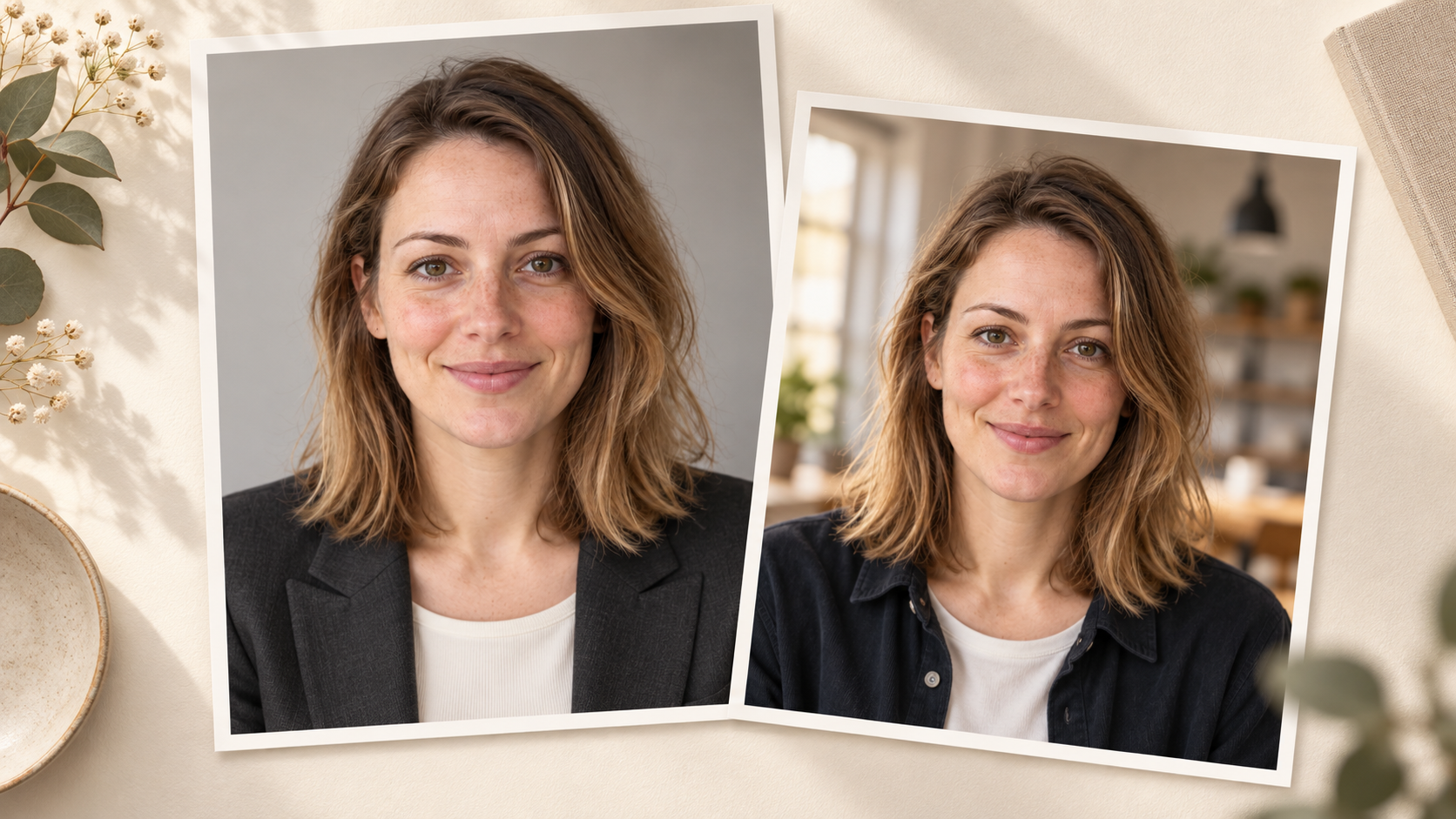
A useful Chat GPT headshot prompt does more than ask for a professional photo. It explains how you should look, where the portrait will appear, and which features must remain recognizable.
Perhaps your current photo has a good expression but distracting furniture behind you. Or you need a formal company portrait and a warmer image for your personal website. The challenge is to change the presentation while still looking like yourself.
This guide provides six adaptable prompts, practical background and lighting instructions, and a reference-photo workflow. You will also learn how to apply the same creative brief in RunningHub’s Runow workspace to explore different professional styles.
The examples are starting briefs rather than a promise of identical results. Choose the style that fits your audience, then refine one decision at a time.
What Makes a Good ChatGPT Headshot Prompt?
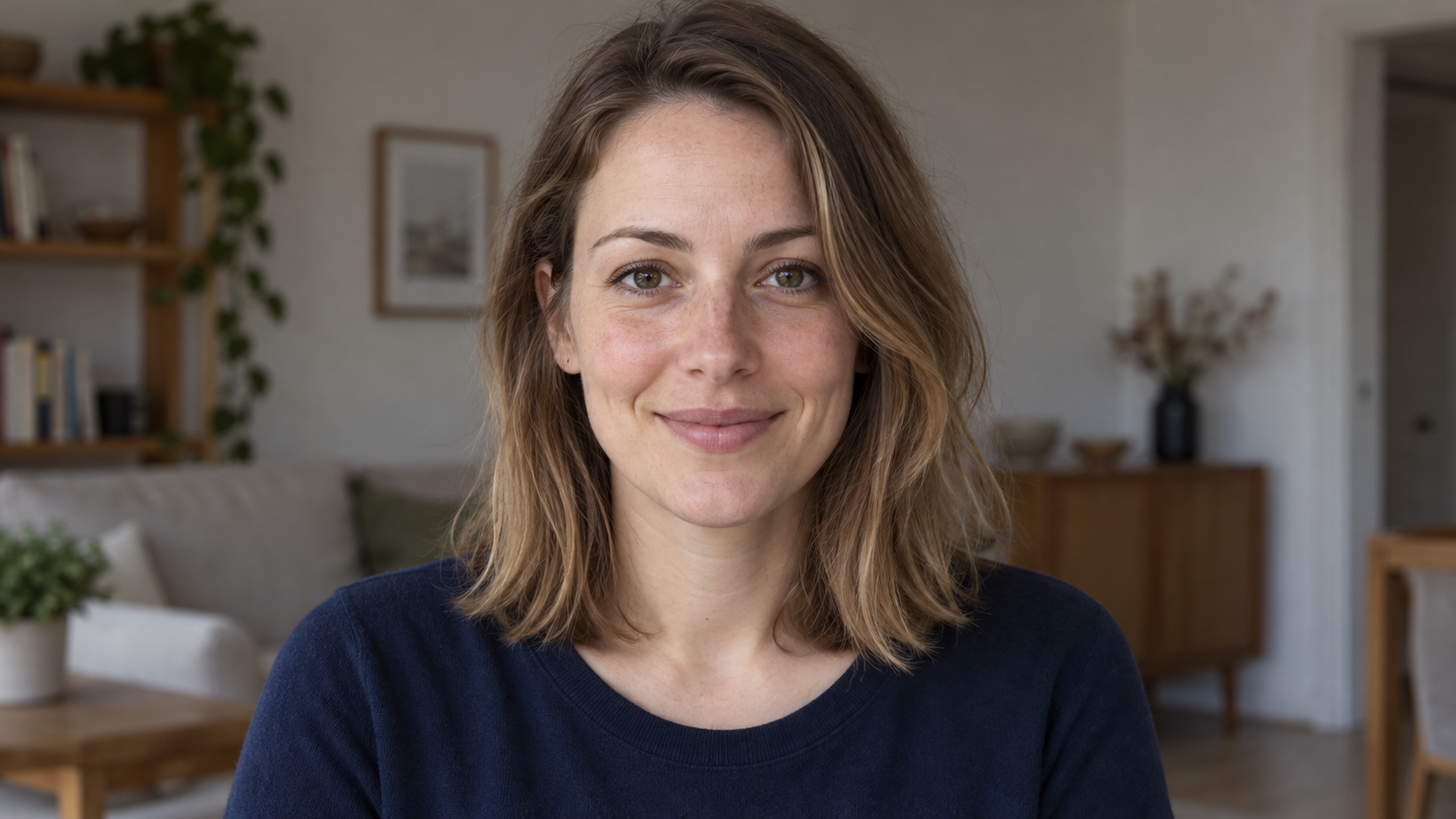
A strong headshot brief answers seven questions: who is pictured, what must stay the same, where the image will be used, what they wear, how they are framed, what appears behind them, and how light falls across their face.
Start with identity. Ask to preserve facial proportions, skin tone, age characteristics, hairline, and distinctive features. Professional presentation should come from clothing, composition, and lighting, rather than a different face.
Next, define the outcome. A LinkedIn portrait may need an approachable expression and a neutral background. A creative portfolio can support stronger color and more editorial styling. The label “professional” is not a complete specification.
Finally, name the treatment. Request natural skin texture and believable fabric instead of stacking terms such as “flawless,” “perfect,” and “ultra-beautiful.” Describe visible details you can evaluate afterward.
Reusable prompt structure
Replace every bracketed field before use. Keep requirements compatible: do not combine a tight head-and-shoulders crop with instructions to show your full outfit. Likewise, select one lighting approach for the initial version rather than asking for studio flash, sunset, and window light together.
Choose a Reference Photo Before You Start
For a portrait of yourself, begin with a recent photograph where your face is sharp and unobstructed. A straightforward head-and-shoulders image is easier to assess than a distant full-body shot.
Look for visible eyes, a natural expression, and reasonably even exposure. Avoid strong beauty filters, sunglasses, motion blur, and camera angles that noticeably distort your proportions. Use an original image when possible instead of a compressed screenshot.
If you normally wear glasses, keep them visible in the reference and ask to preserve their shape. Choose a photo without heavy lens glare. The same principle applies to facial hair, natural hair texture, and other recognizable details.
In ChatGPT, attach the photo to an image-capable conversation and explicitly ask for an edited professional portrait. Official OpenAI documentation describes adding reference images and refining generated results through further instructions. Feature availability depends on your plan and workspace.
For a first attempt, upload the reference, paste one prompt below, and review the face before judging the wardrobe. Continue with a targeted change if the result is close. If the face has drifted substantially, return to the original reference and simplify the request.
6 ChatGPT Headshot Prompts for Different Professional Styles
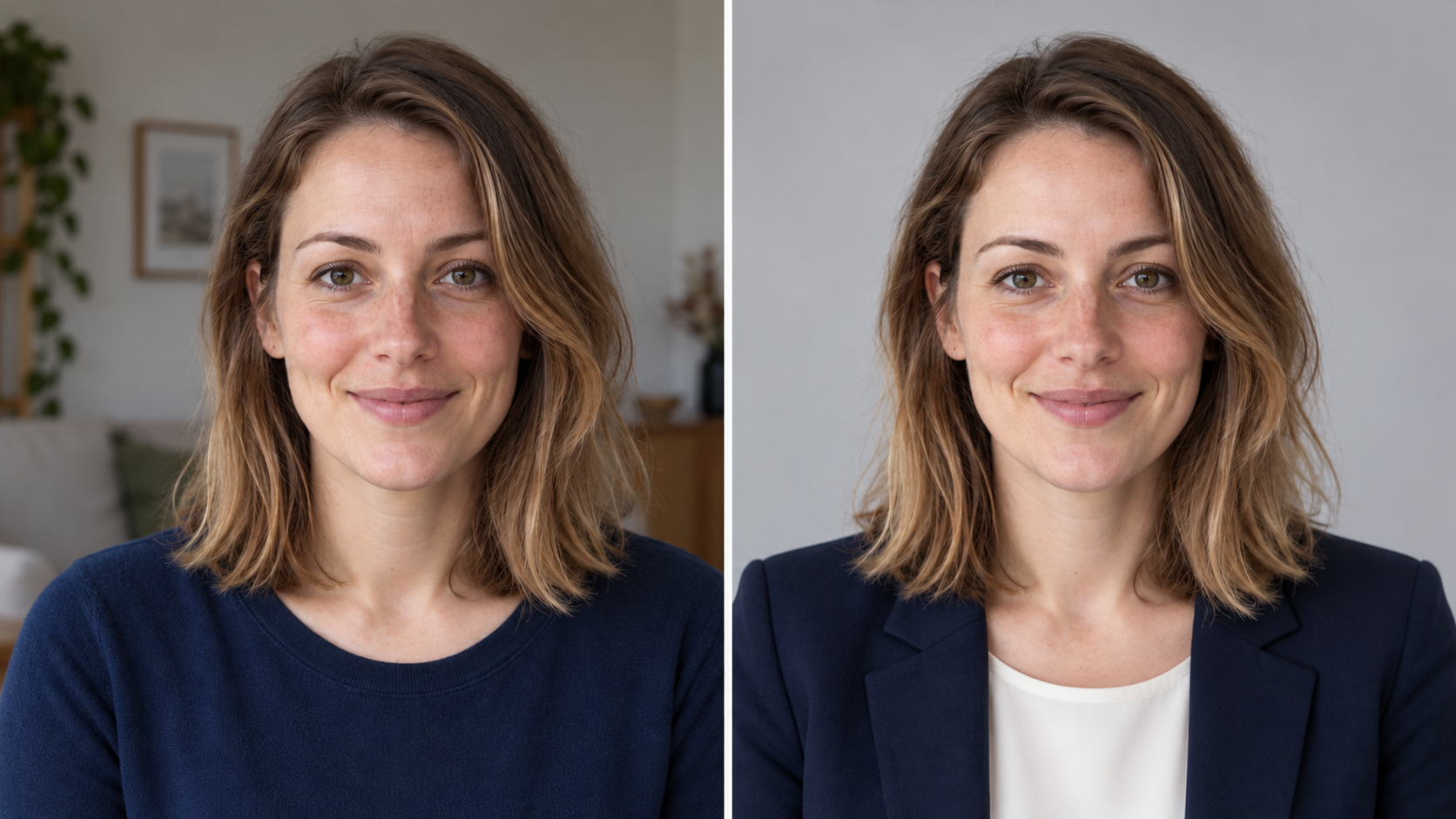
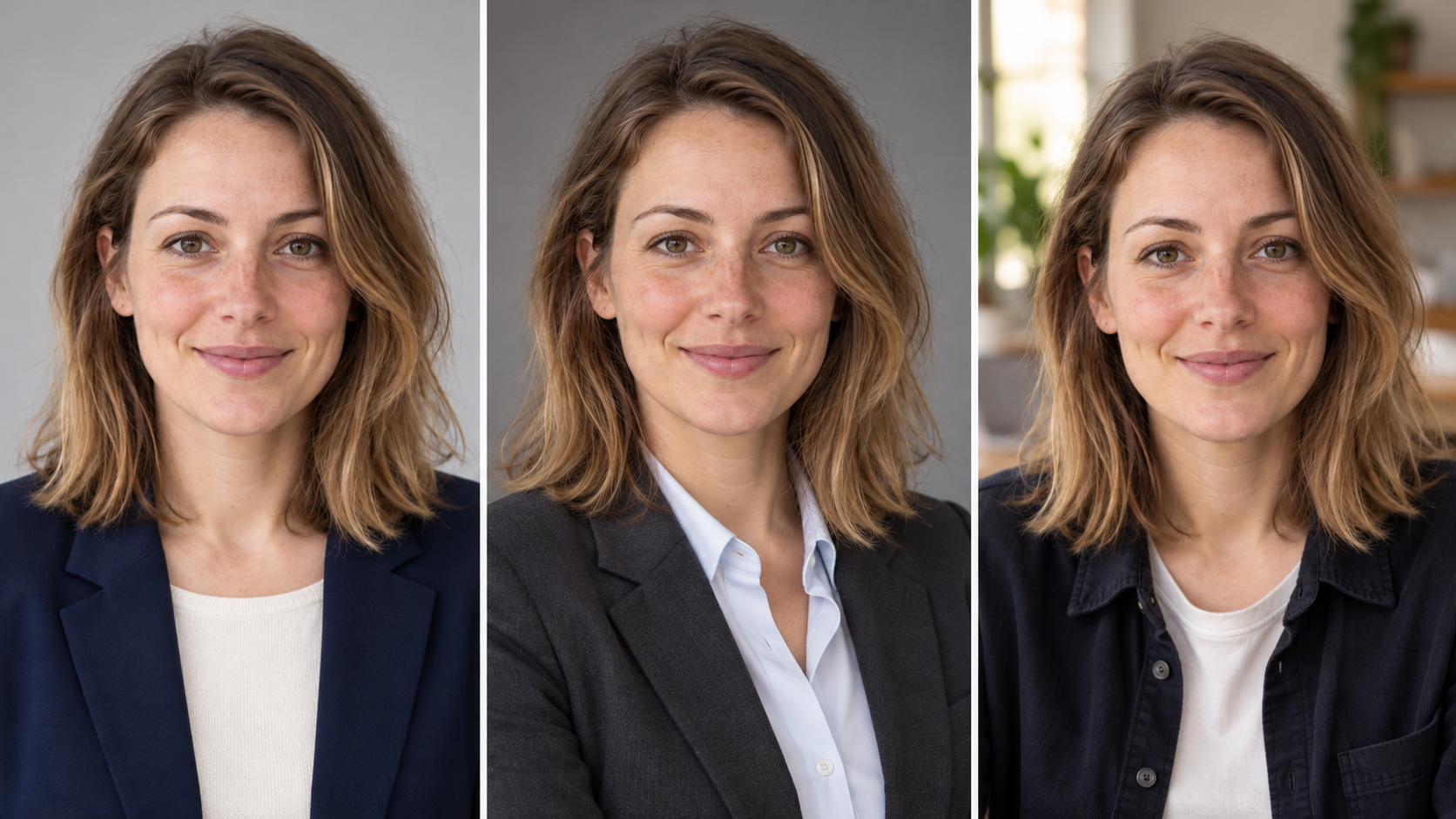
These prompts use the same identity-preservation approach but make different choices about clothing, setting, and mood. Replace wardrobe details with clothes you would realistically wear. The examples are not restricted by gender or job title.
Example 1: LinkedIn Headshot
This is a versatile starting point for a profile photo, speaker introduction, or team directory. Keep the expression approachable and the background quiet so the face remains clear at small size.
Edit the uploaded photo into a photorealistic professional headshot for LinkedIn.
Prompt:
Preserve the person’s facial identity, proportions, skin tone, age characteristics, hairstyle, and distinctive features.
Use an eye-level head-and-shoulders composition with relaxed shoulders, a natural slight smile, and direct eye contact. Dress the person in a navy blazer over a plain light-colored top.
Use a clean light-gray background and soft, even lighting with gentle shadows. Leave comfortable space above the head and around the shoulders for a circular crop.
Keep natural skin texture and realistic fabric. No facial reshaping, excessive smoothing, added text, logos, or watermarks.
Customize the jacket color and expression first. Preview the result inside a circular crop; avoid placing the chin or hairline too close to the edge.
Example 2: Formal Corporate Headshot
Use this direction when you need a more structured portrait for a company biography or formal business materials. The difference comes from tailored clothing, posture, and controlled light, not an artificially severe expression.
Prompt:
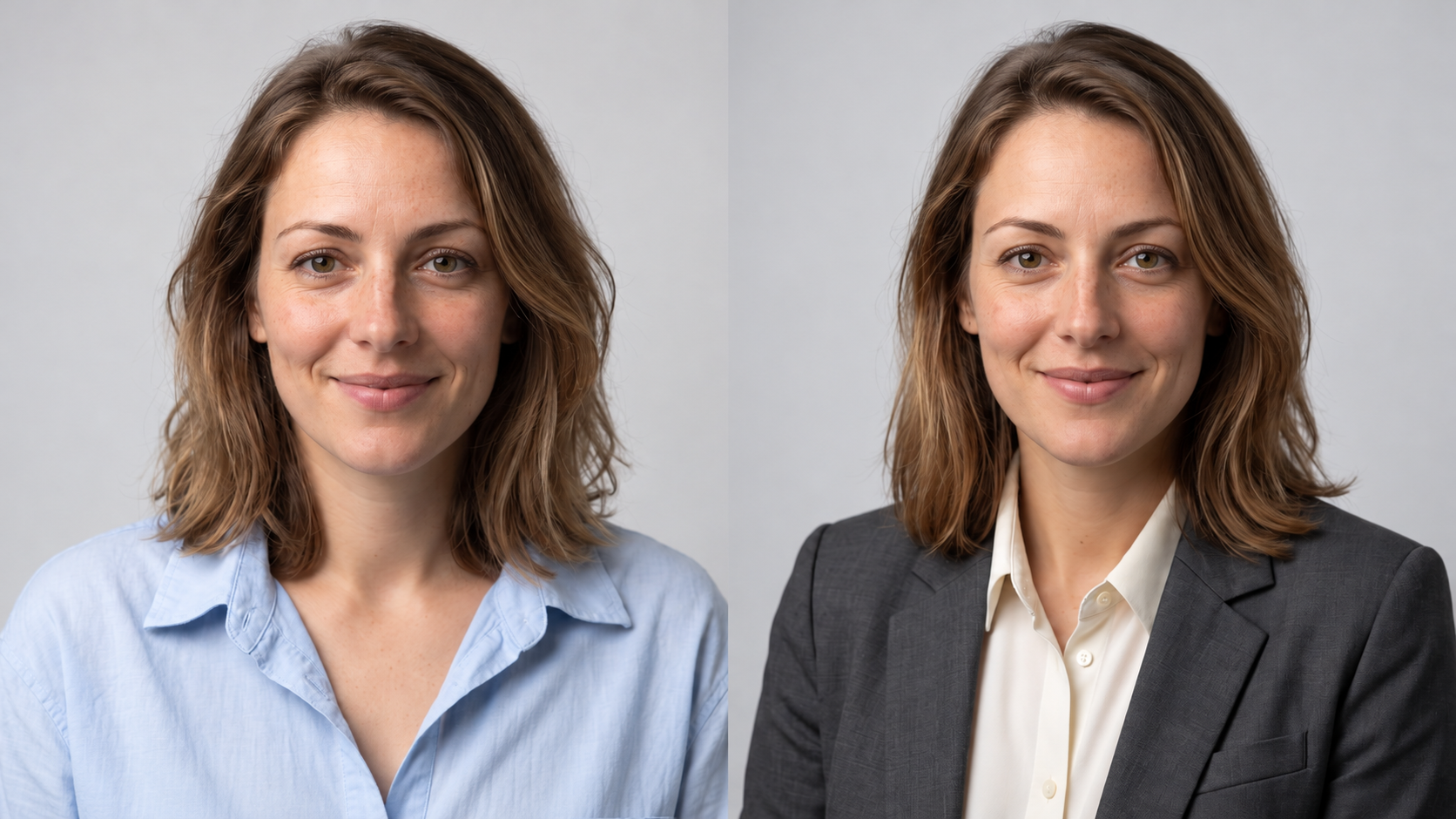
Transform the uploaded reference into a formal corporate headshot while preserving the person’s recognizable face, natural skin tone, age characteristics, hairline, and distinguishing details.
Show a well-fitted charcoal suit jacket with a crisp light-colored shirt. Use upright but comfortable posture, a slight shoulder angle, and a composed, approachable expression.
Frame from the upper chest upward at eye level. Use a neutral medium-gray studio background, a large soft light slightly to the left of the camera, and gentle fill to keep both eyes clearly visible.
Preserve natural skin texture, realistic tailoring, and believable shadows. No invented company branding, dramatic face alteration, text, or watermark.
Replace the suit specification with your actual workplace dress code. If your company already has a portrait style, match its background and crop rather than inventing a separate visual identity.
Example 3: Modern Founder Headshot
A founder or consultant may want a portrait that feels professional without resembling a formal studio appointment. A simple working environment and natural light create a more relaxed direction.
Prompt:
Create a photorealistic founder-style headshot from the uploaded photo. Preserve the same facial identity, skin tone, apparent age, hairstyle, and natural facial proportions.
Dress the person in a simple dark overshirt over a plain ivory T-shirt. Show relaxed posture, a slight natural smile, and an attentive expression.
Use an upper-chest portrait crop with a softly blurred modern workspace behind the subject. Add soft window daylight from the left, neutral skin color, and gentle facial shadows.
Keep the environment understated, with no readable signs, company logos, awards, or distracting furniture. Retain realistic skin and clothing texture. No watermark.
Keep office details secondary. Avoid invented company signs, awards, or recognizable branding. For a website hero, request extra space beside the subject as a separate composition after approving the basic portrait.
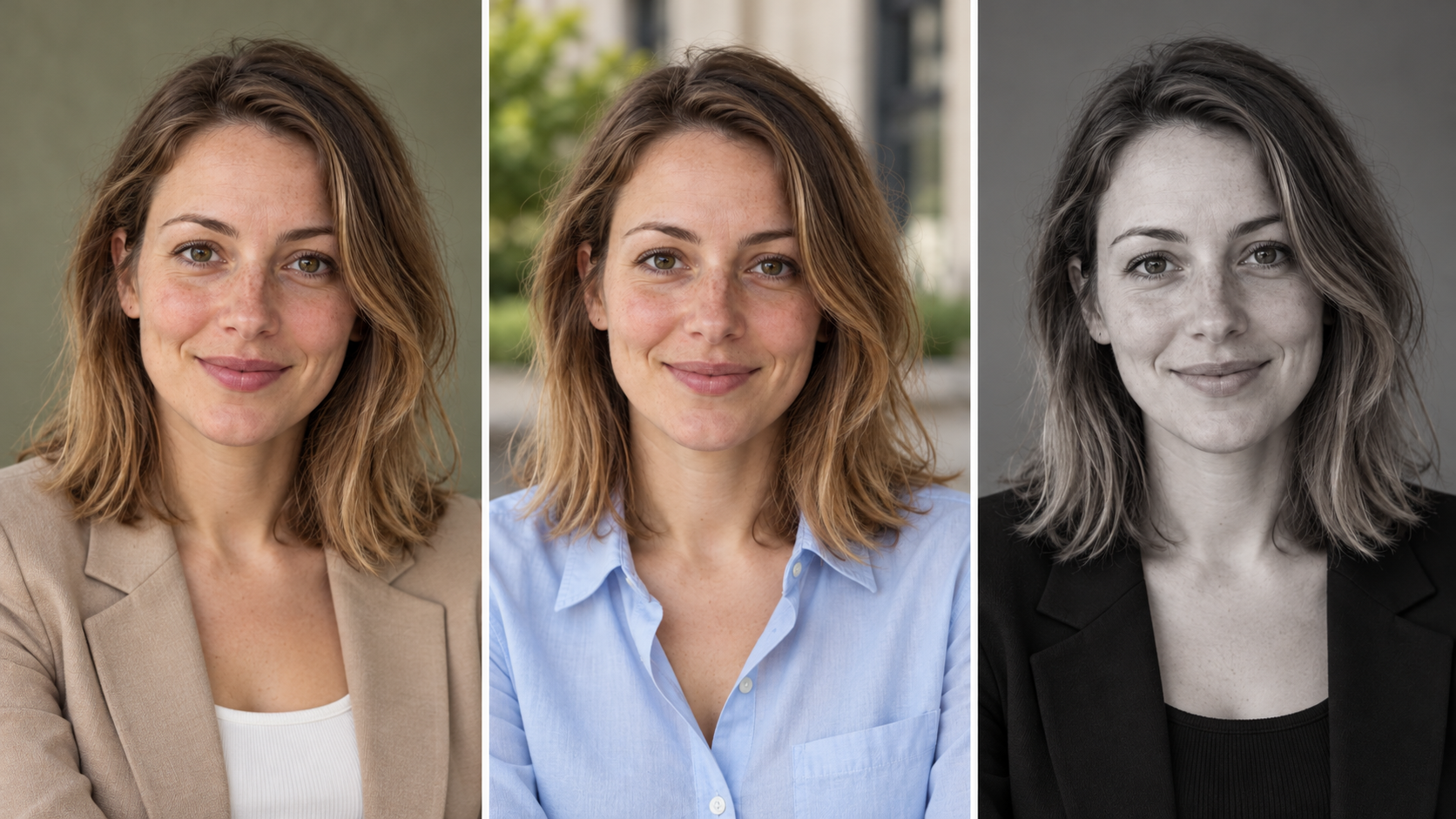
Example 4: Creative Professional Headshot
This example suits a designer, writer, or other professional whose personal brand can carry more visual character. Choose one expressive element, such as a muted background color or distinctive jacket, while keeping the face realistic.
Prompt:
Edit the uploaded photo into a contemporary creative-professional headshot. Preserve the subject’s recognizable face, age characteristics, skin tone, hair texture, and distinctive features.
Use a relaxed tailored jacket in a warm neutral color over a simple top. Frame the head and upper chest, with the shoulders turned slightly and the face directed toward the camera.
Choose a muted sage-green studio background and soft directional light that creates subtle depth without obscuring the eyes.
Aim for refined editorial portrait photography with natural expression, realistic skin texture, and restrained retouching. Keep background color from tinting the skin. No props, text, logos, or watermark.
Adapt the background to your portfolio palette. Strong color should support the subject rather than cast an unnatural tint across their skin.
Example 5: Outdoor Business-Casual Headshot
An outdoor portrait can work for an approachable personal website or less formal professional profile. The key is soft light and a restrained background, rather than a recognizable location or elaborate scenery.
Prompt:
Use the uploaded photograph to create a natural outdoor professional headshot. Preserve the person’s facial identity, skin tone, age characteristics, hairstyle, and facial proportions.
Show a plain business-casual shirt or blouse, relaxed posture, and a friendly natural expression. Frame from the upper chest upward at eye level.
Place the person in open shade with soft daylight and a gently blurred background of neutral architecture and subtle greenery. Keep the face evenly exposed and clearly separated from the background.
Retain natural skin texture and realistic hair edges. No harsh sunlight, busy crowds, readable signs, invented landmarks, text, or watermark.
Choose open shade for the initial version. If the output adds people, street signs, or strong foliage patterns, simplify the background instruction before changing the whole portrait.
Example 6: Black-and-White Professional Headshot
Black and white shifts attention toward expression, tonal contrast, and facial detail. It can suit an author biography or editorial profile, but it still needs natural texture and separation from the background.
Prompt:
Convert the uploaded reference into a photorealistic black-and-white professional headshot.
Preserve the person’s facial identity, age characteristics, hairstyle, facial proportions, and distinctive features. Show a simple dark jacket, relaxed shoulders, and a calm, attentive expression.
Use eye-level head-and-shoulders framing against a plain mid-gray background. Add a soft directional key light with gentle fill, keeping both eyes visible.
Create rich grayscale tones with detail retained in the skin, dark clothing, and highlights. Keep natural pores, realistic hair, and subtle asymmetry. Avoid crushed shadows, overexposed skin, heavy glamour retouching, text, or watermark.
Ask for detail in both highlights and shadows. Dramatic lighting is optional; deep shadows across the eyes can reduce the clarity you need in a small professional avatar.
How to Control Background, Lighting, and Framing
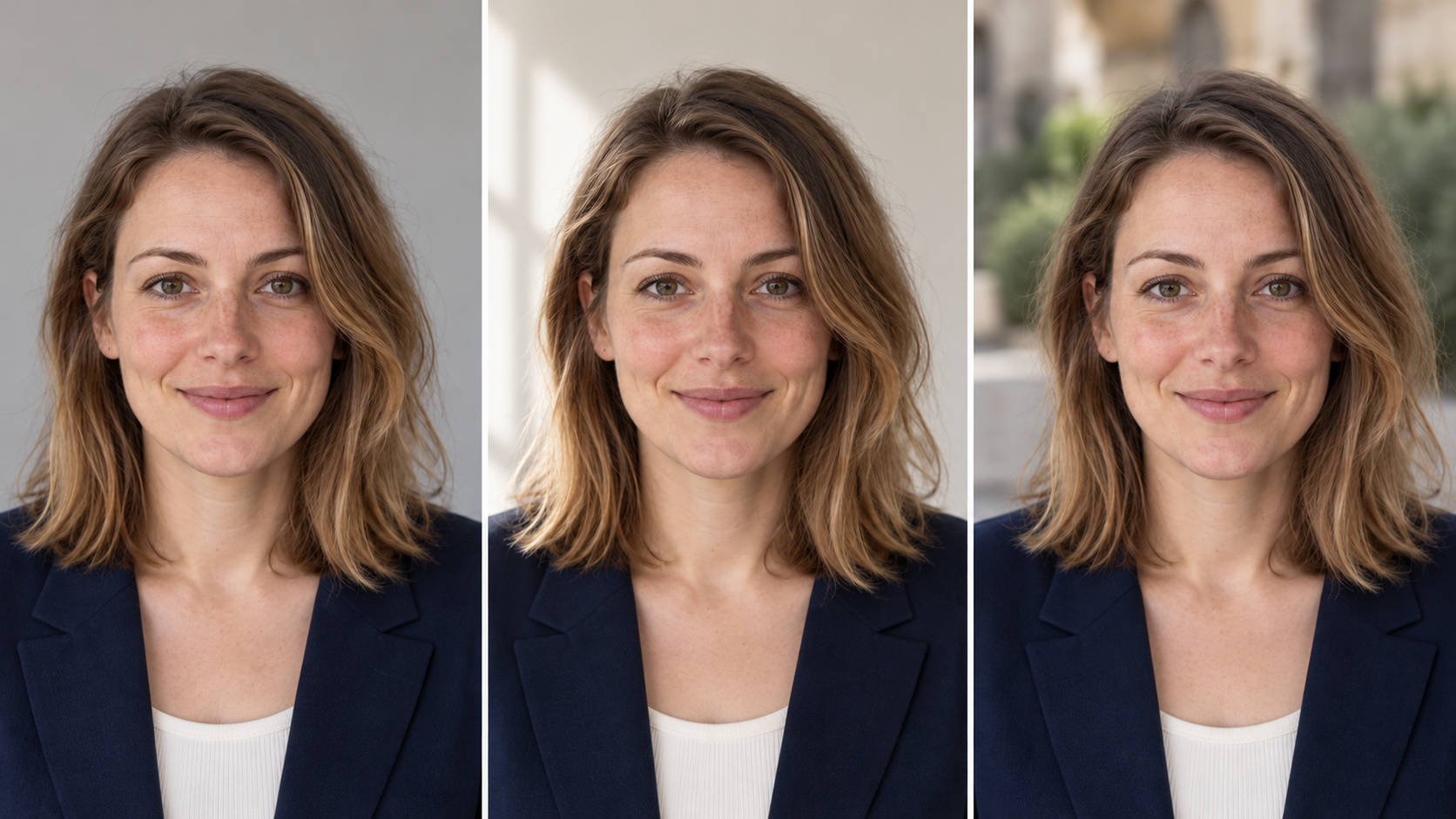
Once you approve the basic likeness, adjust the setting and light with short instructions. Keep clothing and framing fixed while comparing backgrounds, then change the light separately. This makes differences easier to evaluate.
Choose a Background That Supports Your Professional Image
Light gray is a simple starting point when you want minimal distraction. Warm white gives a softer visual direction, while a blurred office or outdoor background adds context.
Check the outline of the hair and shoulders. If the edges look cut out, ask for more natural transitions and consistent background lighting. Keep objects away from the head so they do not appear to grow from it.
Background adjustment prompt
Replace only the background with a plain warm-white studio backdrop. Preserve the person’s facial identity, clothing, pose, and crop. Keep hair edges natural and make the background illumination consistent with the existing portrait lighting.
Describe the Light, Not Just the Mood
“Beautiful lighting” is subjective. “Soft daylight from a window on the left” tells the model where the light comes from and what kind of shadow to create.
For a neutral portrait, request a softly lit face with visible detail around the eyes. Avoid asking for several conflicting light sources. If you choose a warmer scene, keep skin color believable rather than turning the whole image orange.
Lighting adjustment prompt
Change the lighting to soft window daylight from the left, with gentle fill on the opposite side. Keep both eyes visible, preserve realistic skin color, and avoid hard shadows. Keep the person, clothing, background, and framing unchanged.
Keep Framing and Retouching Natural
Head-and-shoulders framing is a useful baseline. Leave modest headroom and show enough shoulder width to avoid an awkward floating-head effect. Use an eye-level viewpoint unless another angle serves a deliberate purpose.
For skin, request visible texture and restrained retouching. Review the eyes, teeth, ears, neckline, and glasses as well as the face overall. A portrait can appear attractive at first glance while containing distracting local errors.
Retouching adjustment prompt
Reduce the retouching. Restore subtle skin texture, fine lines, and natural facial asymmetry without adding artificial blemishes or changing age. Preserve the current face shape, expression, clothing, background, and lighting.
How to Refine a Headshot That Does Not Look Right
A useful revision identifies the mismatch and limits the requested change. “Make it more professional” is less actionable than “replace the busy background with light gray while preserving the face and clothing.”
If the image no longer looks like you, compare facial proportions against the original. Request preservation of the specific features that changed rather than generic attractiveness. Reattach the original if the editing context is unclear.
If skin looks waxy, reduce the retouching request. If clothing looks synthetic, specify matte fabric, believable seams, and natural folds. If the background dominates, lower its contrast or simplify the setting.
Targeted revision prompt
Revise the current portrait using the original uploaded photo as the identity reference. Restore the original eye shape, jaw proportions, and hairline. Keep the current jacket, background, and lighting. Preserve realistic skin texture and do not make additional beauty changes.
After several rounds, compare the latest version with the source again. Approve a portrait because it is recognizable and appropriate for its destination, not simply because each successive version looks more polished. Keep the source file and your preferred result so you can return to a reliable starting point.
Create Different Professional Headshot Styles with RunningHub
RunningHub is an AI content creation platform with tools for image and video generation, reference-based editing, and more advanced creative workflows. It provides another environment for turning a written visual brief into image variations. ChatGPT is one way to turn a reference photo into a professional headshot, and the same creative brief can also be explored in other image tools. If you want to see how different models interpret a studio portrait, a softly lit office scene, or an editorial look, RunningHub offers another place to develop those ideas.
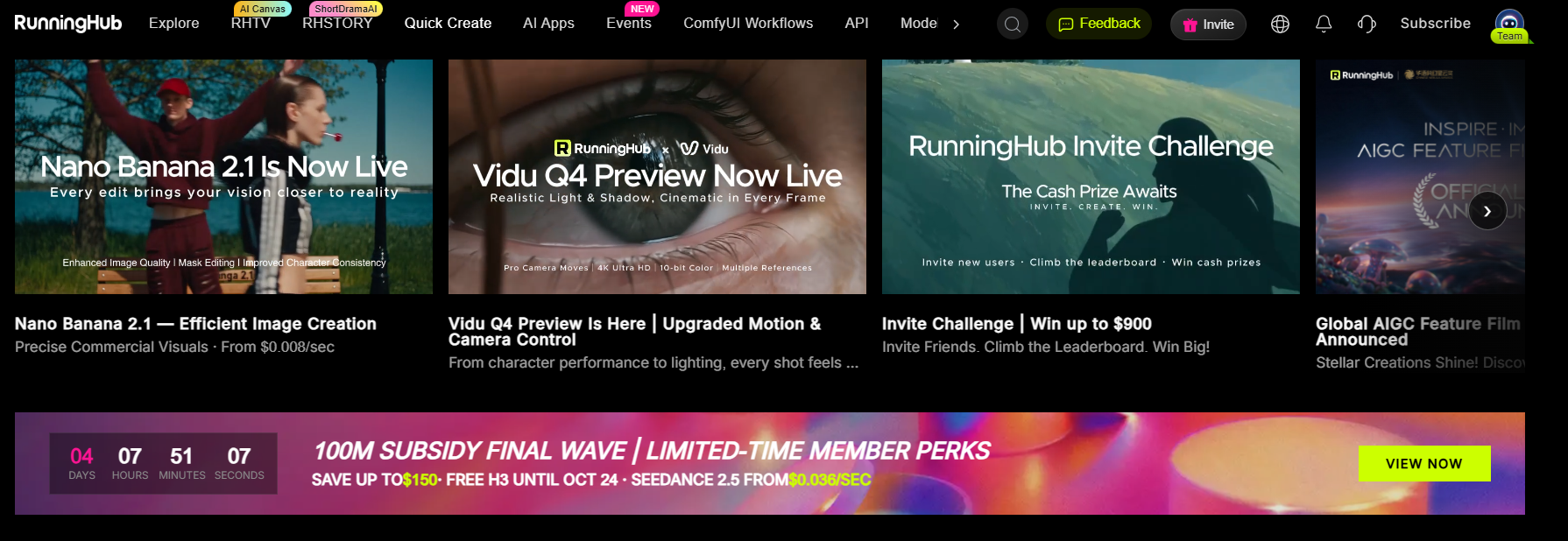
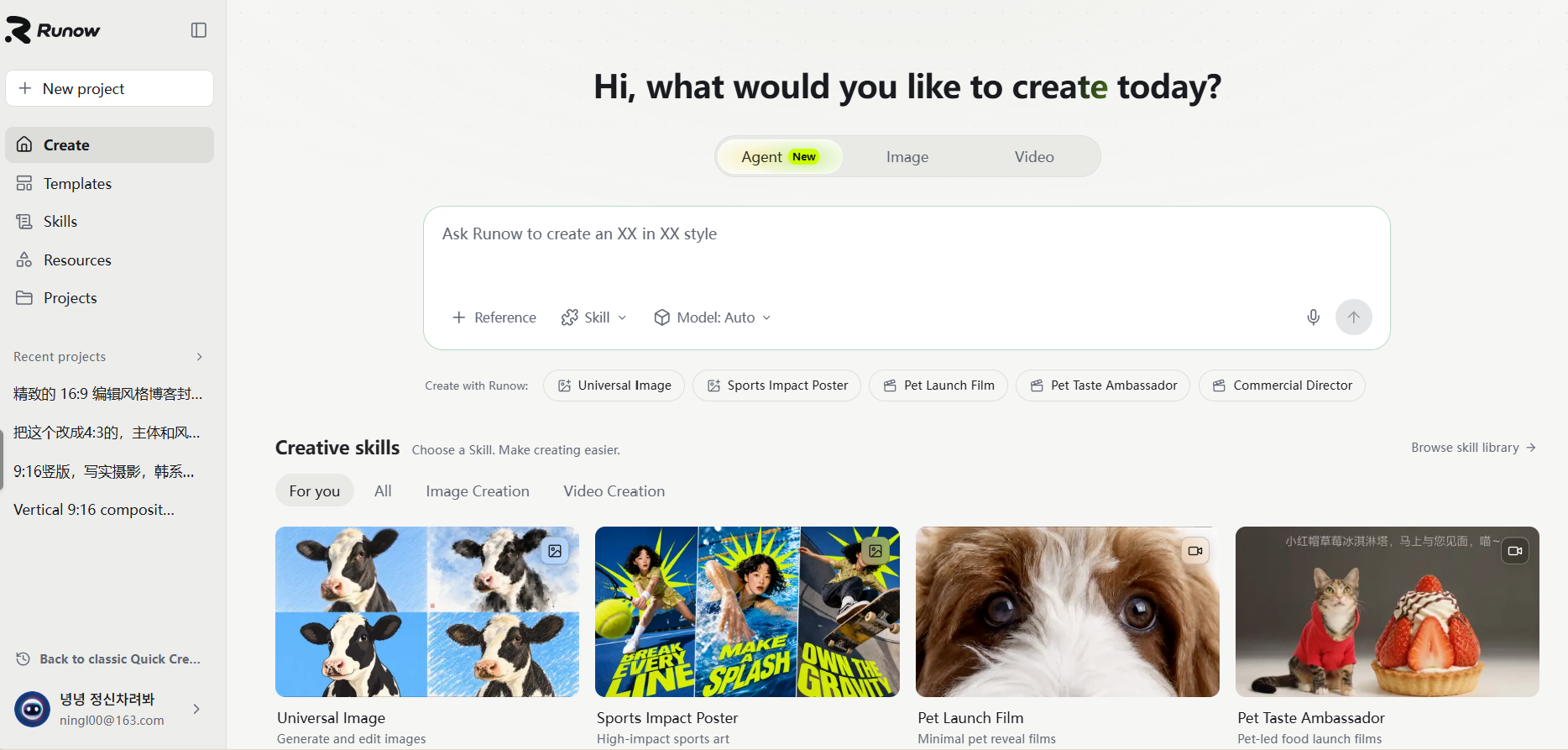
This tutorial uses RunningHub Runow, the platform’s Quick Creation workspace. Its image interface brings together a prompt field, reference uploads, model selection, and image templates, including a portrait-photography category.
You can adapt the prompts above in Runow, but RunningHub and ChatGPT are separate products. The same wording may produce different interpretations depending on the selected model and input controls.
Those interpretations can produce different lighting, skin texture, background depth, and overall styling. You might keep a neutral portrait for a company profile and develop a warmer, more expressive version for a personal website. Start with the same reference photo, compare the results, and choose the version that preserves your likeness while fitting its intended use.
Step 1: Upload Your Reference Photo
Open Runow and select Image. Add your photo through the Reference control, then choose an available model or mode that accepts reference images for editing. Check the selected option’s requirements instead of assuming all image-generation modes edit uploaded photos.
Keep the original reference available throughout the process. If the interface inserts an attachment mention, use that actual reference rather than typing a label that is not connected to a file.
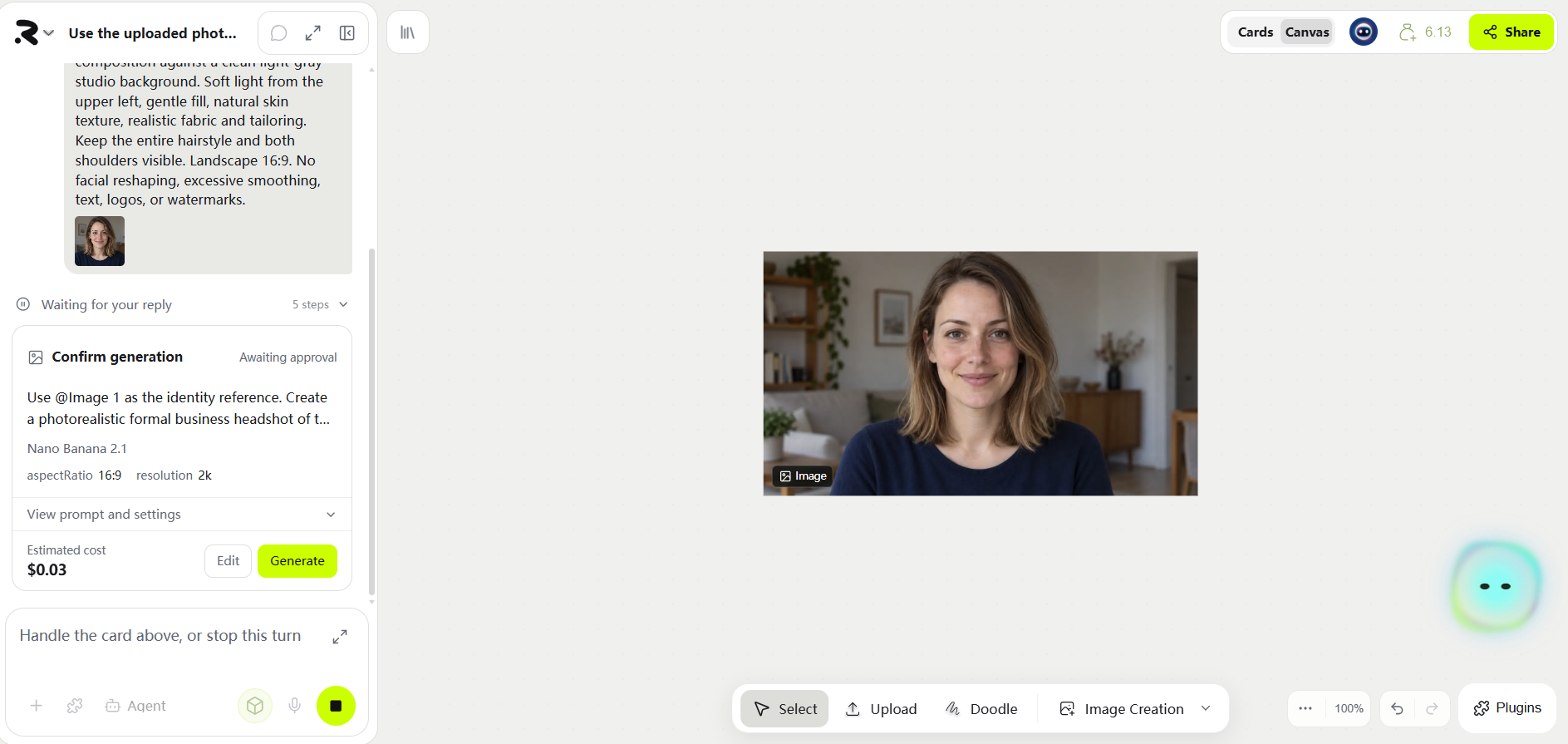
Step 2: Start with One Professional Style
Paste one complete example and replace clothing or setting details as needed. If the interface provides an aspect-ratio choice, use a supported portrait or square format suitable for your destination.
Generate a baseline before testing additional styles. For example, someone updating a company biography and a personal website could first approve a neutral portrait, then try a warmer background for the website version.
Step 3: Compare Controlled Variations
Keep the source photo and model unchanged while testing one difference at a time. Compare a formal jacket against business-casual clothing, or a neutral studio background against a softly blurred workspace.
Write down the prompt and settings for your preferred version. If you change models, treat the next output as a new interpretation and check likeness again. Prompt instructions guide preservation but do not guarantee exact identity matching.
Step 4: Review and Export
Inspect the full-resolution image and the smaller crop you will actually publish. Check facial details, clothing edges, and background transitions. Leave enough room for the destination’s crop, and keep an uncropped master separately.
For additional image-editing techniques, explore RunningHub’s photo-editing prompt guide. If you prefer to understand the reference-based approach first, review the image-to-image feature overview before choosing a creation mode.
FAQ
What should I include in a ChatGPT headshot prompt?
Include the reference photo, intended use, identity details to preserve, clothing, crop, background, lighting, and retouching level. Choose concrete visual instructions instead of relying only on “professional” or “cinematic.”
Should I upload a photo for a professional headshot?
Yes, if the portrait should represent you. A prompt without your photograph can generate a fictional professional, but it does not establish your likeness. Start with a clear, recent image.
How can I make the result look more like me?
Preserve facial proportions, age characteristics, skin tone, and distinctive features. Compare against the original and revise specific mismatches. If drift continues, simplify the transformation or use another suitable reference.
What background works best for a professional headshot?
A quiet background that suits the destination is a sensible starting point. Light gray and warm white are easy to coordinate; office and outdoor settings can work when their details remain secondary.
Can I adapt these prompts for RunningHub?
Yes. Upload your reference in Runow, choose a reference-capable image mode, and adapt the same brief. Review results independently because model behavior and available controls differ from ChatGPT.
Conclusion
An effective headshot prompt ChatGPT can follow makes the creative decisions clear while protecting the details that make the portrait yours. Start with a suitable reference, choose a professional style, and describe the background, lighting, and framing in concrete terms.
Use the six examples as flexible starting points, then explore variations with RunningHub Runow when you want to compare different looks. The goal is a recognizable, credible portrait that fits where you plan to use it