
'%3e %3cg id='Vector'%3e %3c/g%3e %3cpath id='Vector_2' d='M14.504 8.522L12.746 4.49C12.6826 4.34486 12.5783 4.22136 12.4458 4.13463C12.3133 4.0479 12.1584 4.0017 12 4.0017C11.8416 4.0017 11.6867 4.0479 11.5542 4.13463C11.4217 4.22136 11.3174 4.34486 11.254 4.49L9.495 8.522C9.305 8.958 8.958 9.306 8.522 9.495L4.49 11.254C4.34486 11.3174 4.22136 11.4217 4.13463 11.5542C4.0479 11.6867 4.0017 11.8416 4.0017 12C4.0017 12.1584 4.0479 12.3133 4.13463 12.4458C4.22136 12.5783 4.34486 12.6826 4.49 12.746L8.523 14.504C8.959 14.694 9.307 15.042 9.496 15.478L11.255 19.511C11.3184 19.6561 11.4227 19.7796 11.5552 19.8664C11.6877 19.9531 11.8426 19.9993 12.001 19.9993C12.1594 19.9993 12.3143 19.9531 12.4468 19.8664C12.5793 19.7796 12.6836 19.6561 12.747 19.511L14.505 15.478C14.695 15.042 15.043 14.694 15.479 14.504L19.512 12.746C19.6571 12.6826 19.7806 12.5783 19.8674 12.4458C19.9541 12.3133 20.0003 12.1584 20.0003 12C20.0003 11.8416 19.9541 11.6867 19.8674 11.5542C19.7806 11.4217 19.6571 11.3174 19.512 11.254L15.479 9.495C15.043 9.30549 14.695 8.95782 14.505 8.522' stroke='var(--stroke-0%2c white)' stroke-width='1.25' stroke-linecap='round' stroke-linejoin='round'/%3e %3cpath id='Vector_3' d='M3 3L5 5' stroke='var(--stroke-0%2c white)' stroke-width='1.25' stroke-linecap='round' stroke-linejoin='round'/%3e %3cpath id='Vector_4' d='M21 3L19 5' stroke='var(--stroke-0%2c white)' stroke-width='1.25' stroke-linecap='round' stroke-linejoin='round'/%3e %3cpath id='Vector_5' d='M3 21L5 19' stroke='var(--stroke-0%2c white)' stroke-width='1.25' stroke-linecap='round' stroke-linejoin='round'/%3e %3cpath id='Vector_6' d='M21 21L19 19' stroke='var(--stroke-0%2c white)' stroke-width='1.25' stroke-linecap='round' stroke-linejoin='round'/%3e %3c/g%3e %3cdefs%3e %3cclipPath id='clip0_0_55'%3e %3crect width='24' height='24' fill='white'/%3e %3c/clipPath%3e %3c/defs%3e %3c/svg%3e)
'%3e %3cg id='Vector'%3e %3c/g%3e %3cpath id='Vector_2' d='M14.375 7.66667H14.385' stroke='var(--stroke-0%2c white)' stroke-width='1.25' stroke-linecap='round' stroke-linejoin='round'/%3e %3cpath id='Vector_3' d='M11.9792 20.125H5.75C4.9875 20.125 4.25624 19.8221 3.71707 19.2829C3.1779 18.7438 2.875 18.0125 2.875 17.25V5.75C2.875 4.9875 3.1779 4.25624 3.71707 3.71707C4.25624 3.1779 4.9875 2.875 5.75 2.875H17.25C18.0125 2.875 18.7438 3.1779 19.2829 3.71707C19.8221 4.25624 20.125 4.9875 20.125 5.75V11.9792' stroke='var(--stroke-0%2c white)' stroke-width='1.25' stroke-linecap='round' stroke-linejoin='round'/%3e %3cpath id='Vector_4' d='M2.875 15.3333L7.66667 10.5417C8.556 9.68587 9.65233 9.68587 10.5417 10.5417L14.375 14.375' stroke='var(--stroke-0%2c white)' stroke-width='1.25' stroke-linecap='round' stroke-linejoin='round'/%3e %3cpath id='Vector_5' d='M13.4167 13.4167L14.375 12.4583C15.0171 11.8412 15.7646 11.6687 16.4661 11.9408' stroke='var(--stroke-0%2c white)' stroke-width='1.25' stroke-linecap='round' stroke-linejoin='round'/%3e %3cpath id='Vector_6' d='M15.3333 18.2083H21.0833' stroke='var(--stroke-0%2c white)' stroke-width='1.25' stroke-linecap='round' stroke-linejoin='round'/%3e %3cpath id='Vector_7' d='M18.2083 15.3333V21.0833' stroke='var(--stroke-0%2c white)' stroke-width='1.25' stroke-linecap='round' stroke-linejoin='round'/%3e %3c/g%3e %3cdefs%3e %3cclipPath id='clip0_0_4'%3e %3crect width='23' height='23' fill='white'/%3e %3c/clipPath%3e %3c/defs%3e %3c/svg%3e)


'%3e %3cg id='Vector'%3e %3c/g%3e %3cpath id='Vector_2' d='M18.3333 10.5001V6.66667C18.3333 5.78261 17.9821 4.93477 17.357 4.30964C16.7319 3.68452 15.8841 3.33333 15 3.33333H5C4.11594 3.33333 3.2681 3.68452 2.64298 4.30964C2.01786 4.93477 1.66667 5.78261 1.66667 6.66667V13.3333C1.66667 14.2174 2.01786 15.0652 2.64298 15.6904C3.2681 16.3155 4.11594 16.6667 5 16.6667H11.6667M15.5 17.0001V12.0001M13 14.5001L15.5 12.0001L18 14.5001' stroke='var(--stroke-0%2c white)' stroke-linecap='round' stroke-linejoin='round'/%3e %3cpath id='Vector_3' d='M8.33333 7.5L12.5 10L8.33333 12.5V7.5Z' stroke='var(--stroke-0%2c white)' stroke-linecap='round' stroke-linejoin='round'/%3e %3c/g%3e %3cdefs%3e %3cclipPath id='clip0_0_4'%3e %3crect width='20' height='20' fill='white'/%3e %3c/clipPath%3e %3c/defs%3e %3c/svg%3e)
'%3e %3cg id='Vector'%3e %3c/g%3e %3cpath id='Vector_2' d='M16.25 10.8333L21.1824 8.36767C21.3475 8.28515 21.531 8.2462 21.7154 8.25451C21.8998 8.26281 22.079 8.3181 22.2361 8.41512C22.3931 8.51214 22.5228 8.64768 22.6127 8.80888C22.7026 8.97007 22.7499 9.15158 22.75 9.33617V16.6638C22.7499 16.8484 22.7026 17.0299 22.6127 17.1911C22.5228 17.3523 22.3931 17.4879 22.2361 17.5849C22.079 17.6819 21.8998 17.7372 21.7154 17.7455C21.531 17.7538 21.3475 17.7148 21.1824 17.6323L16.25 15.1667V10.8333Z' stroke='var(--stroke-0%2c white)' stroke-width='1.25' stroke-linecap='round' stroke-linejoin='round'/%3e %3cpath id='Vector_3' d='M3.25 8.66667C3.25 8.09203 3.47827 7.54093 3.8846 7.1346C4.29093 6.72827 4.84203 6.5 5.41667 6.5H14.0833C14.658 6.5 15.2091 6.72827 15.6154 7.1346C16.0217 7.54093 16.25 8.09203 16.25 8.66667V17.3333C16.25 17.908 16.0217 18.4591 15.6154 18.8654C15.2091 19.2717 14.658 19.5 14.0833 19.5H5.41667C4.84203 19.5 4.29093 19.2717 3.8846 18.8654C3.47827 18.4591 3.25 17.908 3.25 17.3333V8.66667Z' stroke='var(--stroke-0%2c white)' stroke-width='1.25' stroke-linecap='round' stroke-linejoin='round'/%3e %3cpath id='Vector_4' d='M7.58333 13H11.9167' stroke='var(--stroke-0%2c white)' stroke-width='1.25' stroke-linecap='round' stroke-linejoin='round'/%3e %3cpath id='Vector_5' d='M9.75 10.8333V15.1667' stroke='var(--stroke-0%2c white)' stroke-width='1.25' stroke-linecap='round' stroke-linejoin='round'/%3e %3c/g%3e %3cdefs%3e %3cclipPath id='clip0_0_47'%3e %3crect width='26' height='26' fill='white'/%3e %3c/clipPath%3e %3c/defs%3e %3c/svg%3e)
'%3e %3cg id='Vector'%3e %3c/g%3e %3cpath id='Vector_2' d='M4 7H7M11 7H20' stroke='var(--stroke-0%2c white)' stroke-width='1.25' stroke-linecap='round' stroke-linejoin='round'/%3e %3cpath id='Vector_3' d='M4 17H20' stroke='var(--stroke-0%2c white)' stroke-width='1.25' stroke-linecap='round' stroke-linejoin='round'/%3e %3cpath id='Vector_4' d='M7 4L7 20' stroke='var(--stroke-0%2c white)' stroke-width='1.25' stroke-linecap='round' stroke-linejoin='round'/%3e %3cpath id='Vector_5' d='M17 4V13M17 17V20' stroke='var(--stroke-0%2c white)' stroke-width='1.25' stroke-linecap='round' stroke-linejoin='round'/%3e %3c/g%3e %3cdefs%3e %3cclipPath id='clip0_0_60'%3e %3crect width='24' height='24' fill='white'/%3e %3c/clipPath%3e %3c/defs%3e %3c/svg%3e)
'%3e %3cg id='Vector'%3e %3c/g%3e %3cpath id='Vector_2' d='M6 10L4 11L12 15L20 11L18 10' stroke='var(--stroke-0%2c white)' stroke-width='1.25' stroke-linecap='round' stroke-linejoin='round'/%3e %3cpath id='Vector_3' d='M4 15L12 19L20 15' stroke='var(--stroke-0%2c white)' stroke-width='1.25' stroke-linecap='round' stroke-linejoin='round'/%3e %3cpath id='Vector_4' d='M12 4V11' stroke='var(--stroke-0%2c white)' stroke-width='1.25' stroke-linecap='round' stroke-linejoin='round'/%3e %3cpath id='Vector_5' d='M15 8L12 11L9 8' stroke='var(--stroke-0%2c white)' stroke-width='1.25' stroke-linecap='round' stroke-linejoin='round'/%3e %3c/g%3e %3cdefs%3e %3cclipPath id='clip0_0_9'%3e %3crect width='24' height='24' fill='white'/%3e %3c/clipPath%3e %3c/defs%3e %3c/svg%3e)


How to Create AI Images: A Step-by-Step Guide for Beginners
Learn how to create AI images step by step, from choosing a model and writing prompts to generating, refining, and improving your results.
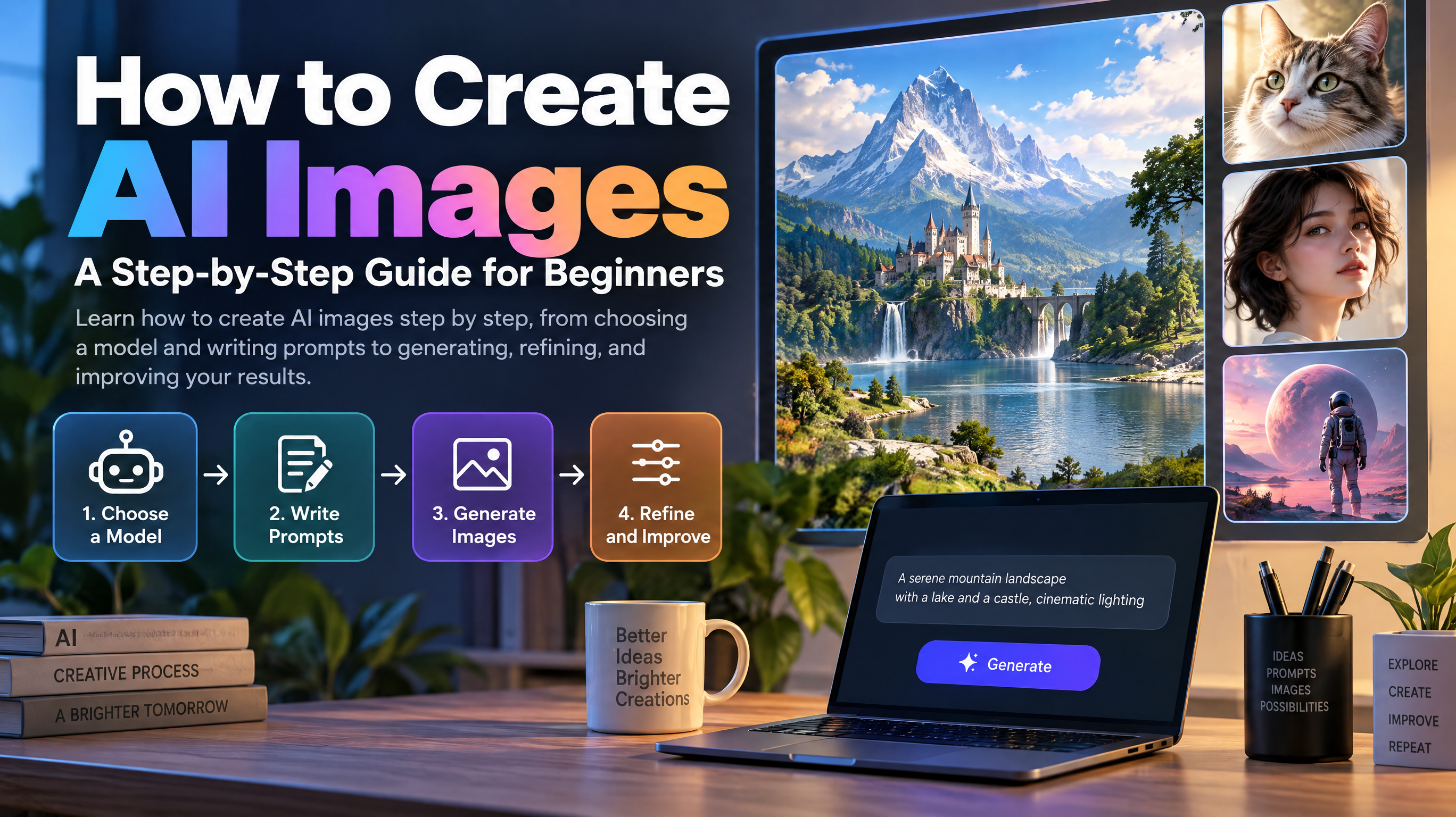
Creating AI images starts with a simple idea: describe what you want to see, choose a suitable AI image generator, and let the tool turn your description into a visual. You can then review the result, adjust your prompt, and generate improved versions until the image fits your needs.
If you're wondering how to create AI images without drawing skills or complicated software, this guide walks you through the entire process. You'll learn how to choose an image-generation model, write effective prompts, generate your first image, and fix common problems. You'll also discover how RunningHub provides different creation options, from direct image generation to customizable workflows, so you can choose an approach that matches your project.
What Do You Need to Create AI Images?
You don't need to be a professional designer to get started. Most beginners can create their first AI image with a few basic resources.
- An idea: Decide what you want to create, such as a portrait, landscape, illustration, or product visual.
- An AI image-generation tool: Choose a service that supports your intended task.
- A prompt: Describe the subject, setting, style, and other visual details you want.
- Optional reference images: If the selected tool supports image input, you can use an existing picture to guide the result.
- Time to review and refine: Check the generated image and make targeted changes when necessary.
AI image creation generally involves three approaches:
- Text-to-image: Generates an image from a written description.
- Image-to-image: Uses an existing image as a reference for a new visual or a stylistic transformation.
- Image editing: Modifies an existing image, such as by changing its background or adjusting selected elements.
These approaches are not interchangeable, and individual models may support different functions.
For beginners, a browser-based or cloud-based generator can be a convenient starting point because it may eliminate the need to install software or configure a local AI environment. However, available features and access requirements depend on the service.
Step 1: Choose the Right AI Image-Generation Model
The model you choose influences how the generated image looks and how well it follows your instructions. Some models are designed for general image generation, while others are available through specialized applications or workflows for particular tasks.
Use your intended result to narrow down the options.
For Realistic Images
For portraits, landscapes, and lifestyle photography, look for a model suited to realistic lighting, natural textures, believable proportions, and detailed environments. Describe the photographic style you want, rather than relying on the word “realistic” alone.
For Illustrations and Stylized Art
If you're creating anime-inspired characters, paintings, concept art, or 3D-style illustrations, choose a model that supports your desired visual direction. A clear style description and a defined color palette can help communicate the look you have in mind.
For Product and Marketing Images
Product visuals need a clear composition, appropriate lighting, and a background that supports the product. If you need to preserve packaging, labels, or a particular product shape, check whether the tool supports reference images or relevant editing features.
For Reference-Based Generation or Editing
Confirm that the selected model supports image input and the specific operation you need. Text-to-image generation does not automatically mean that a model can edit an uploaded photograph.
For Beginners
Start with a straightforward interface and a model that matches your goal. You don't need to compare every technical setting before creating your first picture.
For example, RunningHub provides access to different AI creation options, including image-generation tools, AI Apps, and customizable workflows. Its AI image generator offers a direct text-to-image path, while its AI Apps directory lists task-oriented applications.
The key principle is simple: choose a model for the image you want to create, not because it is the most complicated or widely discussed option.
Step 2: Write an Effective AI Image Prompt
A prompt is the written description you give an AI image generator. It communicates what should appear in the image and how the finished result should look.
A useful starting formula is:
Subject + Action or Pose + Setting + Style + Composition + Lighting + Important Details
Here's what each element contributes:
- Subject: The person, object, animal, or scene you want to create.
- Action or pose: What the subject is doing or how it is positioned.
- Setting: The environment or background.
- Style: The desired visual treatment, such as photorealistic, watercolor, cinematic, or minimalist.
- Composition: How the subject is framed and positioned in the image.
- Lighting: The direction, softness, color, and mood of the light.
- Important details: Specific colors, materials, textures, or other features that matter.
You don't need every element in every prompt. A simple illustration may need only a subject, style, and background. A commercial product image may require more precise instructions about materials, lighting, and composition.
Three Reusable AI Image Prompt Examples
The following English prompts can be adapted for different image-generation tools. Results will vary depending on the selected model.
Example A: Photorealistic Portrait
Prompt
“A young woman sitting beside a large window in a quiet modern studio, relaxed natural pose, soft daylight illuminating her face from the left, neutral beige and gray color palette, medium close-up composition, realistic skin texture, subtle background blur, professional editorial photography, natural expression.”
Why it works: It defines the subject, setting, lighting direction, framing, color palette, and photographic style without overwhelming the model with unrelated details.
Example B: Stylized Illustration
Prompt
“A small orange cat sitting among blue wildflowers in a peaceful spring garden, charming hand-drawn storybook illustration, soft pastel colors, rounded shapes, delicate outlines, simple balanced composition, warm afternoon light, gentle and cheerful mood, uncluttered background.”
Why it works: The subject and setting are specific, while the art style, palette, and mood give the model a consistent visual direction.
Example C: Product Image
Prompt
“A premium amber glass skincare bottle on a light oak table, soft morning sunlight entering from the left, warm neutral color palette, subtle natural shadows, clean minimalist product photography, bottle centered in the frame, realistic glass reflections, uncluttered background, refined commercial art direction. Preserve the bottle's original shape, color, cap, label placement, and proportions as closely as the tool allows.”
Why it works: It specifies materials, lighting, framing, and product characteristics. However, text instructions cannot guarantee exact reproduction of logos, labels, text, or proportions. Inspect the result before commercial use.
One final tip: prioritize the details that matter most. A shorter, coherent prompt can be more useful than a long description containing conflicting instructions.
Step 3: Generate Your First AI Image
Once you have selected a model and written a prompt, you're ready to generate an image.
- Open an image-generation tool. Choose a direct generator or another interface that supports your intended task.
- Select a suitable model. Match its supported capabilities to your desired style and output.
- Enter your prompt. Describe the subject, environment, style, composition, and lighting in clear language.
- Choose available settings. If supported, adjust the aspect ratio, image size, style options, or reference-image inputs.
- Generate and review. Check whether the image matches your idea and identify the most noticeable problems.
- Save or refine. Keep useful results and make targeted changes to improve the next version.
The available controls differ across tools and models, so you don't need to look for settings that your chosen generator doesn't offer.
Your first result is a starting point. Even an effective prompt may produce unexpected details, so reviewing and refining the output is a normal part of the process.
Step 4: Improve Your AI-Generated Image
If the image isn't right, avoid rewriting the entire prompt immediately. Identify the problem and change the relevant instructions first.
| Problem | What to change |
| The image looks generic | Add distinctive subject details, a specific environment, or a clearer visual direction. |
| The composition is wrong | Specify framing, camera angle, subject placement, or negative space. |
| The lighting or colors are off | Describe the light source, color palette, contrast, and mood. |
| The style doesn't match | Name the desired visual style more precisely or try a compatible model. |
| A character or product changes too much | Reinforce key attributes and use reference-image or consistency features if supported. |
| Text or fine details look incorrect | Review the output carefully and use a suitable editing tool for corrections where possible. |
For example, compare these two prompts:
Initial prompt: “A coffee bottle on a table.”
Improved prompt: “A premium glass coffee bottle on a light oak table, soft morning sunlight from the left, warm neutral palette, clean lifestyle product photography, uncluttered background, bottle centered with subtle natural shadows.”
The improved version provides a material, a surface, a light direction, a color palette, a photographic style, and a composition. These details help communicate the intended result more clearly.
For important product details or character consistency, consider image-to-image generation or a specialized workflow if the tool supports it. Even then, check each result for unwanted changes. No prompt can guarantee perfect preservation across every model.
Create AI Images More Flexibly with RunningHub
A single image generator may be enough for a simple project. However, if you regularly create portraits, illustrations, product visuals, or campaign assets, you may want to explore different models and creation methods.
RunningHub brings together several AI creation entry points. The best place to start depends on whether you want to generate an image directly, complete a specific task, customize a multi-step process, or organize visual assets.
Which RunningHub Entry Point Should You Choose?
| Your goal | Suggested starting point | Why |
| Generate an image directly from text | AI Image Generator | A straightforward text-to-image process |
| Explore direct creation options | Quick Create | Access to available creation tasks |
| Complete a specific supported operation | AI Apps | Task-oriented interfaces |
| Customize a multi-step process | ComfyUI workflows | More workflow-level control |
| Organize references and visual assets | RHTV | A canvas-based creative workspace |
Start with the simplest option that meets your needs. You can explore more customizable workflows as your projects become more complex.
A Simple RunningHub Workflow for Beginners
Here's a practical way to approach your first project.
- Define your goal. Decide whether you're creating a portrait, illustration, social media graphic, or product concept.For instance, we want to create a portrait of a cinematic portrait.
- Open a suitable creation entry point. Try the Quick Create for a text-to-image task, or explore another interface if you need a different operation.For cinematic portrait, it is recommended to use Quick Create. It is user-friendly for beginners.
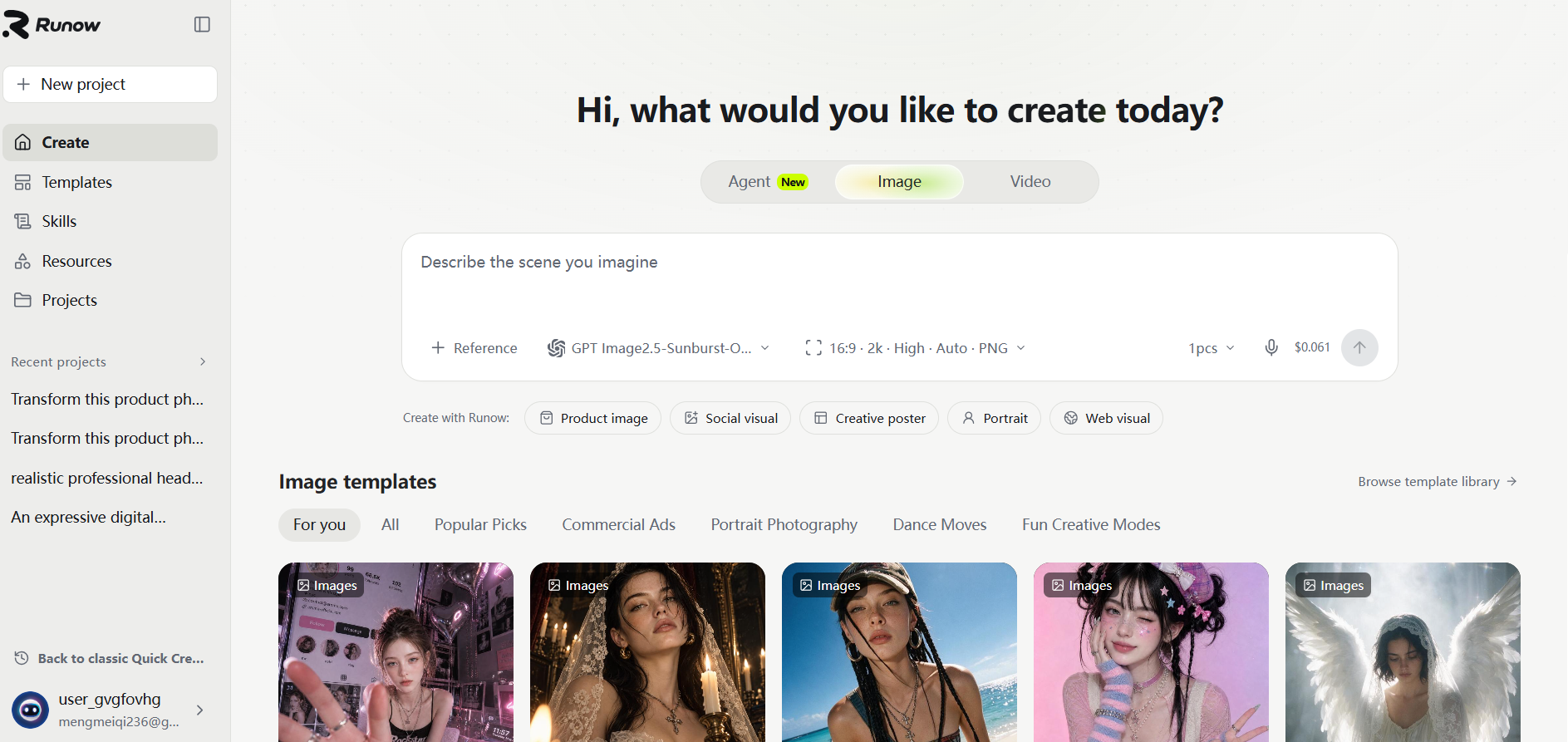
- Choose a compatible model. Review the available options and select one suited to your visual style and requirements.For text-to-image generation, GPT Image2.5-Sunburst-Official is recommended. The quality of the generated images is relatively high and stable.
- Write a structured prompt. Describe the subject, setting, style, composition, lighting, and important details.
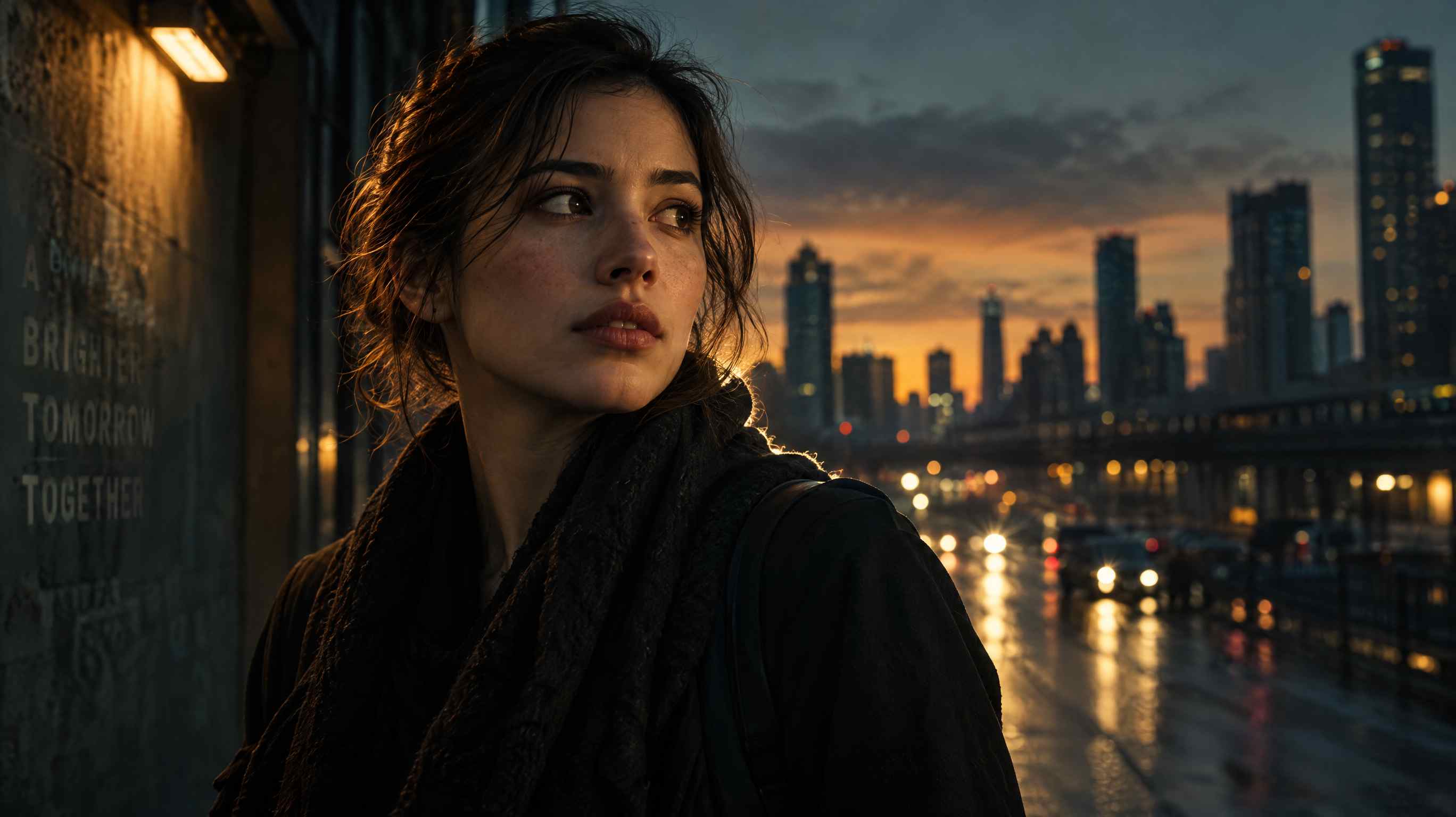
- Example of prompt words: A cinematic portrait of a thoughtful young adult standing in a dimly lit urban setting at dusk. Dramatic side lighting, subtle rim light, rich shadows, muted teal and amber tones, realistic skin texture, shallow depth of field, expressive eyes, film-still composition, atmospheric and emotionally engaging.
- Generate and review. Compare the output against your original idea. Check the subject, framing, colors, and overall style.Enter the prompt word into the Quick Create chat box to get the following picture:
- Refine one or two details. Adjust the prompt or try another suitable model if the result misses the mark.
- Check and save the final image. Inspect text, fine details, unwanted artifacts, and product or character consistency before using it.
If you need more control later, you can investigate compatible AI Apps or ComfyUI workflows. You don't need to learn every part of the platform before completing your first image.
Ready to try it? Explore Quick Create and start with a prompt describing one clear visual idea.
Common Mistakes to Avoid When Creating AI Images
Before using an AI-generated image, run through this short checklist.
- Writing prompts that are too vague: Include enough detail to communicate the intended subject and visual direction.
- Adding conflicting instructions: Prioritize the most important requirements instead of describing several incompatible styles.
- Choosing a model without considering the task: Check whether it supports your desired image type and input method.
- Expecting perfection on the first attempt: Treat generation as an iterative process and refine specific details.
- Skipping the final quality check: Look for distorted objects, inaccurate text, inconsistent features, and unwanted artifacts.
Generated images may need additional editing before professional publication. For commercial projects, review both the image itself and the applicable usage terms.
Frequently Asked Questions
1. How do you create AI images?
Choose an AI image-generation tool, select a suitable model, and describe the image you want in a text prompt. Generate the image, review the result, and refine your prompt if necessary. For more control, use reference images or editing features when your selected tool supports them.
2. How do you generate AI pictures from text?
Enter a description into a compatible text-to-image generator. Include the subject, setting, visual style, composition, and lighting. The model interprets your instructions to create an image. You can then adjust the description and generate another version if the first result doesn't match your expectations.
3. How do you use AI to create an image without design skills?
Start with a browser-based image generator and describe your idea in everyday language. You don't need to draw or understand advanced technical settings. Begin with a simple prompt, review the output, and add details gradually. A direct creation interface can make the process easier for beginners.
4. What makes a good AI image prompt?
A good prompt communicates the intended result clearly. Describe the subject and setting first, then add relevant details about style, composition, lighting, and materials. Keep instructions consistent and prioritize essential features. Longer prompts aren't automatically better; useful details matter more than word count.
5. Can I create AI images without installing software?
Yes. Browser-based and cloud-based services can let you generate images without installing a full AI environment on your computer. RunningHub offers browser-based image-generation options, including its AI Image Generator. Access, available models, and specific features depend on the service and selected tool.
6. Can I use RunningHub to generate AI images?
Yes. RunningHub's official AI Image Generator provides text-to-image generation. The platform also offers AI Apps and customizable workflows for other supported tasks. Choose the entry point that matches your goal, and check the selected model or application's capabilities before relying on a particular feature.
7. How can I make AI-generated images look more realistic?
Choose a suitable model and describe realistic materials, natural lighting, believable perspective, shadows, and composition. For portraits, pay attention to natural expressions and skin texture; for products, specify surfaces and reflections. Generate variations and inspect the details. Some outputs may still require manual corrections.
8. Can AI-generated images be used commercially?
Commercial use depends on the tool's current terms, applicable intellectual property rights, the image's content, and the intended use. Review the service's official terms and any relevant model-specific restrictions. Check logos, trademarks, likenesses, text, and other potentially protected elements before publishing or using an image in a commercial campaign.
Conclusion: Start Creating AI Images
Learning how to create AI images doesn't require mastering every technical setting. Start with a clear visual goal, choose a suitable model, write a structured prompt, and generate an initial image. Then refine the details that matter and check the final result before using it.
As your needs grow, you can explore different models, task-specific applications, or customizable workflows. RunningHub offers several ways to approach AI creation, allowing you to start with a direct generator and investigate more advanced options when necessary.
Start with one idea and turn it into an image: Try the RunningHub AI Image Generator.