
'%3e %3cg id='Vector'%3e %3c/g%3e %3cpath id='Vector_2' d='M14.504 8.522L12.746 4.49C12.6826 4.34486 12.5783 4.22136 12.4458 4.13463C12.3133 4.0479 12.1584 4.0017 12 4.0017C11.8416 4.0017 11.6867 4.0479 11.5542 4.13463C11.4217 4.22136 11.3174 4.34486 11.254 4.49L9.495 8.522C9.305 8.958 8.958 9.306 8.522 9.495L4.49 11.254C4.34486 11.3174 4.22136 11.4217 4.13463 11.5542C4.0479 11.6867 4.0017 11.8416 4.0017 12C4.0017 12.1584 4.0479 12.3133 4.13463 12.4458C4.22136 12.5783 4.34486 12.6826 4.49 12.746L8.523 14.504C8.959 14.694 9.307 15.042 9.496 15.478L11.255 19.511C11.3184 19.6561 11.4227 19.7796 11.5552 19.8664C11.6877 19.9531 11.8426 19.9993 12.001 19.9993C12.1594 19.9993 12.3143 19.9531 12.4468 19.8664C12.5793 19.7796 12.6836 19.6561 12.747 19.511L14.505 15.478C14.695 15.042 15.043 14.694 15.479 14.504L19.512 12.746C19.6571 12.6826 19.7806 12.5783 19.8674 12.4458C19.9541 12.3133 20.0003 12.1584 20.0003 12C20.0003 11.8416 19.9541 11.6867 19.8674 11.5542C19.7806 11.4217 19.6571 11.3174 19.512 11.254L15.479 9.495C15.043 9.30549 14.695 8.95782 14.505 8.522' stroke='var(--stroke-0%2c white)' stroke-width='1.25' stroke-linecap='round' stroke-linejoin='round'/%3e %3cpath id='Vector_3' d='M3 3L5 5' stroke='var(--stroke-0%2c white)' stroke-width='1.25' stroke-linecap='round' stroke-linejoin='round'/%3e %3cpath id='Vector_4' d='M21 3L19 5' stroke='var(--stroke-0%2c white)' stroke-width='1.25' stroke-linecap='round' stroke-linejoin='round'/%3e %3cpath id='Vector_5' d='M3 21L5 19' stroke='var(--stroke-0%2c white)' stroke-width='1.25' stroke-linecap='round' stroke-linejoin='round'/%3e %3cpath id='Vector_6' d='M21 21L19 19' stroke='var(--stroke-0%2c white)' stroke-width='1.25' stroke-linecap='round' stroke-linejoin='round'/%3e %3c/g%3e %3cdefs%3e %3cclipPath id='clip0_0_55'%3e %3crect width='24' height='24' fill='white'/%3e %3c/clipPath%3e %3c/defs%3e %3c/svg%3e)
'%3e %3cg id='Vector'%3e %3c/g%3e %3cpath id='Vector_2' d='M14.375 7.66667H14.385' stroke='var(--stroke-0%2c white)' stroke-width='1.25' stroke-linecap='round' stroke-linejoin='round'/%3e %3cpath id='Vector_3' d='M11.9792 20.125H5.75C4.9875 20.125 4.25624 19.8221 3.71707 19.2829C3.1779 18.7438 2.875 18.0125 2.875 17.25V5.75C2.875 4.9875 3.1779 4.25624 3.71707 3.71707C4.25624 3.1779 4.9875 2.875 5.75 2.875H17.25C18.0125 2.875 18.7438 3.1779 19.2829 3.71707C19.8221 4.25624 20.125 4.9875 20.125 5.75V11.9792' stroke='var(--stroke-0%2c white)' stroke-width='1.25' stroke-linecap='round' stroke-linejoin='round'/%3e %3cpath id='Vector_4' d='M2.875 15.3333L7.66667 10.5417C8.556 9.68587 9.65233 9.68587 10.5417 10.5417L14.375 14.375' stroke='var(--stroke-0%2c white)' stroke-width='1.25' stroke-linecap='round' stroke-linejoin='round'/%3e %3cpath id='Vector_5' d='M13.4167 13.4167L14.375 12.4583C15.0171 11.8412 15.7646 11.6687 16.4661 11.9408' stroke='var(--stroke-0%2c white)' stroke-width='1.25' stroke-linecap='round' stroke-linejoin='round'/%3e %3cpath id='Vector_6' d='M15.3333 18.2083H21.0833' stroke='var(--stroke-0%2c white)' stroke-width='1.25' stroke-linecap='round' stroke-linejoin='round'/%3e %3cpath id='Vector_7' d='M18.2083 15.3333V21.0833' stroke='var(--stroke-0%2c white)' stroke-width='1.25' stroke-linecap='round' stroke-linejoin='round'/%3e %3c/g%3e %3cdefs%3e %3cclipPath id='clip0_0_4'%3e %3crect width='23' height='23' fill='white'/%3e %3c/clipPath%3e %3c/defs%3e %3c/svg%3e)


'%3e %3cg id='Vector'%3e %3c/g%3e %3cpath id='Vector_2' d='M18.3333 10.5001V6.66667C18.3333 5.78261 17.9821 4.93477 17.357 4.30964C16.7319 3.68452 15.8841 3.33333 15 3.33333H5C4.11594 3.33333 3.2681 3.68452 2.64298 4.30964C2.01786 4.93477 1.66667 5.78261 1.66667 6.66667V13.3333C1.66667 14.2174 2.01786 15.0652 2.64298 15.6904C3.2681 16.3155 4.11594 16.6667 5 16.6667H11.6667M15.5 17.0001V12.0001M13 14.5001L15.5 12.0001L18 14.5001' stroke='var(--stroke-0%2c white)' stroke-linecap='round' stroke-linejoin='round'/%3e %3cpath id='Vector_3' d='M8.33333 7.5L12.5 10L8.33333 12.5V7.5Z' stroke='var(--stroke-0%2c white)' stroke-linecap='round' stroke-linejoin='round'/%3e %3c/g%3e %3cdefs%3e %3cclipPath id='clip0_0_4'%3e %3crect width='20' height='20' fill='white'/%3e %3c/clipPath%3e %3c/defs%3e %3c/svg%3e)
'%3e %3cg id='Vector'%3e %3c/g%3e %3cpath id='Vector_2' d='M16.25 10.8333L21.1824 8.36767C21.3475 8.28515 21.531 8.2462 21.7154 8.25451C21.8998 8.26281 22.079 8.3181 22.2361 8.41512C22.3931 8.51214 22.5228 8.64768 22.6127 8.80888C22.7026 8.97007 22.7499 9.15158 22.75 9.33617V16.6638C22.7499 16.8484 22.7026 17.0299 22.6127 17.1911C22.5228 17.3523 22.3931 17.4879 22.2361 17.5849C22.079 17.6819 21.8998 17.7372 21.7154 17.7455C21.531 17.7538 21.3475 17.7148 21.1824 17.6323L16.25 15.1667V10.8333Z' stroke='var(--stroke-0%2c white)' stroke-width='1.25' stroke-linecap='round' stroke-linejoin='round'/%3e %3cpath id='Vector_3' d='M3.25 8.66667C3.25 8.09203 3.47827 7.54093 3.8846 7.1346C4.29093 6.72827 4.84203 6.5 5.41667 6.5H14.0833C14.658 6.5 15.2091 6.72827 15.6154 7.1346C16.0217 7.54093 16.25 8.09203 16.25 8.66667V17.3333C16.25 17.908 16.0217 18.4591 15.6154 18.8654C15.2091 19.2717 14.658 19.5 14.0833 19.5H5.41667C4.84203 19.5 4.29093 19.2717 3.8846 18.8654C3.47827 18.4591 3.25 17.908 3.25 17.3333V8.66667Z' stroke='var(--stroke-0%2c white)' stroke-width='1.25' stroke-linecap='round' stroke-linejoin='round'/%3e %3cpath id='Vector_4' d='M7.58333 13H11.9167' stroke='var(--stroke-0%2c white)' stroke-width='1.25' stroke-linecap='round' stroke-linejoin='round'/%3e %3cpath id='Vector_5' d='M9.75 10.8333V15.1667' stroke='var(--stroke-0%2c white)' stroke-width='1.25' stroke-linecap='round' stroke-linejoin='round'/%3e %3c/g%3e %3cdefs%3e %3cclipPath id='clip0_0_47'%3e %3crect width='26' height='26' fill='white'/%3e %3c/clipPath%3e %3c/defs%3e %3c/svg%3e)
'%3e %3cg id='Vector'%3e %3c/g%3e %3cpath id='Vector_2' d='M4 7H7M11 7H20' stroke='var(--stroke-0%2c white)' stroke-width='1.25' stroke-linecap='round' stroke-linejoin='round'/%3e %3cpath id='Vector_3' d='M4 17H20' stroke='var(--stroke-0%2c white)' stroke-width='1.25' stroke-linecap='round' stroke-linejoin='round'/%3e %3cpath id='Vector_4' d='M7 4L7 20' stroke='var(--stroke-0%2c white)' stroke-width='1.25' stroke-linecap='round' stroke-linejoin='round'/%3e %3cpath id='Vector_5' d='M17 4V13M17 17V20' stroke='var(--stroke-0%2c white)' stroke-width='1.25' stroke-linecap='round' stroke-linejoin='round'/%3e %3c/g%3e %3cdefs%3e %3cclipPath id='clip0_0_60'%3e %3crect width='24' height='24' fill='white'/%3e %3c/clipPath%3e %3c/defs%3e %3c/svg%3e)
'%3e %3cg id='Vector'%3e %3c/g%3e %3cpath id='Vector_2' d='M6 10L4 11L12 15L20 11L18 10' stroke='var(--stroke-0%2c white)' stroke-width='1.25' stroke-linecap='round' stroke-linejoin='round'/%3e %3cpath id='Vector_3' d='M4 15L12 19L20 15' stroke='var(--stroke-0%2c white)' stroke-width='1.25' stroke-linecap='round' stroke-linejoin='round'/%3e %3cpath id='Vector_4' d='M12 4V11' stroke='var(--stroke-0%2c white)' stroke-width='1.25' stroke-linecap='round' stroke-linejoin='round'/%3e %3cpath id='Vector_5' d='M15 8L12 11L9 8' stroke='var(--stroke-0%2c white)' stroke-width='1.25' stroke-linecap='round' stroke-linejoin='round'/%3e %3c/g%3e %3cdefs%3e %3cclipPath id='clip0_0_9'%3e %3crect width='24' height='24' fill='white'/%3e %3c/clipPath%3e %3c/defs%3e %3c/svg%3e)


Create Video from Text: A Practical Guide to AI Video Creation
Learn to create video from text with clear prompts, smart model choices, and better shot planning. Explore AI video workflows and refine ideas on RunningHub.
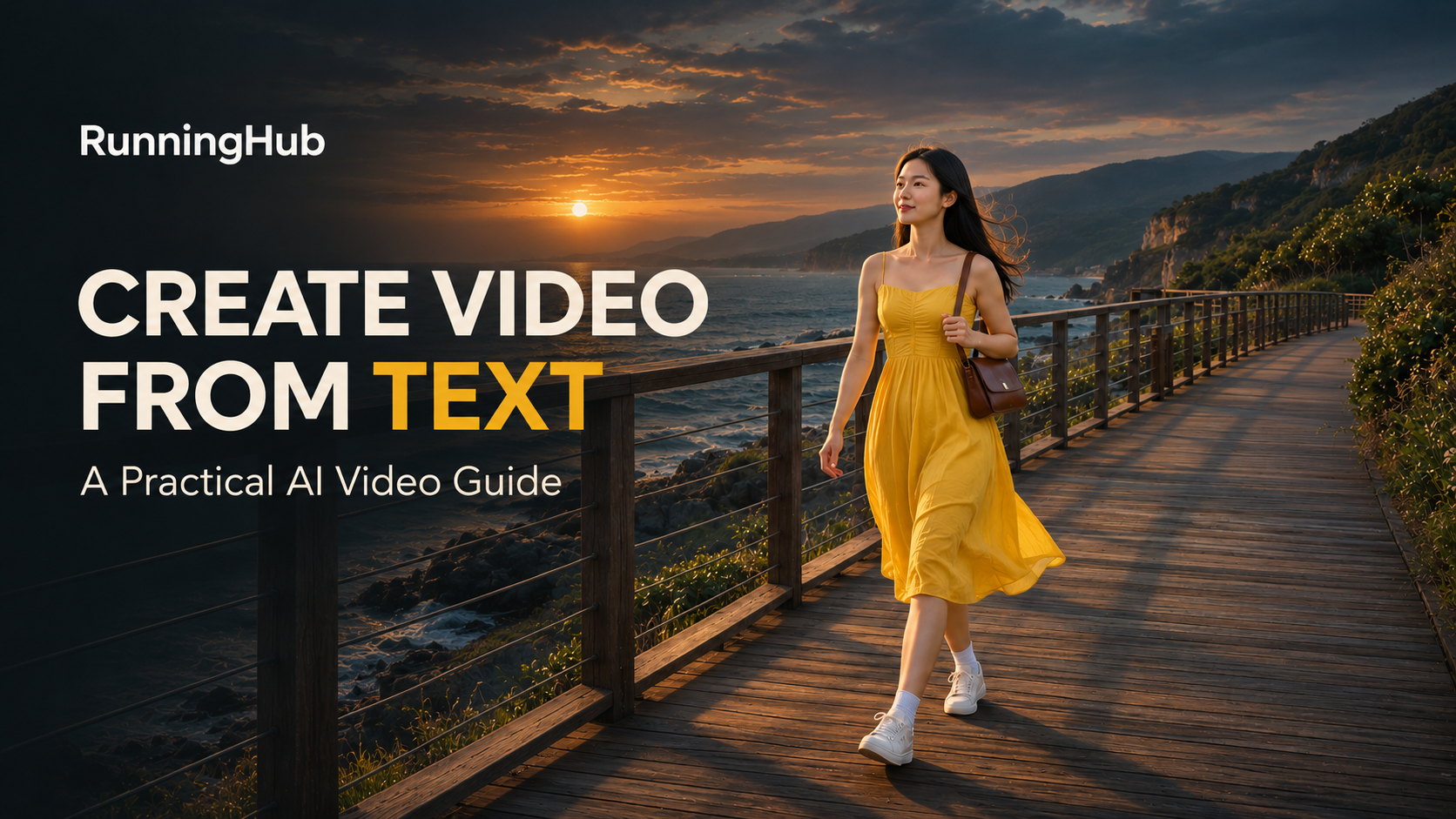
A short description can suggest a compelling video: a traveler walking beside the sea, sunlight catching a glass bottle, or an animated street coming to life. The challenge is turning that idea into a shot with clear action, believable movement, and a camera that supports the scene.
To create video from text, you need to describe what changes over time. Who moves? Where does the camera go? What should remain consistent? Answering these questions gives the model clearer direction and gives you a practical way to judge the result.
This guide covers shot planning, prompt writing, model selection, and revision, using a coastal travel scene as a working example.
What Does It Mean to Create Video from Text?
Text-to-video generation uses a written description to produce a moving sequence. The prompt supplies information about the subject, environment, action, and visual treatment, while the selected model determines how those instructions become footage.
This differs from image-to-video, which begins with a supplied still image. It also differs from tools that assemble stock clips around a script. When choosing a service, check whether it generates the scene itself and whether your selected mode accepts text without an image.
Useful applications include travel concepts, product scenes, social posts, establishing shots, and visual ideas for a larger project. Begin with a short, self-contained moment. A character taking two steps is easier to direct and evaluate than an entire journey compressed into one request.
For a longer piece, plan several individual shots and connect the selected clips during editing.
Plan Your Shots Before You Generate AI Video from Text
Start with the viewing goal. A travel clip might establish a place and a mood; a product clip might reveal a material or silhouette. Decide what the audience should notice first, then choose the framing and movement that make it visible.
For our example, the goal is a calm coastal travel moment. A young adult traveler walks along a wooden boardwalk at sunrise. The camera follows from the side, keeping both her full body and the surrounding coastline visible.
Distinguish subject movement from camera movement. Walking changes the character’s position within the environment. Tracking changes the camera’s position alongside her. A slow push-in moves closer to the subject. Asking for tracking, a rapid zoom, and a full orbit together can make the intended shot difficult to interpret.
A simple plan could contain three separate shots:
| Shot | Visual purpose | Subject action | Camera direction |
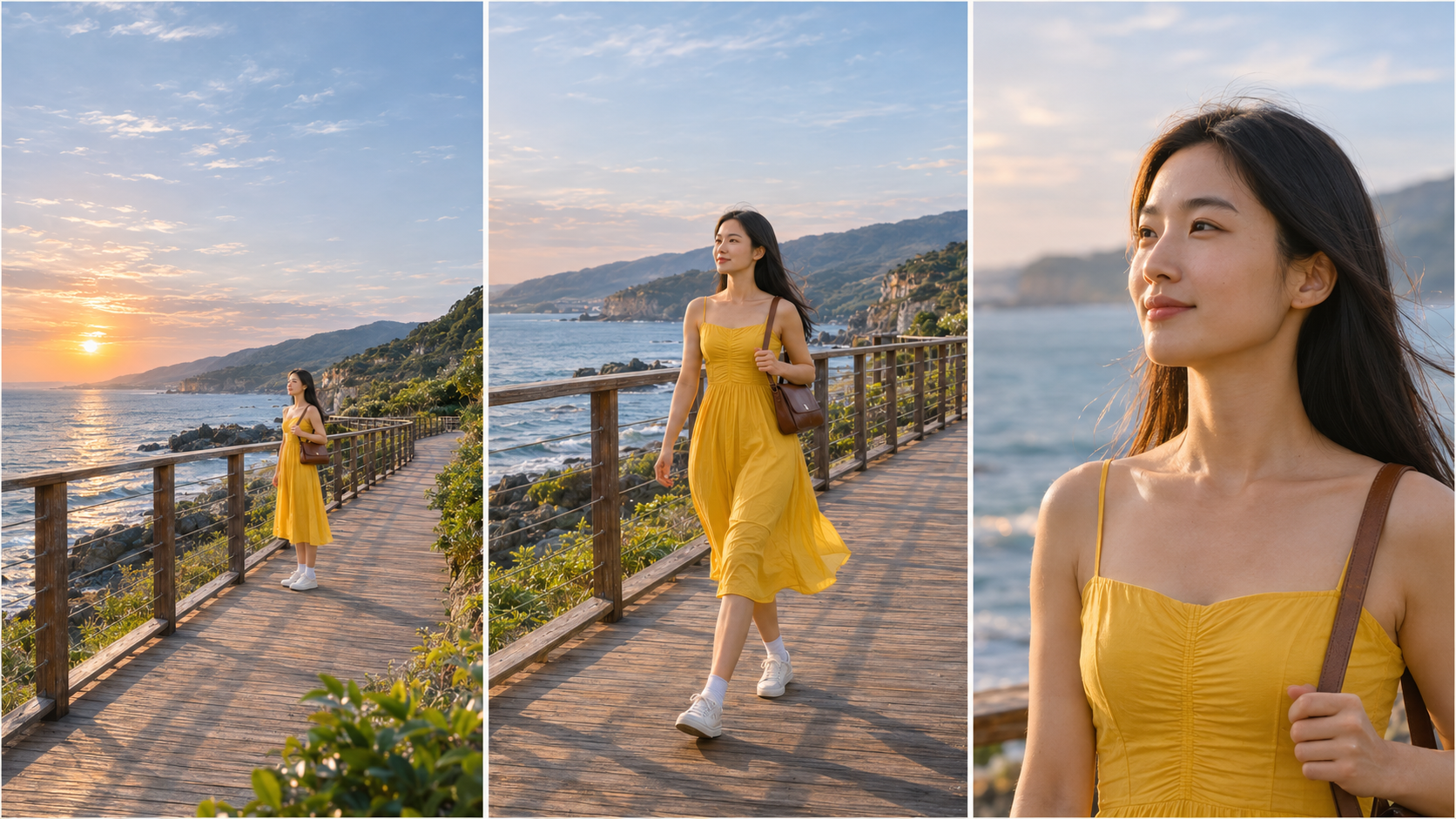
| Opening | Establish the coastline and boardwalk | Traveler pauses beside the railing | Static wide shot |
| Main | Show the traveler moving through the setting | She takes two unhurried steps | Smooth side tracking |
| Detail | End with a human connection | She looks toward the sea | Steady medium close-up |
Generate these separately if you need the sequence. The main prompt below covers only the walking shot.
Keep the scene’s geography understandable. If the ocean is on one side of the boardwalk in the opening, preserve that relationship in the following shot. Consistent movement direction, weather, and wardrobe help separate clips feel like parts of the same place. Changing several of these details at once can make a simple sequence harder to follow.
Plan the ending as well as the opening. Leaving a brief calm moment after an action can make a clip easier to join to another shot.
How to Write a Clear Text-to-Video Prompt
Use this structure: subject, setting, action, framing and camera movement, lighting and style, then essential constraints.
Begin with details that affect the visible scene. Give the traveler long, straight black hair, a yellow dress, white sneakers, and a brown shoulder bag. These details establish a recognizable design, although repeating a description alone does not guarantee the same face across separate generations.
Next, describe one main action with a clear direction. Two slow steps along the boardwalk give the model a more manageable event than walking, waving, turning, opening a bag, and running within the same shot.
Specify the camera’s relationship to that action. A full-body side-tracking view should leave room for the environment and keep the shoes inside the frame. If the boardwalk railing appears miniature beside the person, the shot needs better spatial direction.
A vague request might look like the short prompt below.
A cinematic video of a woman at the beach.
The revised prompt adds observable details and defines a single continuous shot.
One continuous full-body shot of a young adult female traveler on a wooden coastal boardwalk at sunrise. She has long, straight black hair and wears a yellow dress, white ankle socks, white sneakers, and a small brown leather shoulder bag on her left shoulder.She takes two slow, natural steps forward along the boardwalk, looking down the path, then comes to a relaxed stop.The camera tracks smoothly beside her at walking speed, maintaining a full-body view and a stable distance. Show the ocean, a normal-height railing, and the boardwalk around her, with natural human-to-environment proportions.Soft morning light, a light sea breeze, refined cinematic photorealism with a premium film aesthetic, natural skin texture, realistic fabric detail, and restrained film color grading. Gentle waves and slight movement in her hair and clothing.No cuts, sudden zooms, extra people, text, logos, or watermarks. No 3D illustration, CGI styling, cartoon effects, or plastic-looking skin.
For this exercise, the input is text only. No character photograph, product image, or motion reference is required. Use a text-to-video mode and choose the actual duration and output format in its settings.
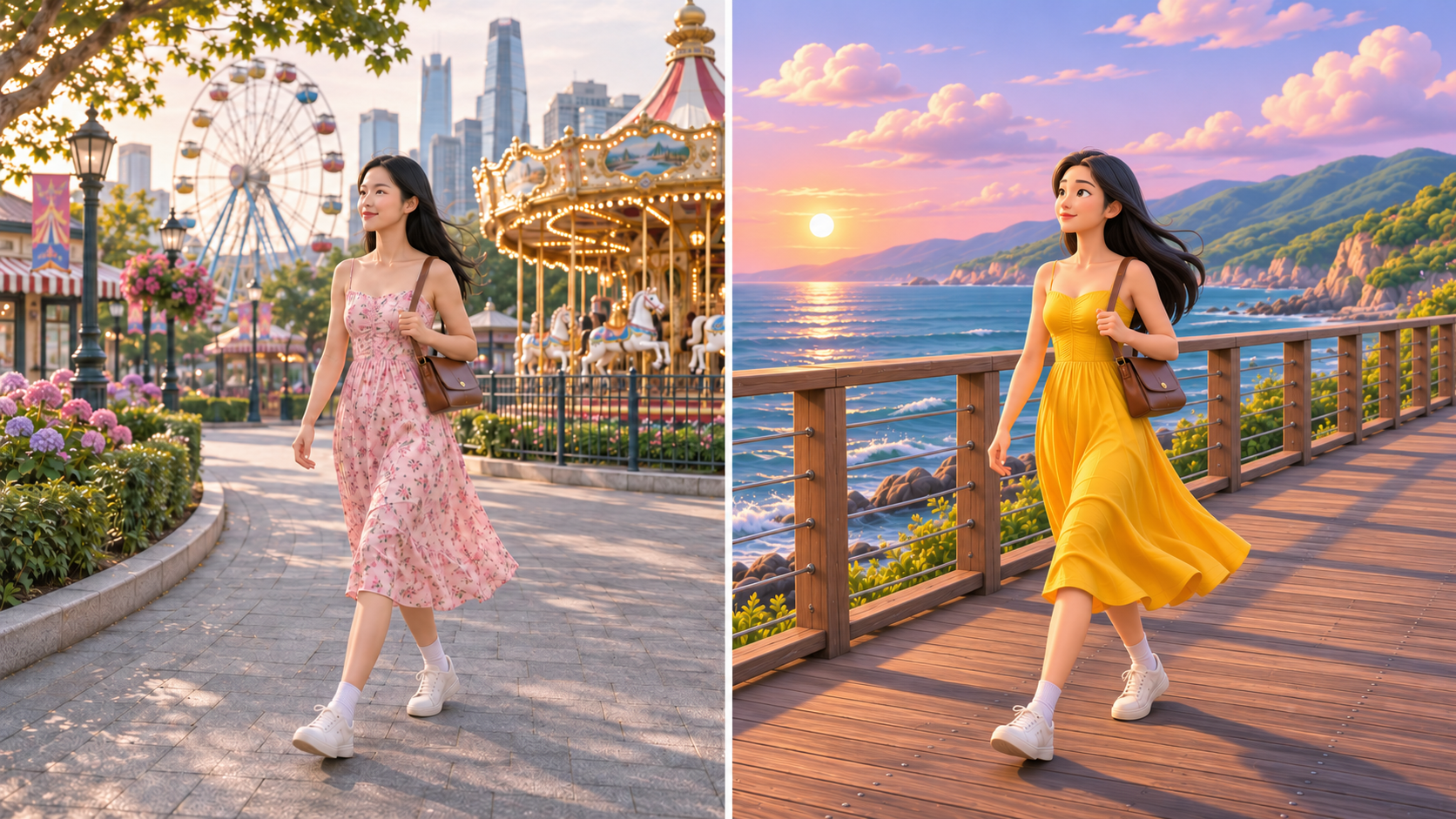
The prompt is adaptable. Replace the coast with a city park, change the wardrobe, or use an illustrated treatment. Keep the core action and camera instruction stable while checking each change. If a model provides automatic prompt expansion, review the expanded wording when possible so added actions do not undermine your plan.
How to Choose a Video Generator from Text
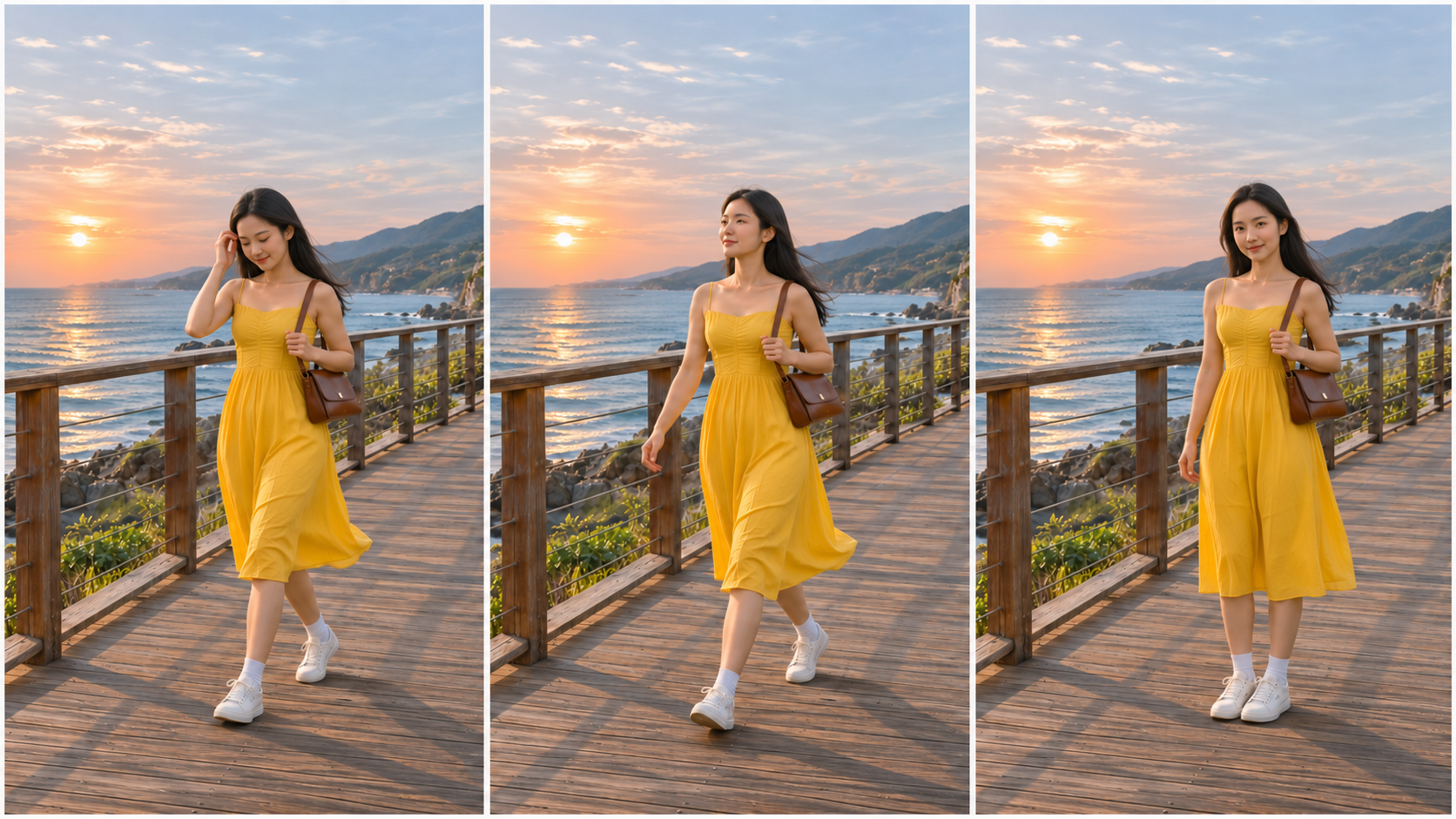
Choose around the shot you want to make. A model that produces appealing scenery may still need a different prompt for walking, handling objects, or close-up expressions. Evaluate the selected version and mode against your own task.
| Selection factor | What to check |
| Prompt interpretation | Does the requested action happen, with the intended framing? |
| Motion and continuity | Do limbs, objects, clothing, and backgrounds remain plausible over time? |
| Visual treatment | Does the output suit your realistic, illustrated, or product-focused direction? |
| Output options | Are the required duration, aspect ratio, resolution, and audio options available? |
| Iteration cost | What will several revisions cost at those settings? |
The first frame cannot tell you whether a video is usable. Watch the entire clip, including its ending, and inspect interaction points such as feet meeting the ground or hands approaching objects.
Compare at similar settings where the tools allow it. Record differences when they cannot match. A longer, higher-resolution generation with audio enabled is a different production request from a short silent draft.
Consider cost per usable shot, too. A lower-priced attempt may offer little saving if it repeatedly misses the action. Conversely, an expensive setting can be unnecessary while you are still deciding the composition.
Match the review to the task. For travel footage, look at walking rhythm, horizon stability, and how the environment moves behind the subject. For product footage, watch edges, reflections, and whether the item’s shape changes. For animation, check that the intended design and movement style remain coherent. These observations are more useful than selecting a model from a single attractive thumbnail.
If sound matters, confirm whether the selected mode generates audio and what controls it exposes. A request for waves or footsteps is meaningful only when audio generation is supported. Otherwise, plan a separate sound layer in your editor.
Generate Your First Clip and Compare the Results
Once the prompt is ready, you can use a video generation platform to produce the shot. During platform selection, consider whether you can explore multiple models in one place. That can make it easier to carry the same brief between options and compare their interpretation.
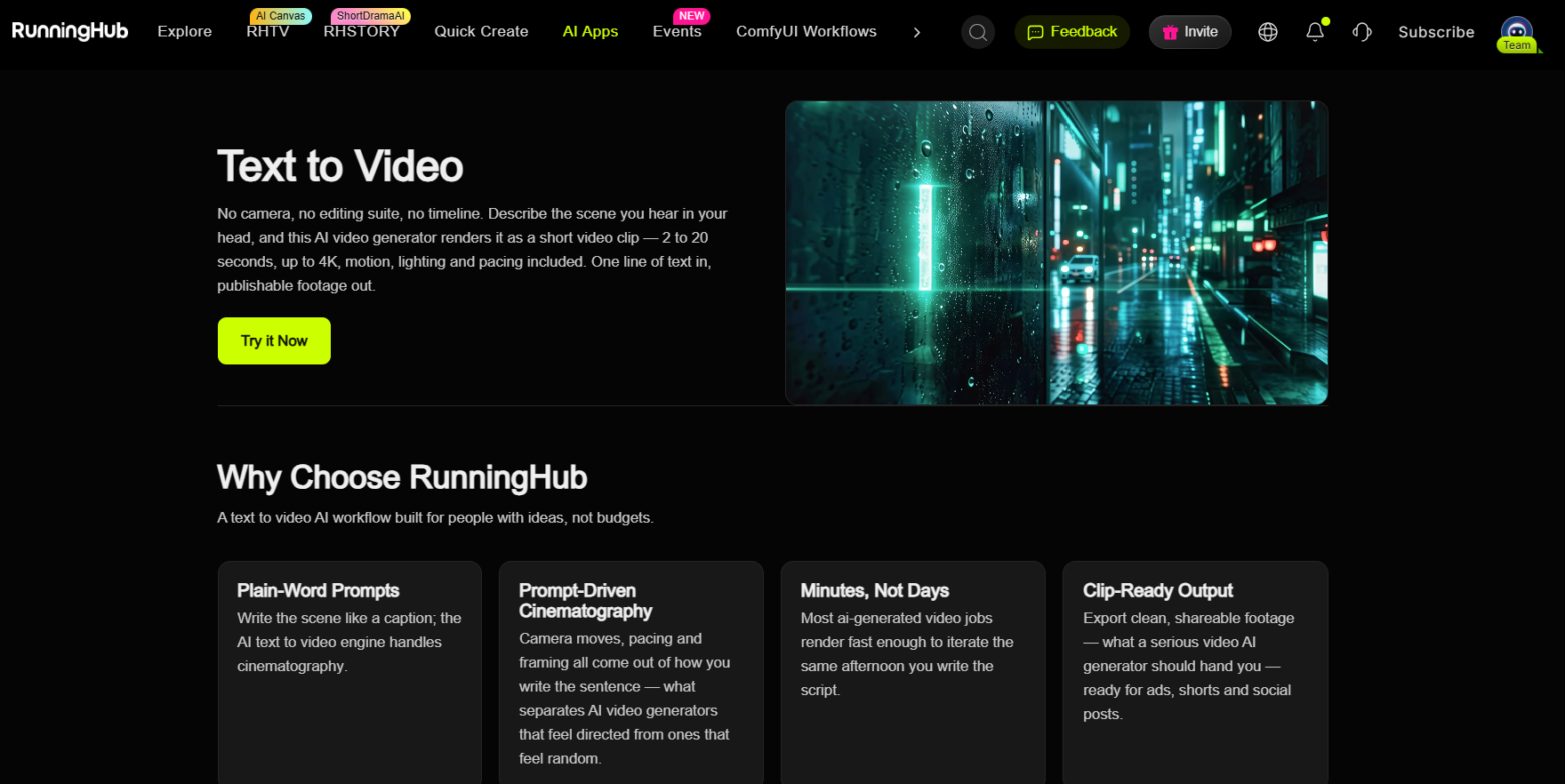
RunningHub is one example. Its Text to Video AI page introduces text-driven scene generation. Dedicated AI Apps include Seedance 2.5 Text to Video, Keling v3.0 Std, and Wan 2.6 Text to Video. Inspect each app’s inputs, available settings, and billing information before choosing.
The practical benefit is having a consistent creative brief while exploring different approaches. You can ask which result follows the walking direction, maintains natural proportions, and delivers the atmosphere you want. Those observations provide a useful basis for choosing your next revision.
Prepare the Generation
For one independent clip, start with Quick Create and inspect the video options available to your account. Alternatively, open a dedicated text-to-video app and follow its own input form.
Select a text-to-video option that accepts text alone. Paste the coastal prompt, then check that the wording still describes one action and one camera move. If the form requires an image, choose another mode for this text-only exercise.
Set the aspect ratio to 16:9 when supported. Choose an available short duration that leaves time for the two steps, and select a resolution appropriate for an initial review. Check the displayed charge before submitting. Writing a duration or aspect ratio inside the prompt does not replace the actual output settings.
Review, Compare, and Organize
When you generate, first check whether the intended event happens. Then review anatomy, ground contact, clothing, bag position, camera behavior, and the person’s scale relative to the railing and boardwalk.
To compare another model, keep the core prompt and target framing unchanged. Record the version, duration, resolution, audio setting, and cost alongside each result. If settings differ, account for that when judging the clips.
For a project with several shots, RHTV Canvas provides a workspace for organizing scenes and versions. RunningHub’s canvas workflow guide describes planning scenes, generating versions, and refining a project within that workspace.
Start with the individual walking shot, then organize the opening and detail shots if you expand the idea. Keep each shot’s prompt distinct so you can revise one part without rewriting the whole sequence.
How to Improve AI-Generated Video Results
Useful revision starts with naming the problem. Change the instruction most closely related to the failure, then review the next result against the same goal.
| Problem | Practical adjustment |
| Action is rushed or confused | Reduce the number of events and state a simple beginning and ending. |
| Camera movement feels unpredictable | Keep one primary move and specify its relationship to the subject. |
| The person looks oversized | Request a wider environmental view, grounded perspective, and recognizable scale cues. |
| Clothing or objects drift | Simplify movement and reconsider whether a reference-guided mode would suit the task. |
| A hand or foot deforms during movement | Try a slower action, a clearer view, or another model. |
| The video misses the main instruction | Remove competing requests and make the desired action explicit. |
Suppose the traveler turns toward the camera instead of walking along the boardwalk. Make the walking direction explicit and keep her gaze toward the path. Adding more lighting adjectives will not address that specific problem.
If the camera moves too aggressively, replace broad cinematic language with a concrete instruction such as a steady side-tracking view at walking speed. Keep perspective and subject size stable before adding more elaborate movement.
For recurring characters or exact product designs, explore AI Reference to Video. Supplying a visual reference changes the input strategy and can support appearance control. Continue checking the output, especially during turns, occlusion, and movement.
After selecting a usable take, trim weak opening or closing moments and assemble the sequence. Add captions, branding, music, or voiceover during editing when needed. If the chosen model supports generated audio, evaluate that track separately for timing and unwanted sounds.
Upscaling and sharpening belong after the action and composition work. They can change presentation quality, but they do not reliably repair incorrect anatomy or an action that never happened. Keep the original file and inspect any enhanced version before export.
FAQ
How can AI generate video from text?
A text-to-video model interprets a written description and generates a sequence of moving images. The prompt describes the subject, setting, action, and camera direction. Select a text-only generation mode, configure its supported output settings, and review the clip against your intended shot.
Do I need an image to create video from text?
No, when the selected model and mode support text-only input. An image becomes useful when you want stronger control over appearance, composition, or an existing product. That uses an image-guided or reference-guided workflow with its own input requirements.
Why does my AI video ignore parts of the prompt?
The request may contain conflicting camera directions, too many actions, or details that the selected model handles poorly. Simplify the shot, make the main action explicit, and change one important variable at a time. Another model may interpret the same brief differently.
How can I keep a character consistent across several clips?
Repeat essential appearance details and use a suitable reference-guided mode when identity matters. Reuse the same approved references and review every clip for changes in face, hair, wardrobe, and proportions. Text descriptions alone offer limited control over exact identity.
Can I create a longer video from several AI-generated clips?
Yes. Plan individual shots, generate them separately, and assemble selected takes in a video editor. Match character design, lighting, screen direction, and pacing across cuts. Keep the prompts and settings for each shot so later revisions are easier to manage.
Conclusion
To create video from text, begin with a clear moment: a subject, an action, a setting, and a camera with a purpose. Write those decisions into the prompt, choose a suitable model, and evaluate the movement across the entire clip.
RunningHub offers ways to explore text-to-video apps and organize larger projects. Start with one manageable shot, compare interpretations, and revise the instruction connected to the problem. A deliberate cycle of planning, generation, and review helps turn a written idea into footage you can shape into a finished piece.